
Apple has separated its three time-based categories into separate apps on Apple Watch. This allows you to quickly access the specific feature of the timer, alarm, and stopwatch you want with just a few taps.
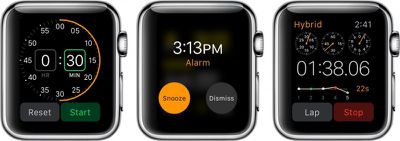
Apple Watch Timer_Alarm_Stopwatch
While most of it is self-explanatory, we've got some tips for how to get the most out of each of these apps so they work the way you want, when you want.

Timer

The Timer app on Apple watch makes it possible for you to set a timer right from your wrist so you don't have to search out your iPhone to activate or even turn off the alert when time is up.
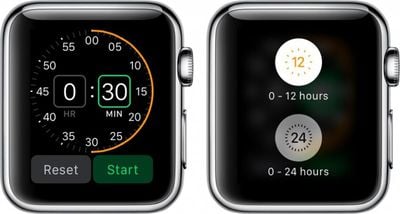
Apple Watch Timer
Tap the Timer app icon on Apple Watch to open it. Then rotate the Digital Crown to adjust the time. When ready, tap the Start button.

You can switch between a timer that goes from zero to 12 hours and a timer that goes from zero to 24 hours by firmly pressing the display screen.

Alarm

The Alarm app on Apple Watch is completely separate from the iPhone, but the two are not mutually exclusive. Alarms will not sync between devices. However, if you are wearing Apple Watch when an alarm goes off on your iPhone, you will receive an alert and be able to dismiss or snooze it.
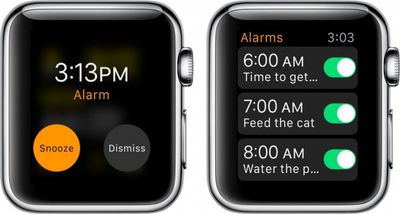
Apple Watch Alarm

To set an alarm on Apple Watch:

  1. Open the Alarm app on Apple Watch.
  2. Firmly press the screen to call up the add (+) symbol.
  3. Change the time and repetition. Name the alarm using Dictation. Turn on or off the snooze feature.
  4. Toggle the alarm on or off when you want to activate it.

To delete an alarm, tap it. Then, scroll to the bottom and tap Delete.

Stopwatch

The Stopwatch app on Apple Watch is robust with multiple options for tracking your fitness routine and other activities you might want to use a stopwatch with.
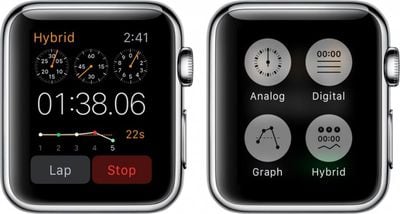
Apple Watch Stopwatch
There are four different types of stopwatches. To access the different types, firmly press on the screen to call up the four stopwatch icons.

Analog:
The Analog display shows the seconds on a minute clock face. Tap the green button to start the stopwatch. Tap the white button to set a new lap or reset the data. Tap the red button to stop the stopwatch.

Digital:
The Digital display shows the minutes, seconds, and milliseconds as digital data. Tap the Start button to start the stopwatch. Tap the Lap button to set a new lap. Tap the Stop button to stop the stopwatch. Tap Reset to clear the data.

Graph:
The Graph display shows the information on a graph based on how much more or less time each lap uses. Follow the instructions for the Digital display to control the Graph display.

Hybrid:
The Hybrid display shows the most important features of all three. The analog clock face shows the minutes, seconds, and milliseconds, as does the digital data. The graph shows your progress as it pertains to the previous lap. Follow the instructions for the digital display to control the Hybrid display.

With the Timer, Alarm, and Stopwatch apps on Apple Watch, you can quickly and easily access the same features available within the iPhone's Clock app, but without having to navigate through so many sections. Each app is specially designed to optimize its most important features.


Related Roundup: Apple Watch 11
Buyer's Guide: Apple Watch (Neutral)

Top Rated Comments

keysofanxiety Avatar
138 months ago
Next week's article: "How to use the home button on the iPhone"
Score: 13 Votes (Like | Disagree)
Arran Avatar
138 months ago
Next week's article: "How to use the home button on the iPhone"
It does a lot more than many people realize.
Score: 6 Votes (Like | Disagree)
cdm283813 Avatar
138 months ago
If you hate MR so much, why don't you just go elsewhere to complain?
Maybe he did not see the previous article on how to do that.
Score: 5 Votes (Like | Disagree)
BillyTrimble Avatar
138 months ago
Next week's article: "How to use the home button on the iPhone"
I found this to be a useful article. If you hate MR so much, why don't you just go elsewhere to complain?
Score: 4 Votes (Like | Disagree)
Arran Avatar
138 months ago
Well, I didn't know you could force-touch on the timer.

Good article.
Score: 3 Votes (Like | Disagree)
Benjamin Frost Avatar
138 months ago
Well, I didn't know you could force-touch on the timer.

Good article.
It suggests that force touch is fundamentally not a good idea, as you can't ever know what it is used for; the very opposite of a transparent user-interface, ironically, given the invisibility of its appearance.
Score: 2 Votes (Like | Disagree)

Popular Stories

wwdc sans text feature

Apple Rumored to Announce New Product on February 19

Thursday February 5, 2026 12:22 pm PST by
Apple plans to announce the iPhone 17e on Thursday, February 19, according to Macwelt, the German equivalent of Macworld. The report, citing industry sources, is available in English on Macworld. Apple announced the iPhone 16e on Wednesday, February 19 last year, so the iPhone 17e would be unveiled exactly one year later if this rumor is accurate. It is quite uncommon for Apple to unveil...
Apple Logo Zoomed

Tim Cook Teases Plans for Apple's Upcoming 50th Anniversary

Thursday February 5, 2026 12:54 pm PST by
Apple turns 50 this year, and its CEO Tim Cook has promised to celebrate the milestone. The big day falls on April 1, 2026. "I've been unusually reflective lately about Apple because we have been working on what do we do to mark this moment," Cook told employees today, according to Bloomberg's Mark Gurman. "When you really stop and pause and think about the last 50 years, it makes your heart ...
Finder Siri Feature

Why Apple's iOS 26.4 Siri Upgrade Will Be Bigger Than Originally Promised

Friday February 6, 2026 3:06 pm PST by
In the iOS 26.4 update that's coming this spring, Apple will introduce a new version of Siri that's going to overhaul how we interact with the personal assistant and what it's able to do. The iOS 26.4 version of Siri won't work like ChatGPT or Claude, but it will rely on large language models (LLMs) and has been updated from the ground up. Upgraded Architecture The next-generation...
maxresdefault

Apple Shows Off a Key Reason to Upgrade to the iPhone 17

Saturday February 7, 2026 9:26 am PST by
Apple today shared an ad that shows how the upgraded Center Stage front camera on the latest iPhones improves the process of taking a group selfie. "Watch how the new front facing camera on iPhone 17 Pro takes group selfies that automatically expand and rotate as more people come into frame," says Apple. While the ad is focused on the iPhone 17 Pro and iPhone 17 Pro Max, the regular iPhone...
iOS 26

iOS 26.3 and iOS 26.4 Will Add These New Features to Your iPhone

Tuesday February 3, 2026 7:47 am PST by
While the iOS 26.3 Release Candidate is now available ahead of a public release, the first iOS 26.4 beta is likely still at least a week away. Following beta testing, iOS 26.4 will likely be released to the general public in March or April. Below, we have recapped known or rumored iOS 26.3 and iOS 26.4 features so far. iOS 26.3 iPhone to Android Transfer Tool iOS 26.3 makes it easier...














