Apple Watch Ultra: How to Activate, Cancel, and Disable the Siren - MacRumors
Skip to Content

Apple Watch Ultra: How to Activate, Cancel, and Disable the Siren

by

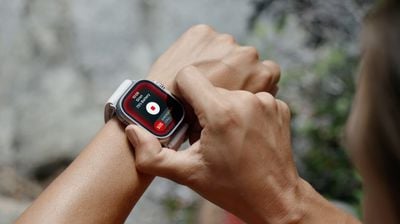
If you ever become lost, injured, or have some other emergency situation and want to draw attention to your location, ‌Apple Watch Ultra‌ includes an 86-decibel siren that you can use.
ultra siren watch
The siren uses a unique sound signature that incorporates two distinct alternating patterns, which can repeat for several hours. The first pattern suggests distress, while the second mimics the universally recognized SOS pattern, and the siren can be heard up to 600 feet or 180 meters away.

As such, it's pretty loud, so don't turn it on in enclosed environments or hold your watch close to your ears when the Siren is sounding.

How to Turn on Siren on Apple Watch Ultra

You can turn on the Siren using the Action button or the side button.

Using the Action Button:

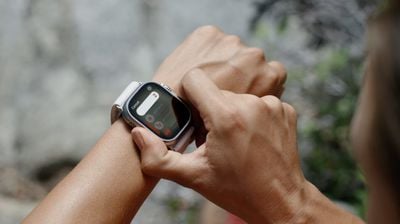
  1. Press and hold the Action button until the Siren slider appears.
  2. Drag the Siren slider to start a countdown.
  3. After the countdown, the Siren starts.

Alternatively, you can press and hold the Action button to start the countdown, then continue holding the Action button until Siren starts. If you don't want the Siren going off using this continual hold action, go to Settings -> Action Button, and switch off the toggle next to Hold to Turn On.
siren countdown

Using the Side Button

  1. Press and hold the Side button until the Siren slider appears.
  2. Drag the Siren slider to start a countdown.
  3. After the countdown, the Siren starts.

How to Cancel the Siren on Apple Watch Ultra

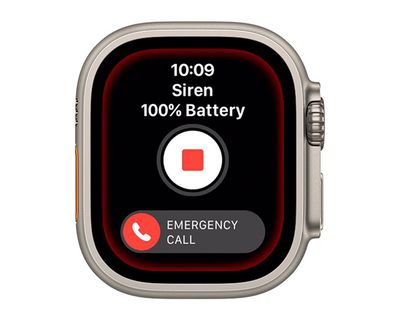
You can cancel the Siren during the countdown. If you're holding the Action button, simply release it to cancel. If you initiated the countdown by dragging the Siren slider, cover the watch display with the palm of your hand for at least three seconds to cancel.
watch
To cancel the Siren while it's sounding, simply tap the central Stop button in the Siren app.

How to Disable the Siren Action Button Function

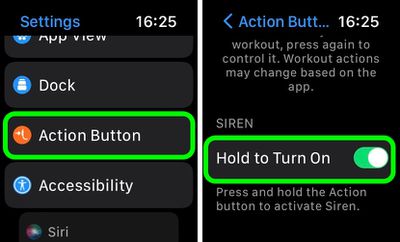
If you're concerned about the possibility of accidentally activating the Siren via a long press of the Action button, you can disable the function. Here's how.

  1. Launch the Settings app on your Apple Watch Ultra.
  2. Tap Action Button.
  3. Scroll down and under "Siren" toggle off the switch next to Hold to Turn On.
settings

Once that's done, holding down the Action button won't activate the Siren. Note that you can still activate the Siren by way of the Action Button, but now you have to hold the button and then swipe across the Siren slider, making it much harder to unintentionally sound the alert.


Related Roundup: Apple Watch Ultra 3
Related Forum: Apple Watch

Top Rated Comments

AlexisV Avatar
46 months ago


Attachment Image
Score: 4 Votes (Like | Disagree)
46 months ago

This seems like a feature that could and should be included in every Apple Watch
Survival is an apple watch ultra exclusive feature
Score: 2 Votes (Like | Disagree)
FloridaScrubJay Avatar
46 months ago
Hope it is not used as an alternative for the flight attendant call button on airplanes. 😳
Score: 2 Votes (Like | Disagree)
OliOliOliOli Avatar
46 months ago

If you ever become lost, injured, or have some other emergency situation and want to draw attention to your location, ‌Apple Watch Ultra‌ includes an 86-decibel siren that you can use.


The siren uses a unique sound signature that incorporates two distinct alternating patterns, which can repeat for several hours. The first pattern suggests distress, while the second mimics the universally recognized SOS pattern, and the siren can be heard up to 600 feet or 180 meters away.

As such, it's pretty loud, so don't turn it on in enclosed environments or hold your watch close to your ears when the Siren is sounding.

How to Turn on Siren on Apple Watch Ultra

You can turn on the Siren using the Action button or the side button.
Using the Action Button:

[LIST=1]
* Press and hold the Action button until the Siren slider appears.
* Drag the Siren slider to start a countdown.
* After the countdown, the Siren starts.

Alternatively, you can press and hold the Action button to start the countdown, then continue holding the Action button until Siren starts. If you don't want the Siren going off using this continual hold action, go to Settings -> Action Button, and switch off the toggle next to Hold to Turn On.


Using the Side Button

[LIST=1]
* Press and hold the Side button until the Siren slider appears.
* Drag the Siren slider to start a countdown.
* After the countdown, the Siren starts.

How to Cancel the Siren on Apple Watch Ultra

You can cancel the Siren during the countdown. If you're holding the Action button, simply release it to cancel. If you initiated the countdown by dragging the Siren slider, cover the watch display with the palm of your hand for at least three seconds to cancel.


To cancel the Siren while it's sounding, simply tap the central Stop button in the Siren app.

Article Link: Apple Watch Ultra: How to Use the Built-In Siren to Signal for Help ('https://www.geekwebguides.com/how-to/apple-watch-ultra-use-siren/')
It’s strange, that’s is also a great option for womens in dangerous situations and no one mention it…
Score: 1 Votes (Like | Disagree)
Madhatter32 Avatar
46 months ago
If you actually need this feature you are in a world of hurt.
Score: 1 Votes (Like | Disagree)
46 months ago
A great feature to obnoxiously let everyone in your surrounding know you bought an apple Watch ultra
Score: 1 Votes (Like | Disagree)

Popular Stories

iOS 26

iOS 26.4 Adds Two New Features to CarPlay

Tuesday March 24, 2026 1:55 pm PDT by
iOS 26.4 was released today, and it includes a couple of new features for CarPlay: an Ambient Music widget and support for voice-based chatbot apps. To update your iPhone 11 or newer to iOS 26.4, open the Settings app and tap on General → Software Update. CarPlay will automatically offer the new features so long as the iPhone connected to your vehicle is running iOS 26.4 or later....
Apple Business hero

Apple Unveils 'Apple Business' All-in-One Platform

Tuesday March 24, 2026 8:53 am PDT by
Apple today announced Apple Business, a new all-in-one platform that unifies device management, productivity tools, and customer outreach features. The service is designed to be a consolidated replacement for several of Apple's existing business-focused offerings, including Apple Business Essentials, Apple Business Manager, and Apple Business Connect. It provides organizations with a single...
AirPods Pro Firmware Feature

Apple Releases New Firmware for AirPods Pro 3, AirPods Pro 2 and AirPods 4

Tuesday March 24, 2026 12:31 pm PDT by
Apple today released new firmware for the AirPods Pro 2, AirPods Pro 3, and the AirPods 4. The firmware has a version number of 8B39, up from 8B34 on the AirPods Pro 3, 8B28 on the AirPods Pro 2, and 8B21 on the AirPods 4. There is no word on what's included in the firmware, but Apple has a support document with limited notes. Most updates are limited to bug fixes and performance...