

When Apple first introduced the Touch Bar on its Macs in 2016, the company touted the adaptive app-specific features of the OLED strip and framed it as an improvement over the traditional function keys that it replaced.
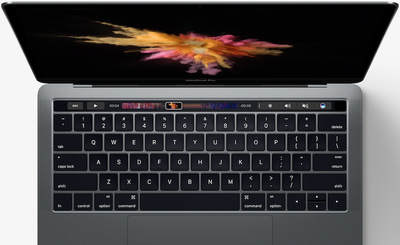
What it didn't expect was the number of users who mourned the physical Escape key, which many relied on to exit out of various app modes (like fullscreen, for example). While the Touch Bar offers a virtual Escape key, it's located in a different place, and depending on the app in use, isn't even always visible.
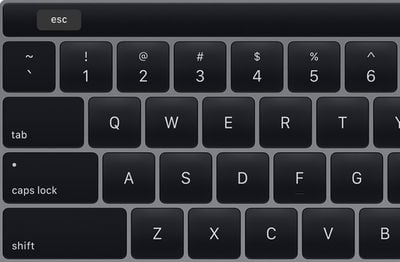
Fortunately Apple listened to the criticism, and all new Macs with the scissor switch Magic Keyboard also feature a physical Escape key, along with Touch Bar and Touch ID.
If you're the owner of an earlier Touch Bar-equipped Mac model that lacks the physical Escape key, here are a couple of things you can do to get the functionality back.
Bring Back the Function Row on the Touch Bar
As mentioned, the Escape key isn't entirely gone on a Touch Bar Mac, but if the Touch Bar is in another mode, it's not always accessible. One solution is to hold down the fn key on the bottom left of the keyboard layout. This will make the original row of function keys appear on the Touch Bar – including the Escape key.
Remap the Escape Key to Another Physical Key
If the above solution doesn't work for you, you can choose a physical key to act as an Escape key instead. Here's how it works.
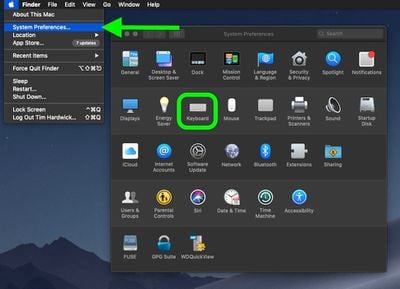
- Launch System Preferences from your Mac's Dock, from the Applications folder, or from the Apple menu bar ( -> System Preferences...).

- Select Keyboard.
- In Keyboard preferences, click Modifier Keys.
- Use one of the pop-up menus to choose another key to act as your Escape key. (We'd recommend choosing the Caps Lock key, since the Command, Control, and Option keys are frequently used to perform keyboard shortcuts.)
- Click OK.
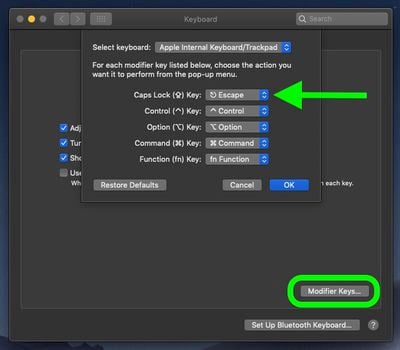
If you ever want to return your keyboard to its original behavior, simply reopen the keyboard settings and click Restore Defaults.




















