 With Apple's FaceTime, you can take Live Photos during FaceTime video calls, allowing you to capture special moments as they happen onscreen when chatting with friends and family.
Live Photos record what happens 1.5 seconds before and after you take a picture, allowing them to come alive when you view them in Apple's Photos app.
Apple gives you control over whether Live Photos can be taken during your FaceTime calls. The service also notifies users when a Live Photo is taken, so they can't be shot in secret. In addition, FaceTime strips out audio from Live Photos, so nothing you say will be recorded.
How to Allow Live Photos to Be Taken in a FaceTime Call
If you want other people to be able to take FaceTime Live Photos when you're on a call with them, make sure you have FaceTime Live Photos enabled.
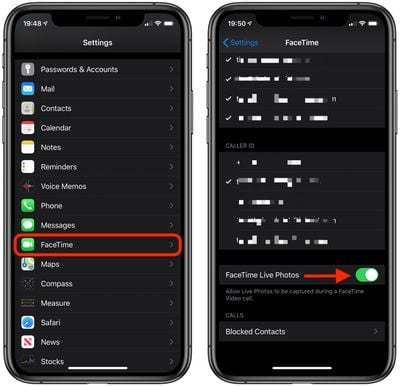
On an iOS device, launch the Settings app, tap FaceTime, and check that the FaceTime Live Photos switch is toggled to the green ON position.
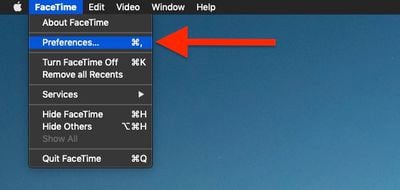
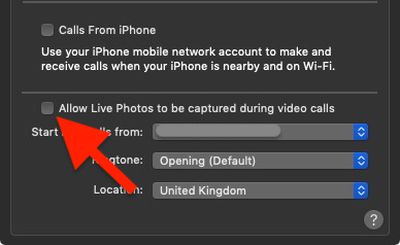
On Mac, launch the FaceTime app, click the FaceTime menu bar in the top-left corner of the screen and click Preferences, then tick the box next to Allow Live Photos to be captured during Video calls.
How to Take Live Photos in FaceTime on iPhone and iPad
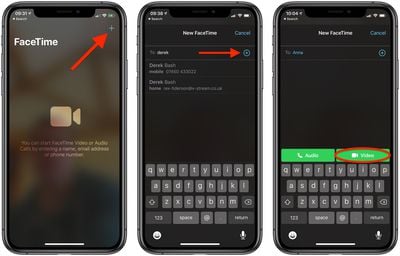
- Launch the FaceTime app on your iOS device.
- Initiate a FaceTime call, either by tapping on a contact in the recent calls list, or choosing a person in your Contacts to call by tapping the plus (+) icon.

- Once the call connects and you can see the other person, tap the screen and look for the camera icon, to the left of the red button. If you don't see the icon, the other person needs to enable Live Photos, as described above.
- Tap the camera icon when you're ready to take a Live Photo. The photo will be automatically saved in your Photo Library.

How to Take Live Photos in FaceTime on Mac
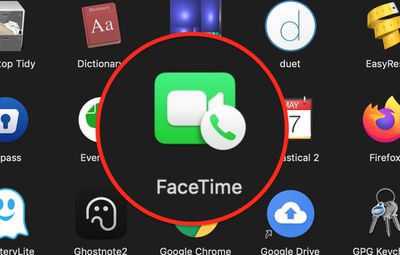
- Launch the FaceTime app on your Mac, from your Dock or the Applications folder.
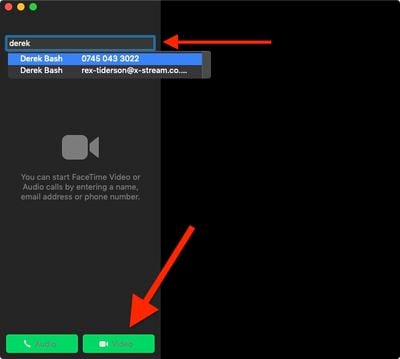
- Initiate a FaceTime call by clicking on a contact in the recent calls list, typing a contact's name in the search bar and clicking a match, or choosing a person in your contacts list to call by clicking the Plus icon.
- Once the call connects and you can see the other person, look for the camera icon, to the left of the red button. If you don't see the icon, the other person needs to enable Live Photos, as described above.
- Click the camera icon when you're ready to take a Live Photo. The photo will be automatically saved in your Photo Library.
When taking a Live Photo during a FaceTime video call, don't worry about your own image in the corner of the screen. This is automatically removed from the Live Photo that's saved in your Photos Library, along with any other interface elements.

























![Apple Pulls Keynote, Pages and Numbers From App Store [Update: Back]](https://images.macrumors.com/t/Okb7kitB_gNr6qe5Pex9nQIysD8=/112x112/article-new/2026/01/Apple-Creator-Studio-iWork-suite.jpg)