

If you find yourself regularly swiping to a different watch face on your Apple Watch depending on what you're doing or where you are, this article is for you. Because thanks to the power that Apple has built into its Shortcuts app, it's possible to make the watch face on your Apple Watch automatically change based on the time of day or your location. Keep reading to learn how.
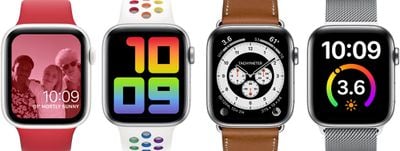
One of the great things about the Apple Watch is the number of watch faces you can customize, which allows you to make certain faces more informative or more functional for different purposes, and then swipe to them when you need them. When you go to the office, for example, you can have a watch face filled with work-focused complications. Or you might swipe to a minimal watch face in the evening when you're winding down before bed.
If you tend to set up different watch faces in such a way, then it's worth considering creating an automation in iOS that can change the watch face on your Apple Watch for you when you need it, without you having to even raise your wrist. With the Shortcuts app, you can.
If you've never created a shortcut before, don't worry – the steps below show you how easy this particular automation is to set up. The only thing to bear in mind is that if you want your Apple Watch to change back to another watch face after a certain time (when your working day is at an end, for example) then you'll need to set up a second, separate automation for this to happen.
Likewise, if you want the watch face to only be active when you're at a particular location and then revert when you leave, then unless you want to dig deeper into the complex world of Shortcuts, a second automation is required.
How to Automatically Change Your Apple Watch Face At a Certain Time
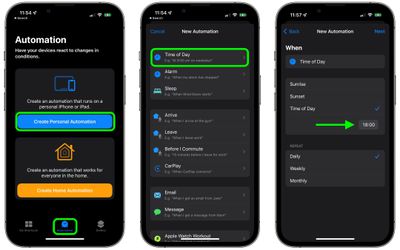
- Launch the Shortcuts app on your iPhone.
- Tap the Automation tab at the bottom of the screen.
- Tap Create Personal Automation.
- Select Time of Day.
- Choose Sunrise or Sunset (after which you'll be given the option to define a specific time around these solar events), or specify any time with Time of Day. (Note the Repeat options include Daily, Weekly, and Monthly.) Then tap Next.

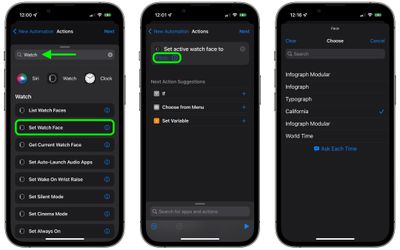
- Tap Add Action, then use the search field to look up "Watch."
- Select Set Watch Face from the results list of watch actions.
- On the Actions screen, immediately below "Set active watch face to," tap the word Face in blue.
- Choose the watch face you'd like to change to at the specified time. Note the list here uses Apple's official names for its watch faces, so you may see some duplicates. That's because the list corresponds to the current watch faces arranged on your watch, with the top watch face in the list being the one you see when you've swiped to the first (leftmost) face on your Apple Watch.
- Tap Next when the Actions screen reappears, then toggle off the switch next to Ask Before Running and confirm by tapping Don't Ask at the prompt.
- Tap Done to finish.
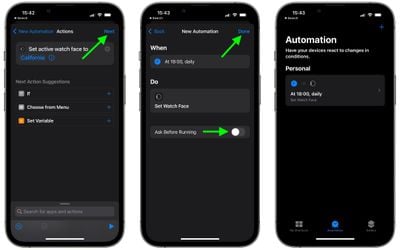
You should now see the automation you just created on the Automation screen. You don't have to do anything else – your watch face should now automatically change at the time you set.
How to Automatically Change Your Apple Watch Face Based on Location
- Launch the Shortcuts app on your iPhone.
- Tap the Automation tab at the bottom of the screen.
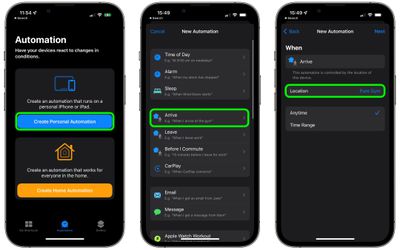
- Tap Create Personal Automation.
- Select Arrive or Leave, depending on when you want the watch face to change.
- Choose the Location, and select it either by searching or entering the address, then tap Next.
- Tap Add Action, then use the search field to look up "Watch."
- Select Set Watch Face from the results list of watch actions.
- On the Actions screen, immediately below "Set active watch face to," tap the word Face in blue.
- Choose the watch face you'd like to change to when arriving at or leaving the specified location. Note the list here uses Apple's official names for its watch faces, so you may see some duplicates. That's because the list corresponds to the current watch faces arranged on your watch, with the top watch face in the list being the one you see when you've swiped to the first (leftmost) face on your Apple Watch.
- Tap Next when the Actions screen reappears.
- Tap Done on the last screen to finish.
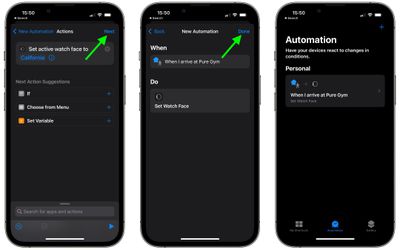
You should now see the automation you just created on the Automation screen. You don't have to do anything else – your watch face should now automatically change either when you leave or arrive at the location you selected.
These two automations barely touch the surface of what is possible with the Shortcuts app. For example, you can create actions using predefined shortcuts in order to build complex automations that take in all manner of conditions and variables for when your watch face should change. Ultimately, the complexity of your automations depends on how much time you want to invest in discovering what's possible, and the only limit is your imagination.

















Top Rated Comments
There’s a similar one on making ones of Memoji into an Apple Badge I saw a long time ago. Maybe if you have a collection of all these tips somewhere on the site? So we can see a collective amount of shortcuts, now that’s be cool!
🤩🤗😄✌🏼👋🏼🕊
By the way, it would also be great to set up album covers (from now playing) as a watch face.
Like here