When you take a screenshot on your Mac – using the Shift-Command-3 shortcut to capture the whole screen, or Shift-Command-4 to capture a portion of it – the image files are saved straight to your desktop. This can result in this:
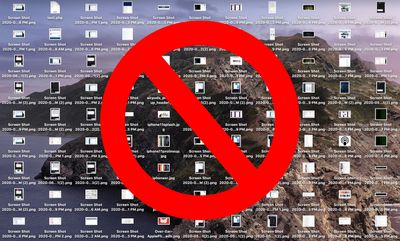
no screenshots
If you'd like to change that default save location to somewhere different, simply follow the steps below.

If you're running macOS Mojave or later, you can press Shift-Command-5 to invoke the screen capture panel, click on Options and choose "Other Location" to choose a destination.
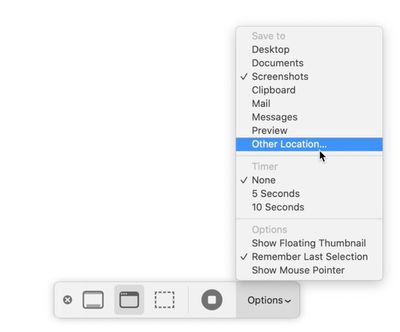
options

For versions of macOS prior to Mojave, you'll have to follow these instructions:

How to Change Where Screenshots Get Saved on Mac (Prior to Mojave)

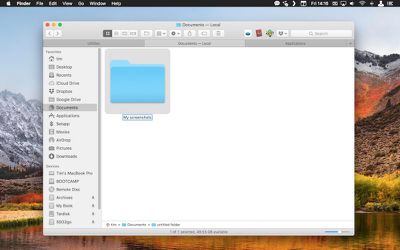
  1. Open a Finder window and press Shift-Command-N to create a new folder where you want your screenshots to be saved, and give the folder a recognizable name.
    screenshot save location 1

  2. Launch the Terminal app (found in Applications/Utilities).
    terminal

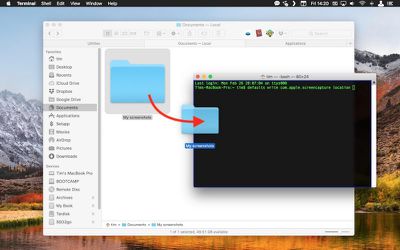
  3. Type in the following command and then press the spacebar, but don't hit Enter just yet: defaults write com.apple.screencapture location
    terminal

  4. Now drag the folder you just created into the Terminal window. The folder's path should appear after the command you typed in. Press Enter.
    screenshot save location 2

Your captured images will now be saved in the designated folder whenever you use the screenshot shortcuts.

Important note: Do not delete this folder until you've changed the save location to somewhere else using the same Terminal command, or you'll run into issues. If you want to switch things back in future so that images are saved on your desktop again, simply input the Terminal command as above, but change the path to ~/Desktop.


Top Rated Comments

Darth-Kylie Avatar
74 months ago
In Catalina, Shift-Cmd-5, click Options, choose Other Location. Sticky setting.
Score: 9 Votes (Like | Disagree)
darkpaw Avatar
74 months ago
Couple of issues with this. If you're writing out steps, they really need to be correct, or you end up confusing the user, someone who may never have used Terminal before.

Step 1: You don't need to click the folder's name, because when you press Shift + Command + N, the folder's name is already highlighted for editing. Also, you can always just press Enter to rename a file.

Step 3: Be sure to tell the user to add a space at the end, or their Terminal command will be "defaults write com.apple.screencapture locationFOLDER". I realise that the text on the article does have the space at the end, but a non-expert won't know that it's meant to be there unless you point it out to them.
Score: 7 Votes (Like | Disagree)
arn Avatar
74 months ago
article's been updated. Though the real trick is getting a screenshot of the screenshot options. ;)
Score: 5 Votes (Like | Disagree)
MauiPa Avatar
51 months ago

Don't work for Monterey.
a quick search should help you answer your question. I think you will find this works:

Change where screenshots are saved Mac
[LIST=1]
* Press Command-Shift-5 to open the Screenshot app.
* Select Options.
* From the Save to section, select your preferred location.
* If you select Other Location, you can choose a different folder of choice or create a new folder.

Select the one you like, and it persists, I never use the screen shot app myself, just the keyboard shortcuts. Most times I use the copy to clipboard option and paste it immediately.

Despite what some have said in this thread, you can deflect the show floating thumbnail option and the thumbnail does not show with the screenshot being immediately saved.


Attachment Image
Score: 3 Votes (Like | Disagree)
arn Avatar
74 months ago

More importantly though, is it possible to save screenshots immediately? I HATE when I take a screenshot and must wait for it to disappear from the bottom right and appear onto the desktop. Yes I know I can drag it but sometimes that ends up opening it by mistake due to double clicking the thumbnail on the bottom right. Can't you make it instant "like in the old days?"


In the same Command-Shift-5 Options pop up. Uncheck "Show Floating Thumbnail" -- but I still feel like it takes too long to appear.

arn
Score: 3 Votes (Like | Disagree)
Hieveryone Avatar
74 months ago
Hey now this is a good article. Thanks MR :)
Score: 3 Votes (Like | Disagree)

Popular Stories

Apple Logo Zoomed

Tim Cook Teases Plans for Apple's Upcoming 50th Anniversary

Thursday February 5, 2026 12:54 pm PST by
Apple turns 50 this year, and its CEO Tim Cook has promised to celebrate the milestone. The big day falls on April 1, 2026. "I've been unusually reflective lately about Apple because we have been working on what do we do to mark this moment," Cook told employees today, according to Bloomberg's Mark Gurman. "When you really stop and pause and think about the last 50 years, it makes your heart ...
iOS 26

iOS 26.3 and iOS 26.4 Will Add These New Features to Your iPhone

Tuesday February 3, 2026 7:47 am PST by
While the iOS 26.3 Release Candidate is now available ahead of a public release, the first iOS 26.4 beta is likely still at least a week away. Following beta testing, iOS 26.4 will likely be released to the general public in March or April. Below, we have recapped known or rumored iOS 26.3 and iOS 26.4 features so far. iOS 26.3 iPhone to Android Transfer Tool iOS 26.3 makes it easier...
imac video apple feature

Apple Makes Its Second-Biggest Acquisition Ever

Tuesday February 3, 2026 12:45 pm PST by
Apple recently acquired Israeli startup Q.ai for close to $2 billion, according to Financial Times sources. That would make this Apple's second-biggest acquisition ever, after it paid $3 billion for the popular headphone maker Beats in 2014. This is also the largest known Apple acquisition since the company purchased Intel's smartphone modem business and patents for $1 billion in 2019....
wwdc sans text feature

Apple Rumored to Announce New Product on February 19

Thursday February 5, 2026 12:22 pm PST by
Apple plans to announce the iPhone 17e on Thursday, February 19, according to Macwelt, the German equivalent of Macworld. The report, citing industry sources, is available in English on Macworld. Apple announced the iPhone 16e on Wednesday, February 19 last year, so the iPhone 17e would be unveiled exactly one year later if this rumor is accurate. It is quite uncommon for Apple to unveil...
Finder Siri Feature

Why Apple's iOS 26.4 Siri Upgrade Will Be Bigger Than Originally Promised

Friday February 6, 2026 3:06 pm PST by
In the iOS 26.4 update that's coming this spring, Apple will introduce a new version of Siri that's going to overhaul how we interact with the personal assistant and what it's able to do. The iOS 26.4 version of Siri won't work like ChatGPT or Claude, but it will rely on large language models (LLMs) and has been updated from the ground up. Upgraded Architecture The next-generation...