If you prefer using Google Maps over Apple Maps on your iPhone or iPad, it's useful to know that you have the ability to manage how long your map search history is stored on Google's servers. This article shows you how.

When you start typing the name of somewhere in Google Maps, the app throws up suggestions of your recent searches for places and directions, which can be useful if you visit certain locations often. Sometimes the suggestions are for places you don't intend to return to anytime soon, in which case, you can remove these suggestions.
You can also set your Google account to clear your Google Maps search history automatically after a pre-defined time has passed, which is a lot handier than manually deleting locations yourself. The following steps show you how it's done on iPhone and iPad.
How to Delete Google Maps Search History in iOS
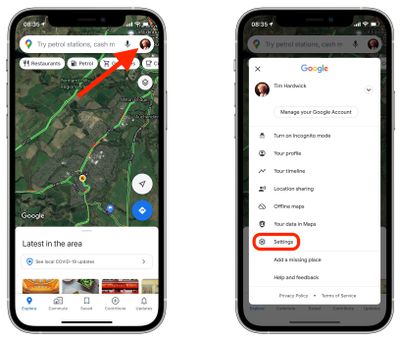
- Launch Google Maps on your iPhone or iPad.
- Tap your Google profile icon in the top-right corner of the screen.
- Tap Settings.

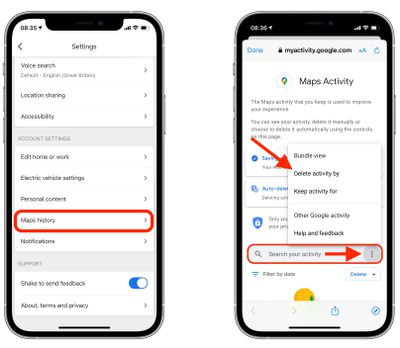
- Under "Account Settings," tap Maps history.
- This will open a Maps Activity webpage within the app. Now, tap the three-dotted icon to the right of the search bar.
- Tap Delete activity by.
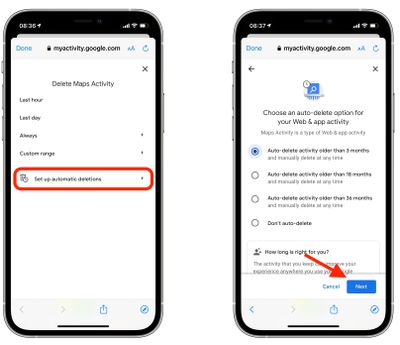
- On the next screen, tap Set up automatic deletions.
- You can choose to keep your search data for 3, 18, or 36 months until it's automatically deleted. Select the desired option, then tap Next.
- Tap Done in the top-left corner of the screen.
Note that this automatic deletion option relates not only to your Maps history, but also your Google account's web and app activity. If you want to remove only your Maps search history, you'll have to do it manually.
You can do this by searching for specific locations in the search bar in step 5 and using the filters to search activity by date, or you can use the pre-defined options offered on the screen in step 7, which include Last hour, Last day, Always, and Custom range.