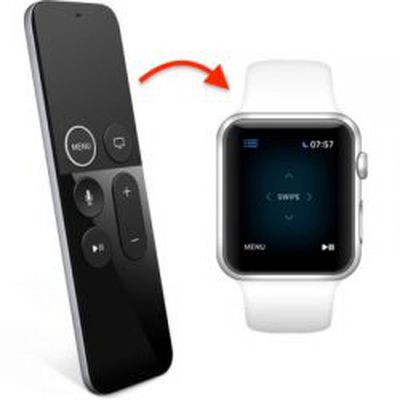
admin ajaxThe Siri Remote that comes with the Apple TV certainly has its critics. Some users find the glass Touch surface over-sensitive in the way it registers directional taps and swipes, which can make navigating onscreen menus a slalom-like experience where you're constantly having to correct for overshoot.

Not only that, the minimalist design of the Siri Remote isn't very tactile and there's no button backlighting, which means once you've dimmed the lights it's almost impossible to know whether you're even holding it the right way round.

Thankfully, there are alternative (and easier) ways to control your Apple TV. One solution is to use your iPhone, which we've written about previously. Another is to use an Apple Watch. Here's how it's done.

How to Link Your Apple Watch to your Apple TV

The steps below assume your Apple Watch is running watchOS 5 and that your Apple TV has tvOS 12 installed.

Before you start, make sure your Apple TV and Apple Watch are on the same Wi-Fi network. To do this on Apple TV, launch the Settings app and navigate to Network -> Wi-Fi. Similarly on Apple Watch, launch the Settings app and tap Wi-Fi.

  1. Make sure you're in the same room as your Apple TV, your Apple TV is on, and you can see the screen on your TV output.
  2. On your Apple Watch, launch the Remote app.
    apple watch remote apple tv 1

  3. Tap Add Device.
  4. On your Apple Watch, enter the passcode that appears on your Apple TV's display.
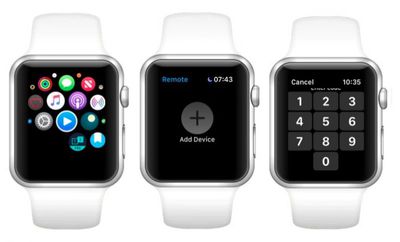
You should now see the Remote interface for controlling your Apple TV on your Apple Watch screen.

How to Control Apple TV Using Your Apple Watch

    remote app apple tv 2

  • Swipe up, down, left, or right to move through the Apple TV menu.
  • Tap to choose the selected item.
  • Tap Menu to go back.
  • Touch and hold Menu to return to the Home screen.
  • Swipe left or right to scrub through media.
  • Tap to pause or resume playback.

If you're anything like us, you'll find that swiping your Apple Watch to navigate Apple TV menus is much easier than using the Siri Remote – and you'll be able to see what you're doing in the dark. Just remember that as long as your Apple TV is on, you can return to the remote interface on your Apple Watch at any time simply by launching the Remote app.


Related Roundups: Apple Watch 11, Apple TV

Top Rated Comments

Defthand Avatar
95 months ago
ANYTHING is better than the stock Apple remote, even a potato with buttons. Did the intern not test it in a darkened room?

I appreciate the minimalism but the current remote has horrible ergonomics. A classic example of aesthetics before function.
Score: 6 Votes (Like | Disagree)
jasonefmonk Avatar
95 months ago
I’m just here to say that I like the current remote. The raised ring was enough of a change that I don’t have trouble orienting the device.
Score: 5 Votes (Like | Disagree)
robotica Avatar
95 months ago
I love this feature! Really nice integration.
Score: 4 Votes (Like | Disagree)
spellnight Avatar
95 months ago
I wish there was a combination to lock the remote so when you are watching something and accidentally touch it, it won't fast forward, rewind, go back to the main menu, etc. Am I the only one with this problem? :mad:
Score: 4 Votes (Like | Disagree)
rdowty Avatar
95 months ago
If they would only add volume control...
Score: 3 Votes (Like | Disagree)
Nozuka Avatar
95 months ago
i wish there was some automatic "now playing" icon on the watch face like for the iPhone. would make it much easier and faster to access the remote.
Score: 2 Votes (Like | Disagree)

Popular Stories

Apple Logo Zoomed

Tim Cook Teases Plans for Apple's Upcoming 50th Anniversary

Thursday February 5, 2026 12:54 pm PST by
Apple turns 50 this year, and its CEO Tim Cook has promised to celebrate the milestone. The big day falls on April 1, 2026. "I've been unusually reflective lately about Apple because we have been working on what do we do to mark this moment," Cook told employees today, according to Bloomberg's Mark Gurman. "When you really stop and pause and think about the last 50 years, it makes your heart ...
wwdc sans text feature

Apple Rumored to Announce New Product on February 19

Thursday February 5, 2026 12:22 pm PST by
Apple plans to announce the iPhone 17e on Thursday, February 19, according to Macwelt, the German equivalent of Macworld. The report, citing industry sources, is available in English on Macworld. Apple announced the iPhone 16e on Wednesday, February 19 last year, so the iPhone 17e would be unveiled exactly one year later if this rumor is accurate. It is quite uncommon for Apple to unveil...
Finder Siri Feature

Why Apple's iOS 26.4 Siri Upgrade Will Be Bigger Than Originally Promised

Friday February 6, 2026 3:06 pm PST by
In the iOS 26.4 update that's coming this spring, Apple will introduce a new version of Siri that's going to overhaul how we interact with the personal assistant and what it's able to do. The iOS 26.4 version of Siri won't work like ChatGPT or Claude, but it will rely on large language models (LLMs) and has been updated from the ground up. Upgraded Architecture The next-generation...
iOS 26

iOS 26.3 and iOS 26.4 Will Add These New Features to Your iPhone

Tuesday February 3, 2026 7:47 am PST by
While the iOS 26.3 Release Candidate is now available ahead of a public release, the first iOS 26.4 beta is likely still at least a week away. Following beta testing, iOS 26.4 will likely be released to the general public in March or April. Below, we have recapped known or rumored iOS 26.3 and iOS 26.4 features so far. iOS 26.3 iPhone to Android Transfer Tool iOS 26.3 makes it easier...
maxresdefault

Apple Shows Off a Key Reason to Upgrade to the iPhone 17

Saturday February 7, 2026 9:26 am PST by
Apple today shared an ad that shows how the upgraded Center Stage front camera on the latest iPhones improves the process of taking a group selfie. "Watch how the new front facing camera on iPhone 17 Pro takes group selfies that automatically expand and rotate as more people come into frame," says Apple. While the ad is focused on the iPhone 17 Pro and iPhone 17 Pro Max, the regular iPhone...