In iOS 16, Apple has introduced an iCloud Shared Photo Library that aims to make it easer to share photos with your friends and family. Keep reading to learn how it works and how you can use it.

With the new iCloud Shared Photo Library in iOS 16, a new option in the Photos app lets you create a shared library and then invite anyone with an Apple device to view the photos, contribute photos to the library, and edit the photos contained within it, including favoriting images and adding captions. There are no limitations, and all participants have the same permissions.
It's easy to create a shared library. You can choose the images that you want to add to the Shared Library from your own iCloud Photo Library, and then you can preview the content that you've added to the Library before opting to share it.
You can do all of this through the pop-up interface that appears the first time you open the Photos app after updating to iOS 16, or you can set one up later via Settings. Here are the steps involved via the latter route.
- Open the Settings app on your iPhone or iPad.
- Scroll down and tap Photos.
- Under "Library," tap Shared Library.

- Tap Get Started.
- Tap Add Participants to add people to the library (you can add up to five other people), then tap Next. Alternatively, tap Add Later.
- Choose existing photos and videos to move out of your personal library and into the shared library by selecting one of the following: All My Photos and Videos, Choose by People or Date, or Choose Manually. Then tap Next.
- Opt to Preview Shared Library or Skip.
- Tap Invite via Messages to invite your participants in an iMessage, or tap Share Link to use another method.
- Opt to share photos from your camera Automatically or Manually.
- Tap Done to finish setting up the Shared Library.
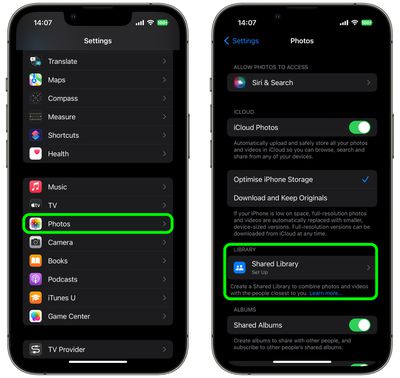
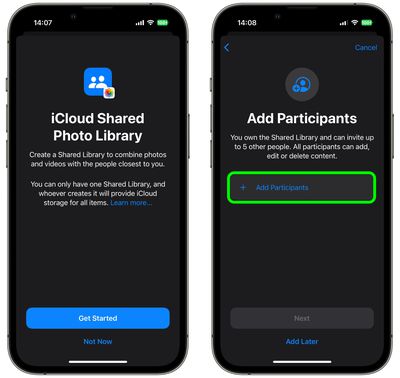
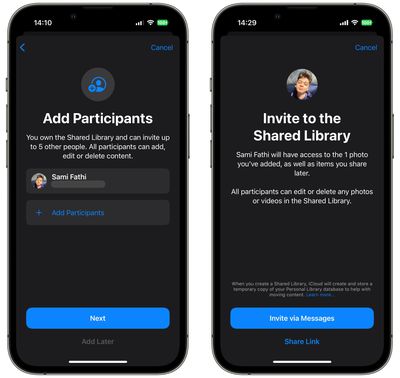
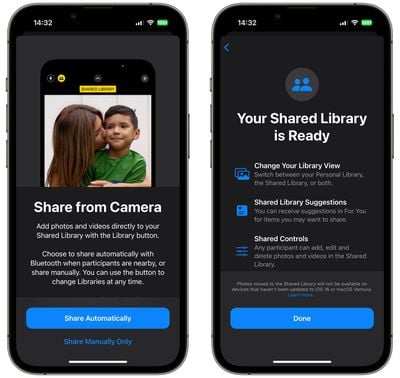
When your Shared Library is up and running, it will be listed in the Photos section of the Settings app, where you can add more participants, turn on and off Shared Library Suggestions, and control whether images are shared from your iPhone's camera. You can also enable or disable Deletion Notifications.
If you're not on iPhone or iPad, iCloud Shared Photo Libraries can be created on Macs running macOS Ventura as well. To create a Shared Library, open up the Photos app, click Settings, and then choose the Start Setup option.