We've been waiting for the fourth-generation Apple TV for at least two years now, and we've been teased with vague comments, leaks from the supply chain, and analyst predictions for several years running. We thought we’d get a look at it this year at the Worldwide Developers Conference, but Apple was still not ready to show it off.
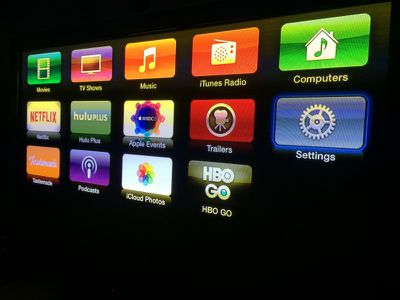
How to Customize Apple TV 4
Until we get a whole new model with, hopefully, a brand new look to the operating system, we have to stick with what we've got. The number of media channels is not getting any smaller, with Apple adding new content on a regular basis. For example, Apple recently added NatGeo TV. Content options are great, but sifting through dozens of channels can be a pain sometimes.

If you're tired of scrolling through the nearly seven dozen channels looking for the ones you use most, you can hide everything you don’t want to access, making it much easier to get to the content you want. We've got a quick tutorial to show you how.

Customizing Channels on the Main Menu
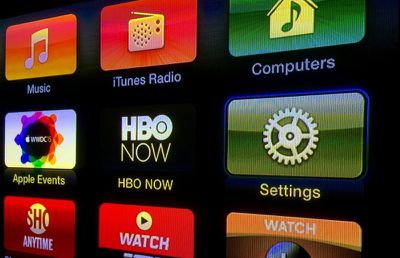
How to Customize Apple TV 2

  1. On Apple TV, go to your Settings app, which is always in the second row below your iTunes and shared computer channels.
  2. Select Main Menu from the list.
  3. Select "Hide" for every channel that you don't want showing by selecting the channel and clicking the center select button on the Apple TV remote. Channels that will be visible on the Apple TV are listed as "Show," while channels that will no longer show up are listed as "Hide."
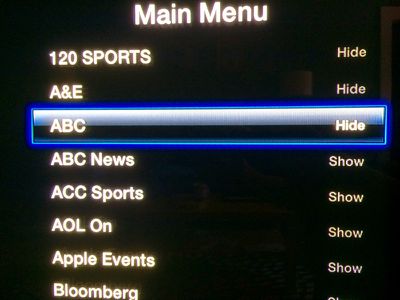
How to Customize Apple TV 3
New channels will appear on the Main Menu whenever they are added to Apple TV. If you don't want to see them, follow the steps above for the new channel.

You can also go back and add channels to Main Menu whenever you like by clicking on it until it has "Show" next to it instead.

Troubleshooting

If your Apple TV is running slowly, shuts off randomly, or is otherwise working poorly, one way to fix it is to restart it.

  1. Unplug the connection to your television set.
  2. Unplug the power cable from the box.
  3. Plug the TV cable back in.
  4. Plug the power cable back in.
  5. Wait for Apple TV to finish reloading.
How to Customize Apple TV 6
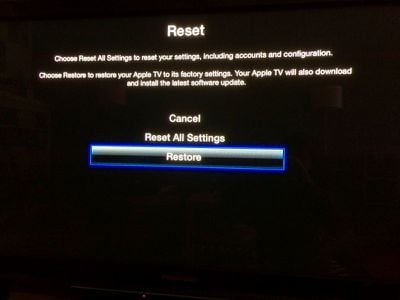
There may be deeper issues with your set-top box that a simple restart can't fix. If so, you may need to reset it to factory settings.

  1. On Apple TV, go to the Settings app.
  2. Select General.
  3. Scroll down to select Reset.
  4. Select Restore.

This will restore Apple TV to its factory settings, removing all passwords you have entered for all of your channels. The restoration will take a while. Don't unplug your Apple TV during the process.

If you can't restore Apple TV to its factory settings from the Main Menu (like, if your box is frozen and just stops working altogether), you can perform the process via iTunes by connecting your Apple TV to your computer.

You will need a micro-USB cable and the latest version of iTunes running on your Internet-connected computer for this process.

  1. Disconnect the power and television cables from Apple TV.
  2. Open iTunes on your computer. Then connect Apple TV to your computer using the micro-USB cable. If you have the third-generation Apple TV, you will also need to plug the box into a power source.
  3. Once connected, Go to the Apple TV summary page in iTunes and select "Restore Apple TV."
  4. When the restoration process is finished, disconnect Apple TV from your computer and reconnect it to your television set.

Hopefully, we wont be waiting around for too much longer before Apple finally presents us with the next big thing for television. But, until then, at least we can organize our channels the way we want to.


Related Roundup: Apple TV
Buyer's Guide: Apple TV (Don't Buy)

Top Rated Comments

Mike Oxard Avatar
138 months ago
An alternative is to move away from the U.S., the rest of the world don't get enough channels to make it worth hiding any.
Score: 8 Votes (Like | Disagree)
Anonymous2k Avatar
138 months ago
@MacRumors

An easier way to hide channels is to simple stay on the home screen - Hold down the middle button - they'll start to "jiggle" - then hit "play" and you'll be prompted to hide the channel.

This way is much quicker.
Score: 4 Votes (Like | Disagree)
Sandstorm Avatar
138 months ago
On some fronts Apple is so pathetic and slow. This is one of them.
Score: 4 Votes (Like | Disagree)
TsMkLg068426 Avatar
138 months ago
Removing the channels you never watch or access is not the problem but the ugly UI it is like scrolling through huge wall of bricks which causes scan lines issue with my TV. Not sure why Apple just can not change the UI for the current Apple TV for the time being.
Score: 2 Votes (Like | Disagree)
donniedarko Avatar
138 months ago
@MacRumors

An easier way to hide channels is to simple stay on the home screen - Hold down the middle button - they'll start to "jiggle" - then hit "play" and you'll be prompted to hide the channel.

This way is much quicker.
Yep nailed it. This is much better, the other quicker.
Score: 1 Votes (Like | Disagree)
Mike Oxard Avatar
138 months ago
Highly disagree, your overlooking regulatory and "deals in place" within other countries that prevent Apple from delivering the consistency of product found in the U.S.A. across other countries.

Channel choice is not a "black & white" situation as it should be.
Eh? My point ( though meant light-heartedly) was that other countries have less channels, I wasn't commenting on why that is so.
Score: 1 Votes (Like | Disagree)

Popular Stories

Apple Logo Zoomed

Tim Cook Teases Plans for Apple's Upcoming 50th Anniversary

Thursday February 5, 2026 12:54 pm PST by
Apple turns 50 this year, and its CEO Tim Cook has promised to celebrate the milestone. The big day falls on April 1, 2026. "I've been unusually reflective lately about Apple because we have been working on what do we do to mark this moment," Cook told employees today, according to Bloomberg's Mark Gurman. "When you really stop and pause and think about the last 50 years, it makes your heart ...
Finder Siri Feature

Why Apple's iOS 26.4 Siri Upgrade Will Be Bigger Than Originally Promised

Friday February 6, 2026 3:06 pm PST by
In the iOS 26.4 update that's coming this spring, Apple will introduce a new version of Siri that's going to overhaul how we interact with the personal assistant and what it's able to do. The iOS 26.4 version of Siri won't work like ChatGPT or Claude, but it will rely on large language models (LLMs) and has been updated from the ground up. Upgraded Architecture The next-generation...
wwdc sans text feature

Apple Rumored to Announce New Product on February 19

Thursday February 5, 2026 12:22 pm PST by
Apple plans to announce the iPhone 17e on Thursday, February 19, according to Macwelt, the German equivalent of Macworld. The report, citing industry sources, is available in English on Macworld. Apple announced the iPhone 16e on Wednesday, February 19 last year, so the iPhone 17e would be unveiled exactly one year later if this rumor is accurate. It is quite uncommon for Apple to unveil...
iOS 26

iOS 26.3 and iOS 26.4 Will Add These New Features to Your iPhone

Tuesday February 3, 2026 7:47 am PST by
While the iOS 26.3 Release Candidate is now available ahead of a public release, the first iOS 26.4 beta is likely still at least a week away. Following beta testing, iOS 26.4 will likely be released to the general public in March or April. Below, we have recapped known or rumored iOS 26.3 and iOS 26.4 features so far. iOS 26.3 iPhone to Android Transfer Tool iOS 26.3 makes it easier...
iphone 17 pro dark blue 1

iPhone 18 Pro Max Rumored to Deliver Next-Level Battery Life

Friday February 6, 2026 5:14 am PST by
The iPhone 18 Pro Max will feature a bigger battery for continued best-in-class battery life, according to a known Weibo leaker. Citing supply chain information, the Weibo user known as "Digital Chat Station" said that the iPhone 18 Pro Max will have a battery capacity of 5,100 to 5,200 mAh. Combined with the efficiency improvements of the A20 Pro chip, made with TSMC's 2nm process, the...