How to Customize the Noise Control Button on AirPods Max - MacRumors
Skip to Content

How to Customize the Noise Control Button on AirPods Max

by

Apple's AirPods Max over-ear headphones include a single noise control button atop the right-hand earcup that allows you to cycle between Active Noise Cancelation mode, Transparency mode, or turn off both modes. Noise Cancellation blocks out external sounds, while Transparency lets in sounds from the outside world.
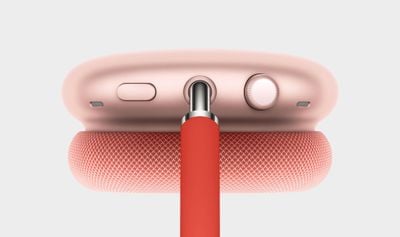
airpods max digital crown
Depending on how and when you use your AirPods Max, you may prefer one mode over the other. If you wear AirPods Max on a sit-down commute, for example, you might use Noise Cancellation exclusively, in which case you may want to customize the noise control button to just turn Noise Cancellation on and off, instead of having to always cycle through the different modes using several presses.

Fortunately, iOS 14 and later has options built in that allow you to customize what the noise button does on AirPods Max. The following steps show you how to change it to control only the modes you use.

  1. Make sure the AirPods Max headphones are connected to your iOS device.
  2. Launch the Settings app on your iPhone or iPad.
  3. Tap Bluetooth.
  4. Tap the Info (i) button next to the name of your Airpods Max headphones.
  5. Under "Button Cycles Between," select what you want to cycle through with each press of the noise control button. The available options are Noise Cancellation, Transparency, and Off (turns off noise cancellation and transparency). A tick appears beside each currently selected option.

The changes you make should take immediate effect, so that the next time you press the noise control button, you'll get your AirPods Max in just the mode you want them to be in.


Related Roundup: AirPods Max 2
Buyer's Guide: AirPods Max (Buy Now)
Related Forum: AirPods

Popular Stories

iOS 26

iOS 26.4 Adds Two New Features to CarPlay

Tuesday March 24, 2026 1:55 pm PDT by
iOS 26.4 was released today, and it includes a couple of new features for CarPlay: an Ambient Music widget and support for voice-based chatbot apps. To update your iPhone 11 or newer to iOS 26.4, open the Settings app and tap on General → Software Update. CarPlay will automatically offer the new features so long as the iPhone connected to your vehicle is running iOS 26.4 or later....
Apple Business hero

Apple Unveils 'Apple Business' All-in-One Platform

Tuesday March 24, 2026 8:53 am PDT by
Apple today announced Apple Business, a new all-in-one platform that unifies device management, productivity tools, and customer outreach features. The service is designed to be a consolidated replacement for several of Apple's existing business-focused offerings, including Apple Business Essentials, Apple Business Manager, and Apple Business Connect. It provides organizations with a single...
AirPods Pro Firmware Feature

Apple Releases New Firmware for AirPods Pro 3, AirPods Pro 2 and AirPods 4

Tuesday March 24, 2026 12:31 pm PDT by
Apple today released new firmware for the AirPods Pro 2, AirPods Pro 3, and the AirPods 4. The firmware has a version number of 8B39, up from 8B34 on the AirPods Pro 3, 8B28 on the AirPods Pro 2, and 8B21 on the AirPods 4. There is no word on what's included in the firmware, but Apple has a support document with limited notes. Most updates are limited to bug fixes and performance...