

Does your MacBook Pro have an OLED Touch Bar along the top of the keyboard? Keep reading to learn how to customize it to your advantage. This article assumes your Mac is running macOS Ventura or later.
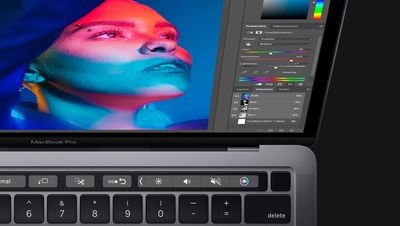
Since 2016, certain models of Apple's MacBook Pro have included a Touch Bar, a small touch-sensitive OLED display strip that displays virtual buttons. On MacBook Pro models that have a Touch Bar, the control strip replaces the top row of function keys, and it also has a Touch ID sensor integrated into the power button on the right.
When interacting with your Mac, you've probably noticed how the Touch Bar offers up contextual controls depending on what you're doing. You may see additional options displayed there for an app you're using, or you perhaps typing suggestions appear when you're entering text.
If the Touch Bar isn't really adding value to your Mac life, why not change its behavior? You can even switch up the layout to make it more functional. The following steps show you how it's done.
Changing the Touch Bar's Behavior
- Click the Apple () symbol in the menu bar and select System Settings....
- Scroll down the sidebar and select Keyboard.
- Click Touch Bar Settings....
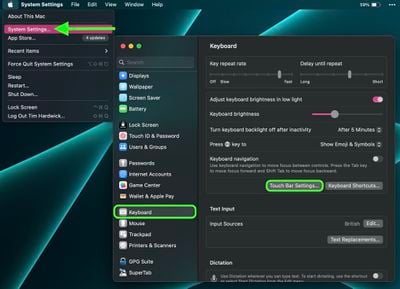
There are several changes you can make from this settings screen. Touch Bar Shows lets you switch between App Controls, Expanded Control Strip, F1, F2, etc. Keys, Quick Actions, and Spaces. The Show Control Strip toggle lets you decide whether you want access to the expandable strip of traditional Mac function key controls, which include things like volume, brightness, and media playback buttons.
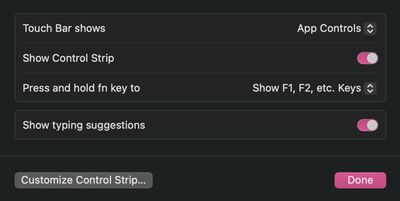
You can also choose what displays on the Touch Bar when you press the fn key on your keyboard, which is a convenient way of accessing more functionality. In the dropdown next to Press and hold fn key to you'll find options including App Controls, Expanded Control Strip, F1, F2, etc. Keys, Quick Actions, and Spaces. Lastly, the Show typing suggestions switch lets you toggle typing suggestions on and off.
How to Customize Your Mac's Touch Bar
There are several buttons that you can add to the OLED strip that you might find useful to have displayed above the keyboard. Here's a full list of the buttons that you can choose to have displayed on the Touch Bar:
- Brightness Slider
- Mission Control
- Spotlight
- Play/Pause
- Volume Slider
- Mute
- Siri
- Notification Center
- Do Not Disturb
- Night Shift
- Screenshot
- Dictation
- Input Sources
- Launchpad
- AirPlay
- Show Desktop
- Screen Saver
- Screen Lock
- Sleep
- Quick Actions
Customizing the control strip's displayed buttons is the best way to get the most out of the Touch Bar because you can choose the features you use the most. Here's how to go about making your selection.
- Click the Apple () symbol in the menu bar and select System Settings....
- Scroll down the sidebar and select Keyboard.
- Click Touch Bar Settings....
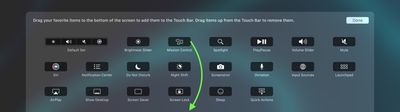
- Click Customize Control Strip....
- Drag items to the bottom of the screen to add them to the Touch Bar. To remove an item from the Touch Bar, simply drag it up.
Did you know that it's possible to take a screenshot of the Touch Bar on a MacBook Pro? Click the link learn how it's done.


















