
How to Delete Apps on iPhone and iPad - MacRumors
Skip to Content

How to Delete Apps on iPhone and iPad

by

On iPhone or iPad, apps can be deleted from your device in several ways. This article explains how it's done.
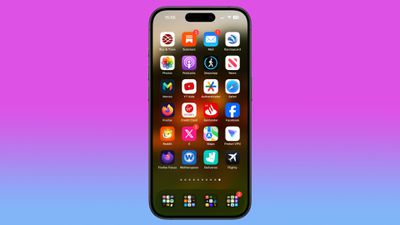
siri suggested apps iphone home screen

Delete Apps From the Home screen

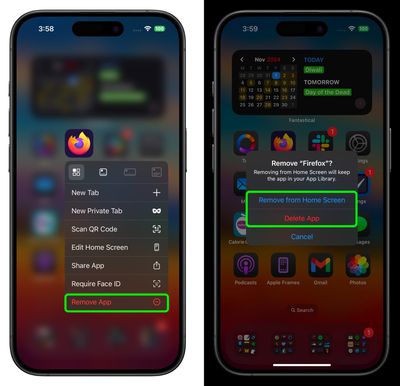
There are actually two slightly different ways to delete an app on the Home screen on iPhone and ‌iPad‌. Press and hold the app for one second, then select the Remove App action from the pop-up menu. This will invoke a prompt giving you two options: Delete App, which removes the app completely, and Remove From Home Screen, which makes the app vanish from your Home Screen but keeps it in your device's App Library.
home screen
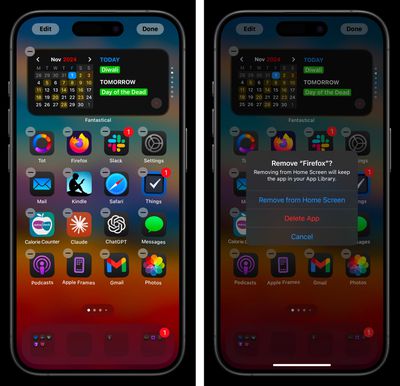
The other way to get to this screen is to press and hold anywhere on the ‌Home Screen‌. This will cause all visible icons to jiggle, indicating that you're now in the ‌Home Screen‌'s customization mode. Tap the minus symbol in the top-left corner of the app icon to present the same two options described above.
home screen

Delete Apps From the App Store

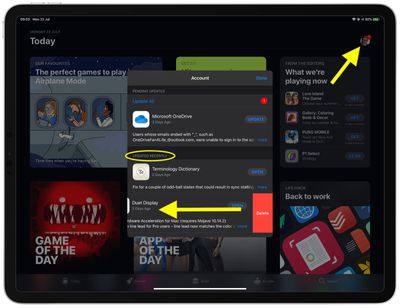
Apple also provides a way to delete apps from your device right from the App Store. When you're updating apps on your device, or viewing apps that were recently updated, you can swipe left on any app in the list to bring up a Delete option.

It's a convenient way to get rid of unwanted apps as soon as you see them, without having to leave the ‌App Store‌, hunt down the app's icon on your Home screen, and remove it in the traditional manner described above. Here's how it works.

  1. Launch the App Store app on your iPhone or ‌iPad‌.
  2. Tap your account profile picture in the top-right corner of the screen.
    how to delete apps in ios 13

  3. Scroll down the Account pane to the Updated Recently section.
  4. To remove an app that was recently updated, swipe left on it in the list and then tap the red Delete button that appears.

Popular Stories

iOS 26

iOS 26.4 Adds Two New Features to CarPlay

Tuesday March 24, 2026 1:55 pm PDT by
iOS 26.4 was released today, and it includes a couple of new features for CarPlay: an Ambient Music widget and support for voice-based chatbot apps. To update your iPhone 11 or newer to iOS 26.4, open the Settings app and tap on General → Software Update. CarPlay will automatically offer the new features so long as the iPhone connected to your vehicle is running iOS 26.4 or later....
Apple Business hero

Apple Unveils 'Apple Business' All-in-One Platform

Tuesday March 24, 2026 8:53 am PDT by
Apple today announced Apple Business, a new all-in-one platform that unifies device management, productivity tools, and customer outreach features. The service is designed to be a consolidated replacement for several of Apple's existing business-focused offerings, including Apple Business Essentials, Apple Business Manager, and Apple Business Connect. It provides organizations with a single...
AirPods Pro Firmware Feature

Apple Releases New Firmware for AirPods Pro 3, AirPods Pro 2 and AirPods 4

Tuesday March 24, 2026 12:31 pm PDT by
Apple today released new firmware for the AirPods Pro 2, AirPods Pro 3, and the AirPods 4. The firmware has a version number of 8B39, up from 8B34 on the AirPods Pro 3, 8B28 on the AirPods Pro 2, and 8B21 on the AirPods 4. There is no word on what's included in the firmware, but Apple has a support document with limited notes. Most updates are limited to bug fixes and performance...
















