iOS 16: How to Display Activity Rings on Your iPhone Lock Screen - MacRumors
Skip to Content

iOS 16: How to Display Activity Rings on Your iPhone Lock Screen

by

In iOS 16, Apple has made it possible to display Activity rings on the iPhone Lock Screen, allowing you to glance at your progress toward your movement goals throughout the day without having to unlock your iPhone or look at your Apple Watch.
lock screen widgets ios 16
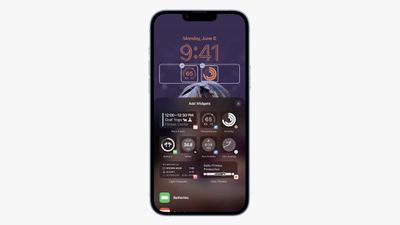
The ability to show your Activity rings comes courtesy of Apple's introduction of Lock Screen widgets. There are two widgets in the Fitness category: One shows your activity rings, while another larger widget shows your move, exercise, and stand stats for the day, and how close you are to reaching your goals.

4lock screen widgets
The following steps show you how to add these widgets to the Lock Screen on an iPhone running iOS 16.

  1. Raise your iPhone to wake it and unlock with Face ID or Touch ID, and then long press on the Lock Screen to enter the Lock Screen gallery.
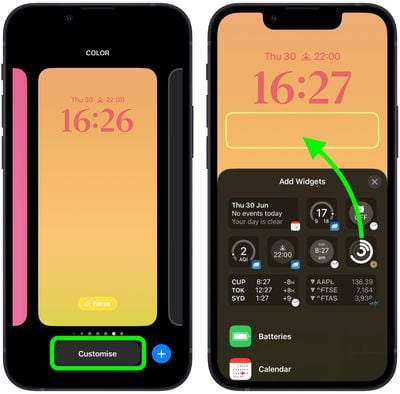
  2. Swipe to the wallpaper you want your activity to appear on, and then tap Customize.
  3. Tap the frame below the time to bring up the widgets selector.
    Lock Screen

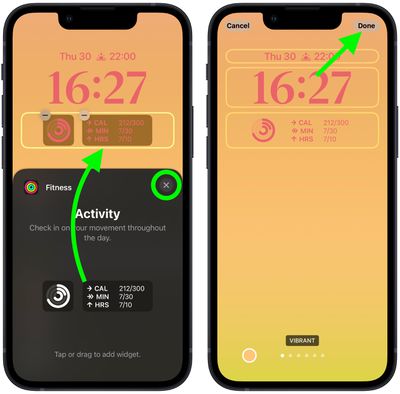
  4. Add the Activity rings widget by tapping it in the suggested widgets. Alternatively, scroll down the list of widgets and tap Fitness, and then tap the widget that you want to use, or drag it to the frame (you can add both widget types if you want).
  5. When you're finished arranging your widgets, close the widget selector by tapping the X in the top-right corner of the panel, then tap Done in the top-right corner of the screen.
    Lock Screen

  6. Lastly, tap the current Lock Screen in the wallpaper gallery to activate it.
Even if you don't have an Apple Watch, you can still track your movement (calories burned) in iOS 16 via the Fitness app. That's right – you can set a daily move goal even if you don't have an Apple Watch, using the ‌iPhone‌ to track your progress toward reaching the goal.

Popular Stories

iOS 26

iOS 26.4 Adds Two New Features to CarPlay

Tuesday March 24, 2026 1:55 pm PDT by
iOS 26.4 was released today, and it includes a couple of new features for CarPlay: an Ambient Music widget and support for voice-based chatbot apps. To update your iPhone 11 or newer to iOS 26.4, open the Settings app and tap on General → Software Update. CarPlay will automatically offer the new features so long as the iPhone connected to your vehicle is running iOS 26.4 or later....
Apple Business hero

Apple Unveils 'Apple Business' All-in-One Platform

Tuesday March 24, 2026 8:53 am PDT by
Apple today announced Apple Business, a new all-in-one platform that unifies device management, productivity tools, and customer outreach features. The service is designed to be a consolidated replacement for several of Apple's existing business-focused offerings, including Apple Business Essentials, Apple Business Manager, and Apple Business Connect. It provides organizations with a single...
AirPods Pro Firmware Feature

Apple Releases New Firmware for AirPods Pro 3, AirPods Pro 2 and AirPods 4

Tuesday March 24, 2026 12:31 pm PDT by
Apple today released new firmware for the AirPods Pro 2, AirPods Pro 3, and the AirPods 4. The firmware has a version number of 8B39, up from 8B34 on the AirPods Pro 3, 8B28 on the AirPods Pro 2, and 8B21 on the AirPods 4. There is no word on what's included in the firmware, but Apple has a support document with limited notes. Most updates are limited to bug fixes and performance...