

Apple has now released the first macOS Sonoma beta to developers, and in a first for the company, it is also giving non-developers the opportunity to download the beta on their Macs for free. Keep reading to learn how it's done.
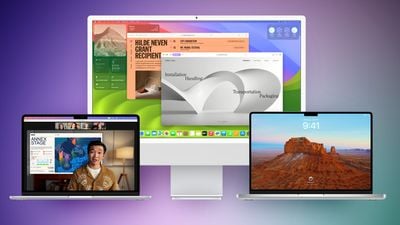
In years past when Apple has announced a major new operating system update, the first wave of betas has officially only been available to download if you are a paying subscriber to Apple's Developer Program, which costs $99 a year. Public betas then become available to users enrolled in Apple's Public Beta Software Program after a delay of a few days or weeks after the developer beta has been released. However, this year you don't have to wait for the public beta to be one of the first to try out macOS 14.
In an unexpected change for 2023, anyone who signs in to Apple's developer account website with their Apple ID gets access to developer beta releases as well, even if they are not a paying member of Apple's Developer Program. This means anyone with an Apple ID can download and install the iOS 17, iPadOS 17, and macOS Sonoma betas without waiting for the public betas to launch.
Should I Install macOS Sonoma Developer Beta?
Before downloading the update, it's worth noting that Apple does not recommend installing the macOS Sonoma Beta on your main Mac, so if you have a secondary Mac that has no important data on it, use that. This is beta software, which means there are often bugs and issues that pop up that can prevent software from working properly or cause other problems.
With that caveat in mind, the steps in the remainder of this article show you how to get macOS 14 betas on your Mac. First though, check that you have a compatible Mac.
Will macOS Sonoma Beta run on My Mac?
macOS Sonoma drops support for a handful of Mac models compared to macOS Ventura. The following Macs are not supported:
- 2017 MacBook Pro
- 2017 iMac
- 2017 MacBook (12-Inch)
macOS Sonoma remains compatible with the following Macs:
- MacBook Pro: 2018 and later
- MacBook Air: 2018 and later
- Mac mini: 2018 and later
- iMac: 2019 and later
- iMac Pro: 2017
- Mac Studio: 2022 and later
- Mac Pro: 2019 and later
Don't Forget to Back Up Your Mac
Be sure to back up your Mac using Time Machine before installing the software using the method, otherwise you won't be able to revert back to the previous version of macOS if things go wrong.
How to Download macOS Sonoma Developer Beta
As of writing, the option to download and install the macOS Sonoma Developer Beta is also available for users who have previously enrolled on Apple's Beta Software Program, and yet the program is officially only supposed to be for Public Betas. This suggests the option is a bug and Apple will likely remove it. But until that happens, if you're currently enrolled to receive Public Betas, you can skip to step 6.
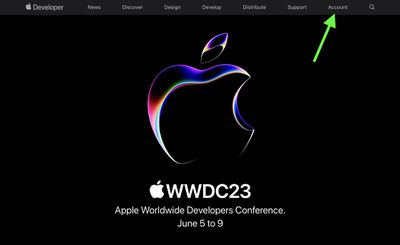
- Open Safari on your Mac and visit developer.apple.com.
- Click Account in the menu at the top of the webpage.

- Under "Sign in to Apple Developer," enter and submit your Apple ID and password using the arrow buttons, then if required, enter the two-factor authentication code sent to your Apple devices.
- Click Account again in the top menu strip.
- Accept the legal terms of the Apple Developer Agreement by scrolling down the page, checking the box, and clicking I Agree.
- Make sure your Mac is running macOS Ventura 13.4 or later by going to System Settings -> General -> Software Update. If it is, and you have just completed steps 1-5 to register a developer account, restart your Mac. If it isn't, download and install the latest update to macOS Ventura, then wait for it to restart.
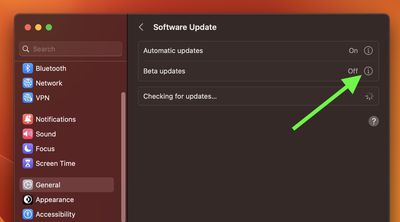
- Return to System Settings -> General -> Software Update.
- Click the info icon (the encircled "i") next to Beta updates.
- In the Beta Updates window, click the chevrons next to where it says "Off."
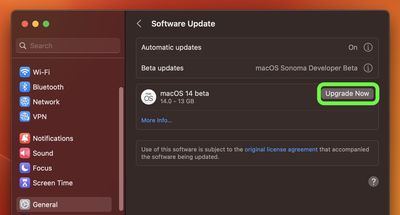
- Wait for the macOS 14 Beta to appear in the Software Update panel, then click Upgrade Now and follow the onscreen instructions.
Select macOS Sonoma Developer Beta from the dropdown menu, then click Done.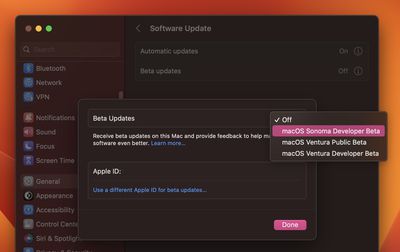
macOS Sonoma Features
Launching this fall, macOS Sonoma includes several new features, including desktop widgets, Apple TV-like aerial screensavers, enhancements to apps like Messages and Safari, a new Game mode that prioritizes CPU and GPU performance for gaming, and more.
The new interactive widgets can now be placed right on your desktop. Widgets blend into your desktop wallpaper to not be obtrusive when you're working, and with Continuity you can use the same widgets from your iPhone on your Mac.
macOS Sonoma also introduces enhanced video conferencing features, including Presenter Overlay to allow a user to display themselves in front of the content they are sharing. Reactions let users share how they feel within a video session, and Screen Sharing has been improved with a simplified process.
Safari also gets numerous new features within Sonoma. There's an update to Private Browsing that provides greater protection from trackers and from people who might have access to the user's device, while Profiles within Safari offer a way to separate browsing between topics, like having one for work and one for personal browsing. There's also a new way to create web apps that work like normal apps and let you get to your favorite website faster.




















