
There's nothing worse than waking up in the middle of the night, glancing over at your iPhone to check the time, and seeing a bunch of notifications that demand your attention and distract you from getting back to sleep.

Apple is aiming to prevent this in iOS 12 with a new Do Not Disturb at bedtime feature that prevents notifications from being displayed on the iPhone's Lock Screen during your downtime, removing the temptation to start opening up apps in the middle of the night.

Enabling Bedtime Mode
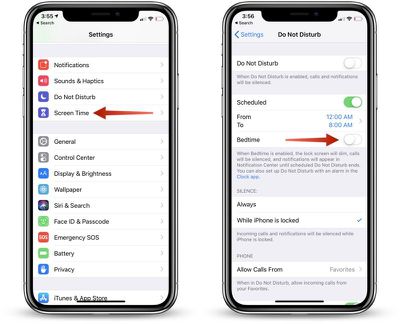
turningonbedtimemode

  1. Open up the Settings app.
  2. Scroll to the "Do Not Disturb" section and tap on it.
  3. In the Do Not Disturb section, tap on "Scheduled" to toggle it on.
  4. Select your Do Not Disturb time period, which, for most people, should be from when you go to bed until when you typically wake up.
  5. Tap on Bedtime Mode to toggle it on.

With Bedtime Mode enabled, when you activate the display on your device, the entire screen is dimmed and black, offering up only the time, the current device charge, and a notice that Bedtime Mode is turned on.
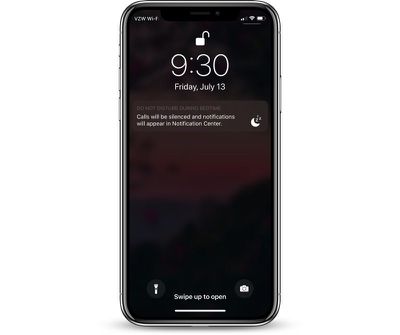
iphonebedtimeon
In this mode, all incoming calls are silenced as are all incoming notification messages. Your notifications are still listed in the Notification Center, accessible by swiping down from the top of the display, but you won't see them on the Lock Screen.

Bedtime Mode vs. Do Not Disturb

With Do Not Disturb turned on without Bedtime Mode, all of your incoming calls and notifications are still silenced, but the notification messages themselves will all be visible right on the Lock Screen.

Enabling Calls From Certain People

If you want family members to be able to contact you even with Do Not Disturb and Bedtime Mode turned on in case of emergency, there's a setting for that.
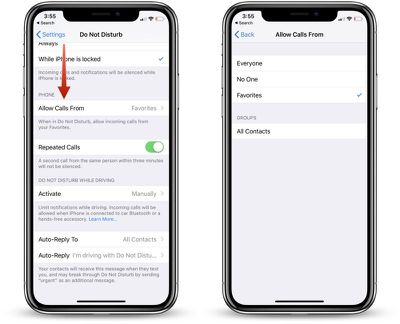
adjustingbedtimesettings

  1. Open the Settings app.
  2. Tap "Do Not Disturb."
  3. Scroll down to the Phone section where it says "Allow Calls From."
  4. Select Everyone, No One, or "Favorites," which can be set up in the Contacts app.

You can also toggle on "Repeated Calls" in the same section of the Settings app so a second call from the same person within three minutes won't be silenced. This is an ideal way to screen out unwanted calls while still allowing for potential emergencies as most people will try again if you're unreachable in a crisis.

Waking Up

When it's time to wake up, and when Bedtime Mode is scheduled to go off, your iPhone or iPad will display a "Good morning!" message and it will let you tap to reveal all of the notifications that were silenced during the night.
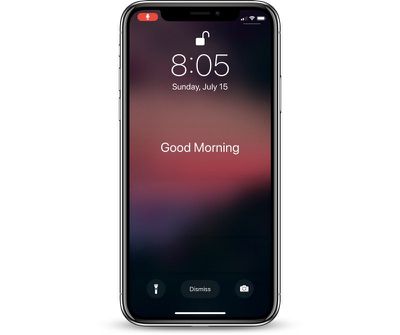
iphonebedtimeoff

Turning Off Bedtime Mode

If Bedtime Mode isn't for you, you can turn it off in the Settings app where it was enabled.

  1. Open the Settings app.
  2. Tap on "Do Not Disturb."
  3. If you want to turn off your scheduled Do Not Disturb session entirely, toggle off "Scheduled."
  4. If you want to leave Do Not Disturb on but disable Bedtime Mode, tap the Bedtime Mode toggle to turn it off.

Note: To quickly access Do Not Disturb settings, swipe to open up the Control Center and then 3D Touch or long press on the little moon icon.

This will provide you with options to enable Do Not Disturb for an hour, a few hours, until the end of an event, or until you leave a specific location, and it also offers up a "Schedule" option at the bottom that opens straight into the Do Not Disturb toggles in the Settings app.


Related Forum: iOS 12

Top Rated Comments

marvz Avatar
99 months ago
The first arrow is pointing at "Screen Time" and not at "Do Not Disturb" - kind of wrong. :p
Score: 5 Votes (Like | Disagree)
MacWanker Avatar
99 months ago
Can you use this without 'scheduled' being toggled, just by toggling 'bedtime' on when required?

If so, great. Not everyone has such a predictable schedule...
Score: 2 Votes (Like | Disagree)
sclawis300 Avatar
97 months ago
[doublepost=1532119285][/doublepost]
Ok...I got it to work the way that I want it to. I opened the clock app to the Bedtime feature. Then tapped options in the upper left corner. Then turned on the "Do Not Disturb During Bedtime" option. I'm not sure if that's new, or not.
I kind of feel like it's not. I can't remember why I didn't want to use that option, but, I forgot it existed. My habits have changed, and I want the DND schedule to mirror my Bedtime schedule. I also turned off the Scheduled option under DND in Settings. My bad...:confused:
This may be the most poorly implemented idea from apple in a while. Too many places to turn it off and on and to many options that are misleading. Why even have a bedtime toggle switch under the schedule if you still have to manually adjust the time to match the bedtime???? Make those options independent or don’t have the bedtime option on that screen at all.
Score: 2 Votes (Like | Disagree)
Supermacguy Avatar
99 months ago
It would also be nice if when I wake up I dont have to enter my passcode. It seems like I have to enter my 4 digit code more when I wake up than any other times of day.
Score: 1 Votes (Like | Disagree)
Braderunner Avatar
99 months ago
I wish bedtime mode would turn on and off according to the bedtime you have set.
Score: 1 Votes (Like | Disagree)
MsRandall Avatar
99 months ago
I want Do Not Disturb scheduler to be improved to set the day as well - I would like a M-F do not disturb option vs everyday

There was a tweak called Disturb Please that was great for this option
Score: 1 Votes (Like | Disagree)

Popular Stories

Apple Logo Zoomed

Tim Cook Teases Plans for Apple's Upcoming 50th Anniversary

Thursday February 5, 2026 12:54 pm PST by
Apple turns 50 this year, and its CEO Tim Cook has promised to celebrate the milestone. The big day falls on April 1, 2026. "I've been unusually reflective lately about Apple because we have been working on what do we do to mark this moment," Cook told employees today, according to Bloomberg's Mark Gurman. "When you really stop and pause and think about the last 50 years, it makes your heart ...
wwdc sans text feature

Apple Rumored to Announce New Product on February 19

Thursday February 5, 2026 12:22 pm PST by
Apple plans to announce the iPhone 17e on Thursday, February 19, according to Macwelt, the German equivalent of Macworld. The report, citing industry sources, is available in English on Macworld. Apple announced the iPhone 16e on Wednesday, February 19 last year, so the iPhone 17e would be unveiled exactly one year later if this rumor is accurate. It is quite uncommon for Apple to unveil...
Finder Siri Feature

Why Apple's iOS 26.4 Siri Upgrade Will Be Bigger Than Originally Promised

Friday February 6, 2026 3:06 pm PST by
In the iOS 26.4 update that's coming this spring, Apple will introduce a new version of Siri that's going to overhaul how we interact with the personal assistant and what it's able to do. The iOS 26.4 version of Siri won't work like ChatGPT or Claude, but it will rely on large language models (LLMs) and has been updated from the ground up. Upgraded Architecture The next-generation...
iOS 26

iOS 26.3 and iOS 26.4 Will Add These New Features to Your iPhone

Tuesday February 3, 2026 7:47 am PST by
While the iOS 26.3 Release Candidate is now available ahead of a public release, the first iOS 26.4 beta is likely still at least a week away. Following beta testing, iOS 26.4 will likely be released to the general public in March or April. Below, we have recapped known or rumored iOS 26.3 and iOS 26.4 features so far. iOS 26.3 iPhone to Android Transfer Tool iOS 26.3 makes it easier...
iphone 17 pro dark blue 1

iPhone 18 Pro Max Rumored to Deliver Next-Level Battery Life

Friday February 6, 2026 5:14 am PST by
The iPhone 18 Pro Max will feature a bigger battery for continued best-in-class battery life, according to a known Weibo leaker. Citing supply chain information, the Weibo user known as "Digital Chat Station" said that the iPhone 18 Pro Max will have a battery capacity of 5,100 to 5,200 mAh. Combined with the efficiency improvements of the A20 Pro chip, made with TSMC's 2nm process, the...















