How to Encrypt a USB Flash Drive in macOS Mojave - MacRumors
Skip to Content

How to Encrypt a USB Flash Drive in macOS Mojave

by

finder padlockIn macOS Mojave, you can choose to encrypt and decrypt disks on the fly right from the desktop. Using this convenient Finder option, we're going to show you how to encrypt a USB flash drive (or "thumb drive"), which is useful if you're traveling light and want to take sensitive data with you for use on another Mac.

Finder uses XTS-AES encryption, the same encryption that FileVault 2 uses to prevent access to data on a Mac's startup disk without a password. Note that the following method is only compatible with Macs – you won't be able to access data on the encrypted drive using a Windows machine.

If this is a requirement, you'll need to use a third-party encryption solution like VeraCrypt. With that in mind, here's how to securely encrypt your USB flash drive.
how to encrypt a usb stick in macos mojave 01
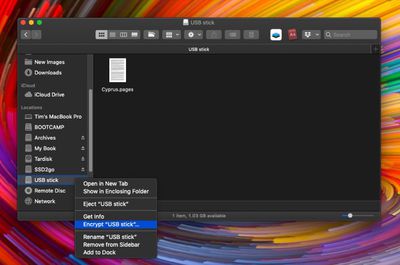
Attach the USB flash drive to your Mac and locate its disk icon on your desktop, in a Finder window, or in the Finder sidebar, then right-click (or Ctrl-click) it and select Encrypt "[USB stick name]"... from the contextual menu.

(Note that if you don't see the Encrypt option in the dropdown menu, your USB flash drive hasn't been formatted with a GUID partition map. To resolve this, you'll need to erase and encrypt the USB drive in Disk Utility – before that though, copy any data on the drive to another location for temporary safekeeping.)
how to encrypt a usb stick in macos mojave 02
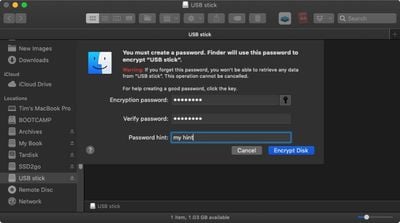
When you select Encrypt, Finder will prompt you to create a password, which you'll need to enter the next time you attach the USB flash drive to a Mac. (Don't forget this, otherwise you'll lose access to any data stored on the USB drive!) Once you've chosen a password, verify it, add a meaningful hint if desired, and click Encrypt Disk.

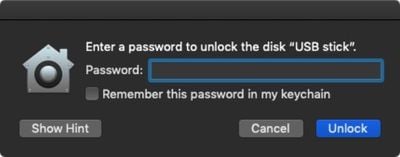
The encryption process depends on how much data you have on the USB flash drive, but you'll know it's completed when its disk icon disappears and re-mounts. You'll now be able to access the contents of the USB flash drive as usual, but if you physically detach it and re-attach it to your Mac you'll be prompted to enter the password.
how to encrypt a usb stick in macos mojave 03
Note that the prompt includes an option for macOS to remember this password in my keychain. Check the box, and whenever you attach the USB stick to your Mac again you won't be prompted to enter the password and you'll have automatic access to it, just like any other drive.
how to encrypt a usb stick in macos mojave 03b
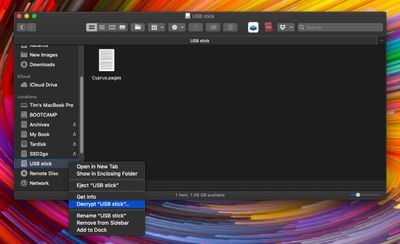
If you ever want to decrypt the USB flash drive in future, right-click (or Ctrl-click) its disk icon, select Decrypt "[USB stick name]" from the contextual menu, and enter the password to turn off encryption protection.

How to Encrypt a USB Flash Drive in Disk Utility

Before proceeding, make sure you've copied any data on the USB flash drive to a safe location, like your Mac's internal disk.

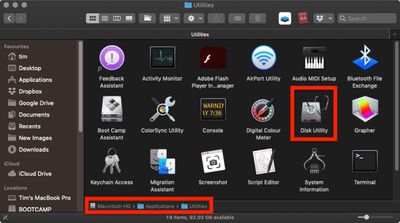
  1. Launch Disk Utility, located on your Mac in Applications/Utilities.
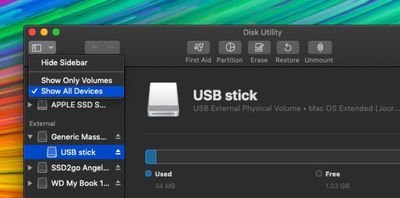
    how to encrypt a usb stick in macos mojave 04

  2. In the Disk Utility toolbar, click the View button and select Show All Devices if it isn't already ticked.
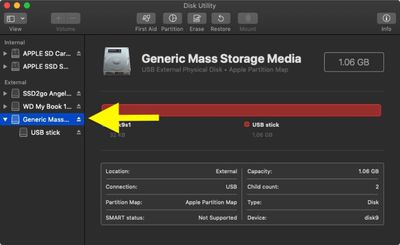
    how to encrypt a usb stick in macos mojave 05

  3. Select your USB flash drive in the sidebar by clicking its top-level device name (i.e. not the volume name that's listed beneath it).
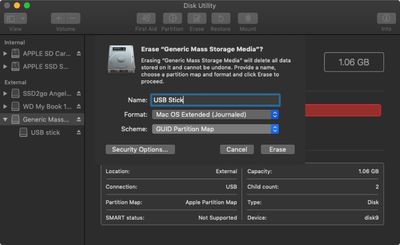
    how to encrypt a usb stick in macos mojave 06

  4. Click the Erase button in the toolbar.
  5. Give the USB flash drive a name.
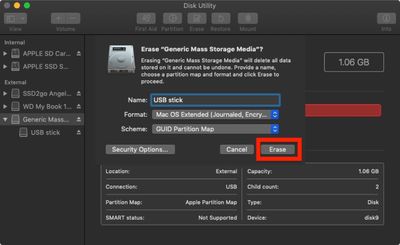
  6. Next, click the Scheme dropdown menu and select GUID Partition Map. (It's important to do this first before the next step, otherwise you won't see the encryption option in the Format dropdown.)
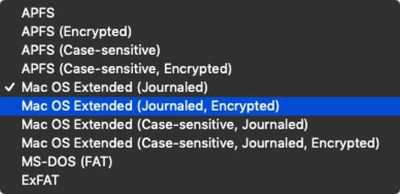
    how to encrypt a usb stick in macos mojave 07

  7. Now click the Format dropdown menu and select Mac OS Extended (Journaled, Encrypted).
    how to encrypt a usb stick in macos mojave 08

  8. Click Erase.
    how to encrypt a usb stick in macos mojave 07

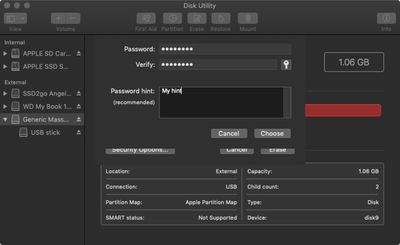
  9. Enter your new password, enter it once more to verify, include a password hint if desired, then click Choose.
    how to encrypt a usb stick in macos mojave 09

  10. Click Erase once again, and wait for your disk to be formatted and encrypted.
    how to encrypt a usb stick in macos mojave 10

Once the process is complete, copy across your sensitive data to the blank USB flash drive, where it will be automatically encrypted and secured with a password.


Top Rated Comments

103 months ago
Using Dark Mode for screenshots isn‘t a good choice for tutorials.

I‘m sorry!
Score: 13 Votes (Like | Disagree)
103 months ago
Disagree. It’s an official feature in Mojave and one can still follow the exact same options despite it being in dark mode.
It’s not that the process is different. It’s that black text on a white background is easier to read. Heck, some of the text is grey on black; how in the world could that ever be seen as anything close to desirable for tutorials for the masses? With my vision I’m having difficulty reading it. Let what’s stood the test of time be displayed for the vast majority, and run dark mode on your own machine on your own time.


Score: 6 Votes (Like | Disagree)
103 months ago
Using Dark Mode for screenshots isn‘t a good choice for tutorials.

I‘m sorry!
Disagree. It’s an official feature in Mojave and one can still follow the exact same options despite it being in dark mode.
Score: 5 Votes (Like | Disagree)
nate13 Avatar
103 months ago
Using Dark Mode for screenshots isn‘t a good choice for tutorials.

I‘m sorry!
Exactly why I came to comment. In a dark environment, with dark surroundings, I believe dark mode is awesome. In a bright context (GeekWebGuides home page for example), its just terrible. MR editors take note!!
Score: 3 Votes (Like | Disagree)
Weaselboy Avatar
99 months ago
Thank you,

There is no "scheme dropdown" option as it is possible to see on the image I uploaded above. :(


Make sure you have enables show all devices, then select the drive itself like in my photo and not one of the volumes below it.

Attachment Image
Score: 2 Votes (Like | Disagree)
Weaselboy Avatar
102 months ago
Is there a way to force this to back up to iCloud?
Thanks
I played around with it, and it looks like you can copy the entry from the login Keychain and paste it into the iCloud Keychain. But instead of keeping the drive name, it changes it to the UUID # of the drive.


Here is the login Keychain entry.


I right clicked and copied it from login then right clicked and pasted in iCloud Keychain and it made the new entry you see here in the iCloud Keychain. Presumably this would sync along with everything else in the iCloud Keychain.

I have not tested if you delete this entry from login Keychain if this iCloud entry will unlock the drive.

Attachment Image

Attachment Image
Score: 2 Votes (Like | Disagree)

Popular Stories

M5 MacBook Pro

RIP, MacBook Ultra

Monday October 19, 2026 9:37 am PDT by
Apple today sent out invites for an experience in Los Angeles on Wednesday, October 28, and the "Pro and tell" tagline on the invitation likely means that the rumored MacBook models with touch-enabled OLED displays will stick with MacBook Pro branding instead of the once-rumored "MacBook Ultra" name. The long-rumored "iPhone Ultra" ended up being named iPhone Duo, so speculation that Apple...
iPhone Duo Trio

Here's What Apple's Apps Look Like on the iPhone Duo

Tuesday October 20, 2026 11:12 am PDT by
With just three days to go until the iPhone Duo is released, Apple is getting ready for the launch. Behind the scenes, the App Store now has screenshots of Apple's built-in apps running on the Duo. We've seen some apps in marketing materials, but images of the ones we haven't seen give us an idea of what it will be like using the iPhone Duo day to day. Many apps are shown in landscape...
apple pro tell logo

Apple Announcing New Products Next Week: 'Pro and Tell'

Monday October 19, 2026 9:05 am PDT by
Apple's Greg Joswiak today hinted at new product announcements coming next week, sharing a social media post that says "Can't wait to pro and tell next week." Rumors suggest Apple is planning to debut the new MacBook Pro with an OLED touchscreen display, an M6 entry-level MacBook Pro, an M6 iMac, an iPad mini with an OLED display. Can't wait to pro and tell next week....
Latest Stories
Giant iPhone Duo Displays Coming to Four Apple Stores
50 minutes ago
Apple Pulls Keynote, Pages and Numbers From App Store
2 hours ago
Apple Updates More Apps With iPhone Duo Support
2 hours ago
Apple Will Label Apps 'Made for iPhone Duo' in App Store
5 hours ago
Amazon Takes $49 Off iPad With Prices Starting at $399.99
6 hours ago
F1 on Apple TV Now Available in Dolby Atmos
6 hours ago
Apple Reveals More Than 50 Apps That Will Be Updated for iPhone Duo
7 hours ago
Apple Blocks Certificates That Could Help Attackers Fake Websites
8 hours ago
Giant iPhone Duo Installations Spotted at Apple Fifth Avenue
9 hours ago
iPhone Duo 2 Prototypes Include Under-Display Face ID
9 hours ago
Tesla App Gains iPad and iPhone Duo Support
13 hours ago
Apple Reportedly Boosts iPhone Duo Orders by 44%
13 hours ago
Fortnite Returning to Australian App Store After Court Ruling
14 hours ago
Apple Ordered to Open iPhone to Rival App Stores in Australia
14 hours ago
Apple Suppliers Face Hurdles Cutting Circuit Board Emissions
14 hours ago
Things Updated for iPhone Duo With Adaptive Layout
15 hours ago
Simplicity and Siri AI Are HomeView's Killer Features, Apple Says
15 hours ago
iPhone Duo Reviewers Really Miss Face ID
20 hours ago
Does the iPhone Duo Run Hot? Here's What Reviews Found
22 hours ago
Apple Music's New Look is Now Live on Apple's Website
22 hours ago
Anthropic Launches Claude Duet, a Proactive AI Agent
23 hours ago
What 32,000 Folds Did to the iPhone Duo's Hinge
1 day ago
iPhone Duo's Hidden FaceTime Camera Takes 'Trash' Photos
1 day ago
iPhone Duo Has 'Edge Light' Feature That Debuted on Macs Last Year
1 day ago
Apple Support App Updated for iPhone Duo's Larger Display
1 day ago
Amazon Sweetens the Deal on Entry-Level 16-Inch MacBook Pro With $570 Off
1 day ago
iPhone Duo Tips Over on MagSafe Stands When Unfolded
1 day ago
Apple Music's New Look Officially Announced
1 day ago
iPhone Duo Supports Apple Pencil Starting With iOS 27.2
1 day ago
iPhone Duo Accessories Roundup: Cases and Screen Protectors From OtterBox, ZAGG, and More
1 day ago