

If you connect your iOS device to your computer to back up your data instead of using iCloud, some of your most private data is not backing up. For security reasons, by default, an iTunes backup will not include saved passwords, Wi-Fi settings, website history, or Health data.
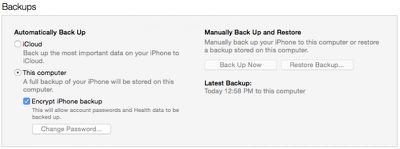
You can save information like passwords and website history in an iTunes backup if you encrypt it, which is an option that Apple offers. Encrypted backups are not the default option, but for those of you who want to be able to save more comprehensive backups to your computer, we've created a tutorial that walks you through encrypting iTunes backups and removing that encryption.
If you back up your iOS device using iCloud, you do not have to follow any steps for encryption, as iCloud backups are automatically encrypted for you.
- Connect your iOS device to your computer the way you normally do.
- Open iTunes if it doesn't open automatically when you connect your device and let your device sync normally.
- Select your device in iTunes. Then click "Summary."
- In the Backups section, check the box for "Encrypt iPhone Backup."
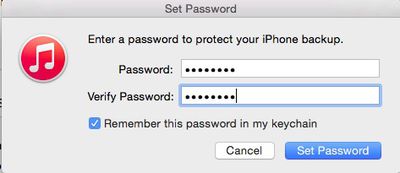
- You will be asked to create a password. Make sure it is something that you won't forget. You can remember the password in your keychain.
- iTunes will create a new full backup of your device's data and will also overwrite and encrypt previous backups.
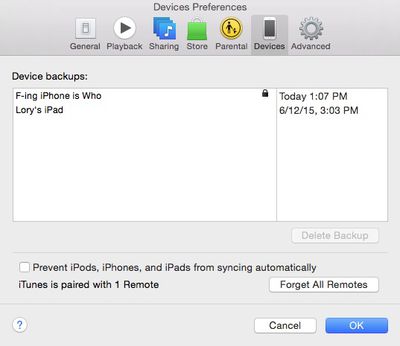
- Wait for the backup to finish. Then, check to ensure that it was properly encrypted. Go to Preferences from the iTunes toolbar. Then select Devices. If the backup was encrypted, you will see a lock next to it.
A password is required to enable and make changes to your encrypted backups. If you can't remember the password for your encrypted backup, you can sync your iOS device using iCloud instead. It's best to use a password manager to save your encryption password, because there is no way to recover information or turn off encryption if you forget the password.
If you decide not to use an encrypted backup anymore, you can disable it.
- Connect your iOS device to your computer and open iTunes.
- Select your device from the menu. Then click "Summary."
- Uncheck the box for "Encrypt iPhone Backup."
- Enter the password you created to enable the encrypted backup.
- Wait for the backup to finish.
Now that you know how to enable encrypted backups, you can sync all of your private information to iTunes, including passwords and Health and Fitness data.





















Top Rated Comments
"[X] Encrypt iPhone backup. This will allow account passwords (...and Health...) data to be backed up."
This notice has been there for many, many years.
Can somebody repost the missing articles
How to backup Your iOS Device in iTunes
How to check checkboxes using the Magic Trackpad
and don't forget folks, always check whether checked checkboxes have been properly checked!
"For security reasons, by default, an iTunes backup will not include saved passwords, Wi-Fi settings, website history, or Health data."
All passwords (including ones to Wi-Fi access points) are saved in the device keychain. Keychain data *IS* always included into device backup, but if the backup does not have the password set, then the keychain is encrypted using the "hardware" key unique to every device (and this key is not being changed even after device reset). That means that if you reset from such (not encrypted) backup to the new device, most keychain data is lost. In contrary, if backuip is password-protected, then keychain is encrypted using the key derived from this password (and so can be restored to any other device -- if, of course, the password is known).
Website history is always included into backup. Health data is not.
I use iExplorer, which does the job well, but I have to manually do it. It would be better if iTunes automatically backed them up on the Mac and in iCloud.