If you've forgotten the passcode for your iPhone or iPad, you can erase and reset or restore the device using your Apple ID and password. This article explains how.
iPhone passcodes are usually six digits long, but they can still be forgotten, especially if the device hasn't been used for a while. If you find yourself in this predicament, you have the option to erase and reset it, after which you can restore the contents from a backup.
If you enter the wrong passcode several times on an iPhone running an iOS version earlier than iOS 15.2, your iPhone will disable itself for a time and you'll need to connect it to a computer and restore it from a backup.
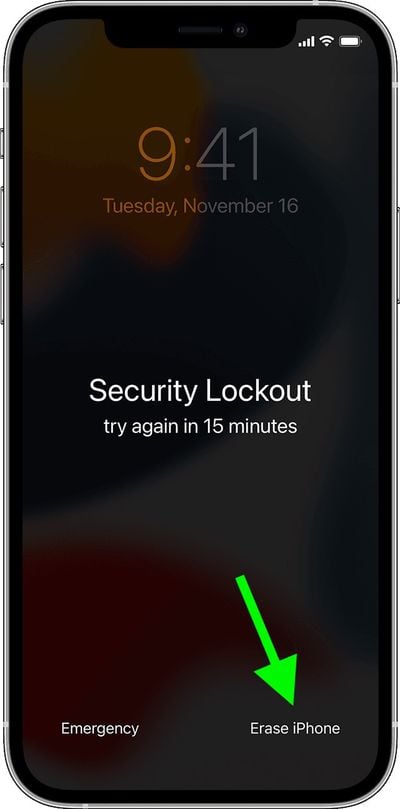
If the iPhone is running iOS 15.2 or later, you won't need to connect it to a Mac or PC to reset it. Instead, you'll get an option to erase it when it's in Security Lockout mode, and you'll be able to restore from an iCloud backup.
The series of steps below outline the actions you need to take in both cases.
How to Reset a Locked iPhone Running iOS 15.2
The following steps assume your iPhone or iPad is running iOS 15.2 or iPadOS 15.2 or later, and is connected to a cellular or Wi-Fi network. Note that if you restart your device when you see "Security Lockout" on the Lock Screen, you won't be able to reconnect to a Wi-Fi network until your device is unlocked.
- From your device's Lock Screen, try entering your passcode several times until it asks you to try again later. When you can, repeat this action until you see the Erase iPhone/iPad option in the bottom corner of the screen.
- Tap Erase iPhone/iPad, then tap Erase iPhone/iPad again to confirm.

- Enter your Apple ID password to sign out of your Apple account on the device.
- Tap Erase iPhone/iPad once again to permanently delete all of your data and settings.
- When the iOS device restarts, follow the onscreen instructions to set it up again, restore your data and settings from a backup, and set a new passcode.
How to Restore a Locked iPhone Running iOS 15.1 or Earlier
- First, put your iPhone into DFU recovery mode.
- Next, connect it to a PC or Mac using a Lightning cable.
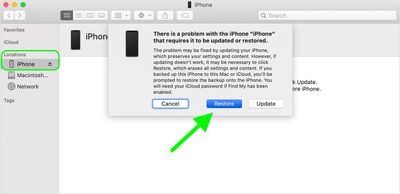
- Select your iPhone in the Finder sidebar on Mac, or in iTunes on the PC that it's connected to.
- Choose Restore when you see the option to Restore or Update. If the download takes more than 15 minutes and your device exits the recovery mode screen, let the download finish, then turn off your iPhone and start again.
- Wait for the process to complete.
- Disconnect your iPhone, then turn it on and set it up.
If you're planning on trading in an old iPhone for a new one, there are some steps you'll want to take beforehand to ensure it's de-linked from your accessories and accounts and that everything on it is erased.