

Find My is an Apple feature that enables you to locate lost or misplaced Apple devices – including your Apple Watch. If you've already set up Find My on your paired iPhone, it's automatically enabled on your Apple Watch too.

When you sign in to iCloud.com or the Find app, you can see your Apple Watch on a map and play a sound to locate it if it's nearby. Find My also has a Lost Mode to lock, track, or remotely erase all of your personal information.
One of the newest features in Find My is its ability to locate lost devices even when they're not connected to WiFi or LTE by leveraging Bluetooth and proximity to other nearby Apple devices.
When your lost device is offline but close to another device, it's able to connect to that other device over Bluetooth and relay its location. That means that your devices are more trackable than ever, and there's a better chance you can find a device that's been lost. Of course, if your Apple Watch is nowhere near another device, this feature won't work, but you can still try locating it if it's nearby by getting it to play an audible tone. Here's how.
Locating an Apple Watch Lost Nearby
You can find your Apple Watch using the Find My app on iOS devices and iCloud.com. If your Apple Watch is powered on, it will show up on the Find My map, just like an iPad, iPhone, or Mac.
- Launch the Find My app on your iPhone or iPad.
- Swipe up to reveal the full devices list.
- Tap the Apple Watch in the list.
- Tap Play Sound.
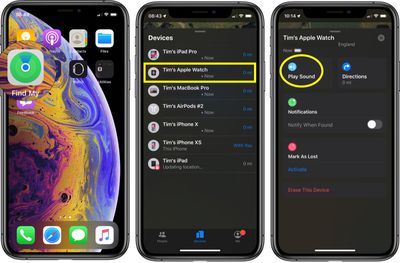
A soft chirping sound will start playing after you initiate the "Play Sound" command, which will gradually get louder and louder with each chirp to make the Apple Watch easier to locate.
Locating an Apple Watch Lost Far Away
The way Find My works with an Apple Watch that's lost far away depends on the model. Apple Watch Series 3 and Series 4 use GPS and a trusted Wi-Fi or cellular connection to give you their approximate location, while Apple Watch Series 2 uses GPS and a trusted Wi-Fi connection. Apple Watch Series 1 models don't feature GPS, and they can only use the location of your paired iPhone or its Wi-Fi connection, making locating them at a distance impossible unless your iPhone is also nearby.
For these reasons, using Find My to locate an Apple Watch Series 2, Series 3, or Series 4 that's been left behind isn't going to be very accurate, but it will give you a general idea of where the watch was lost so you can go back to that location. When attempting to locate an Apple Watch this way, tap the Directions option and you will be given Apple Maps directions to the last known location.
How to Put Your Apple Watch in Lost Mode
If you didn't turn on Find My before your Apple Watch was lost or stolen and your watch isn't connected to Wi-Fi, cellular, or your paired iPhone, you can't use it to locate your device. However, you can put your Apple Watch in Lost Mode, which ensures your passcode is required before anyone can turn off Find My iPhone, erase your watch, or pair it with another iPhone.
- Launch the Find My app on your iPhone.
- Swipe up to reveal a list of your devices, then tap your Apple Watch in the list.
- Swipe up to reveal the full device actions menu.
- Under Mark as Lost, tap Activate.
- Tap Continue to confirm that you want to turn on Lost Mode.

- Enter a phone number where you can be reached, then tap Next.
- Enter the message that you want to appear on the watch screen.
- Tap Enable.
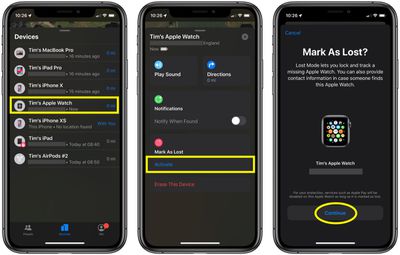
Find My iPhone will send you an email message to confirm that you've put your Apple Watch in Lost Mode. Once it's activated you can turn off lost mode any time using the same device actions menu described in the above steps (Pending -> Turn Off Mark as Lost).




















