Macs aren't infallible, and at some point during your time using them you'll come across a situation in macOS where an app has become unresponsive, leaving you without access to its contents and functions, and only a continually revolving beachball for your troubles.

MacBook Pro 2021 SharePlay Feature
If the beachball stays on the screen for more than a few minutes and you can't interact with the app's interface, this usually indicates the app in question has crashed, which means it's time to force quit it and restart the app to see if you can pick up where you left off in the hope it won't crash again. Read on to learn how.

How to Force Quit An App - Method 1

If the app is acting up, hold down the Option key and right-click its icon in the Dock to reveal a Force Quit action in the popup menu.
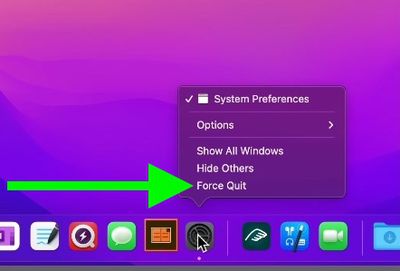
force quit

How to Force Quit an App - Method 2

There's a second option for quitting an unresponsive app, and it may be one of the more intuitive solutions.

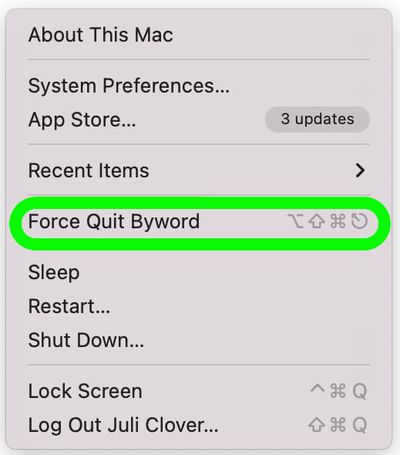
  1. Click on the Apple logo in the menu bar.
  2. Select the "Force Quit" option. force quit mac 1
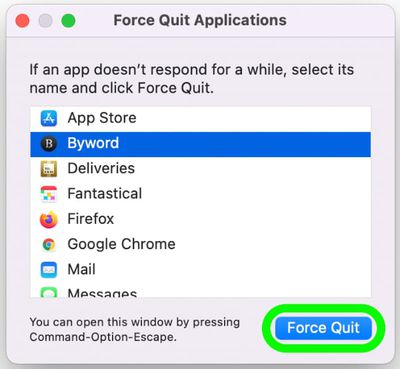
  3. Click the app that you want to quit. Unresponsive apps will have a "Not Responding" designation next to them.
  4. After selecting the offending app, click on Force Quit to shut it down. force quit mac 2
Alternatively, you can open the Force Quit applications interface by pressing Command + Option + Escape all at once.

How to Force Quit An App - Method 3

You can also force quit misbehaving Mac apps using Activity Monitor. You can find it in the /Applications/Utilities folder.
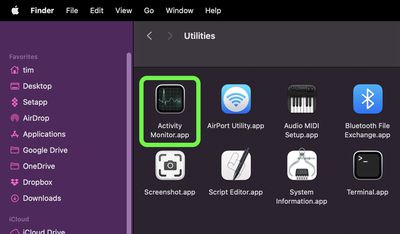
finder
The main window lists all the apps and processes currently running on your Mac. You'll notice the order jumps around a lot. That's because you're seeing the list being updated every five seconds to show changes in individual app usage statistics.

  1. Under the Process Name list, select the app or process you want to quit. To make finding the culprit easier, click Process Name in the column header to sort them alphabetically, or use the Search field in the top-right corner of the window to find the app or process. Note that an unresponsive process is labelled with (Not Responding).
    how to force quit apps using activity monitor 1

  2. Make sure the app or process is highlighted, then click the Quit (X) button in the top-left corner of the Activity Monitor window.

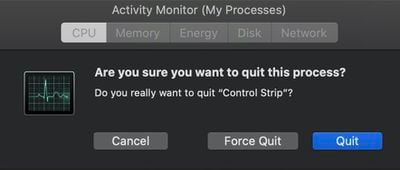
  3. Select Quit (this is the same as choosing File -> Quit within an app) or Force Quit, which quits the process immediately.
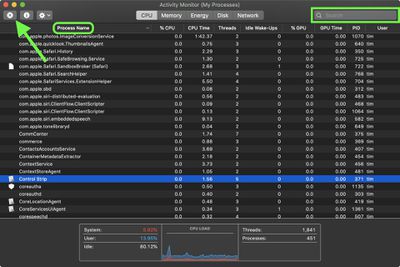
    how to force quit apps using activity monitor 2

Note that if the app or process has files open, force quitting it may cause you to lose data. Also, bear in mind that if the process you force quit is used by other apps or processes, those apps or processes may experience issues.

If your work in the crashed app hasn't been saved recently either manually or automatically, then there's not much you can do to retrieve your work other than check Time Machine.


Popular Stories

Apple Logo Zoomed

Tim Cook Teases Plans for Apple's Upcoming 50th Anniversary

Thursday February 5, 2026 12:54 pm PST by
Apple turns 50 this year, and its CEO Tim Cook has promised to celebrate the milestone. The big day falls on April 1, 2026. "I've been unusually reflective lately about Apple because we have been working on what do we do to mark this moment," Cook told employees today, according to Bloomberg's Mark Gurman. "When you really stop and pause and think about the last 50 years, it makes your heart ...
wwdc sans text feature

Apple Rumored to Announce New Product on February 19

Thursday February 5, 2026 12:22 pm PST by
Apple plans to announce the iPhone 17e on Thursday, February 19, according to Macwelt, the German equivalent of Macworld. The report, citing industry sources, is available in English on Macworld. Apple announced the iPhone 16e on Wednesday, February 19 last year, so the iPhone 17e would be unveiled exactly one year later if this rumor is accurate. It is quite uncommon for Apple to unveil...
Finder Siri Feature

Why Apple's iOS 26.4 Siri Upgrade Will Be Bigger Than Originally Promised

Friday February 6, 2026 3:06 pm PST by
In the iOS 26.4 update that's coming this spring, Apple will introduce a new version of Siri that's going to overhaul how we interact with the personal assistant and what it's able to do. The iOS 26.4 version of Siri won't work like ChatGPT or Claude, but it will rely on large language models (LLMs) and has been updated from the ground up. Upgraded Architecture The next-generation...
iOS 26

iOS 26.3 and iOS 26.4 Will Add These New Features to Your iPhone

Tuesday February 3, 2026 7:47 am PST by
While the iOS 26.3 Release Candidate is now available ahead of a public release, the first iOS 26.4 beta is likely still at least a week away. Following beta testing, iOS 26.4 will likely be released to the general public in March or April. Below, we have recapped known or rumored iOS 26.3 and iOS 26.4 features so far. iOS 26.3 iPhone to Android Transfer Tool iOS 26.3 makes it easier...
iphone 17 pro dark blue 1

iPhone 18 Pro Max Rumored to Deliver Next-Level Battery Life

Friday February 6, 2026 5:14 am PST by
The iPhone 18 Pro Max will feature a bigger battery for continued best-in-class battery life, according to a known Weibo leaker. Citing supply chain information, the Weibo user known as "Digital Chat Station" said that the iPhone 18 Pro Max will have a battery capacity of 5,100 to 5,200 mAh. Combined with the efficiency improvements of the A20 Pro chip, made with TSMC's 2nm process, the...