With online account hacking becoming increasingly widespread, all users should make sure they're taking every security measure available to them. If you use Apple devices, consider using Apple verification codes to protect your accounts. Keep reading to learn how it works.

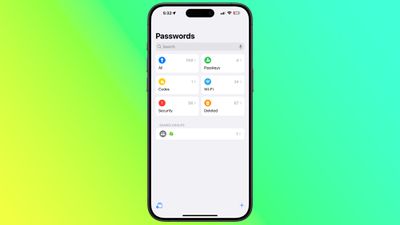
With iOS 18, Apple introduced its first dedicated Passwords app, which corrals all of your saved logins and passwords within a simple interface and secures them behind Face ID or Touch ID authentication.
In addition to storing your passwords and login credentials, the Passwords app can also generate verification codes for additional sign-in security.
The use of verification codes is known as two-factor authentication (2FA). 2FA offers hardened security during login attempts by requesting that the user provides an extra piece of information only they would know – such as a randomly generated code from a third-party.
However, thanks to Apple’s Passwords app, if a site offers 2FA, you can set up verification codes for it without downloading a third-party app. Verification codes are backed up via iCoud, and once set up, the codes will autofill when you sign into the site using any Apple device linked to your Apple Account.
Enable 2FA on the Account or Service
Here we'll explain how to set up and use verification codes on iPhone and iPad. You'll first need to enable the use of a 2FA app on whichever website or service you are trying to secure. (It's easier to complete this initial step on a desktop computer, as it may well involve scanning a QR code displayed on the screen using your iPhone or iPad's camera.)
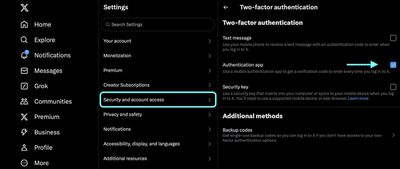
Some sites have text message 2FA enabled by default, so you'll likely need to explore the security or privacy settings to enable the use of an authenticator app instead. On X (Twitter) accounts, for example, the option is found in the Settings and Support menu, under Settings and privacy ➝ security and account access ➝ Security ➝ Two-factor authentication.
Using Setup Keys
Once you've enabled 2FA on the account or service in question, you'll be asked to either enter a setup key on your device or scan a QR code using your device's camera. Whichever option you are given, the following steps explain what to do next.
- Open the Passwords app on your iPhone or iPad.
- Using the search input field, type in the name of the account/service.
- Select the account/service, then tap Set Up Verification Code….
- Depending on the option you were given, either tap in the Setup Key or choose Scan QR Code with Camera, then follow the onscreen instructions.
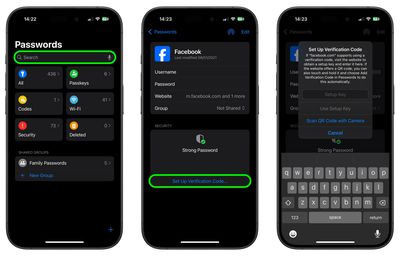
If you have been given a QR code, give the Passwords app permission to use your device’s camera, then scan the code. Once you've followed the above steps, the Passwords app is ready to generate verification codes on the fly that are valid for 30 seconds.
This means that when you come to log in to the site or service and you're prompted for a verification code, your device will automatically display the latest code above the virtual keyboard. All you need to do is tap the code to enter it into the input field, and away you go.