

Apple is scheduled to release iOS 26 and iPadOS 26 on Monday, September 15, bringing a host of new features to existing iPhones and iPads, such as a Liquid Glass design overhaul, new Home Screen customization options, a streamlined Camera app, new Phone app features, and more.
This article covers some of the things you can do to prepare your iPhone or iPad for Apple's latest mobile operating system, including storage maintenance tips, backup advice, and a few other useful tidbits to consider before upgrading. First though, you'll need to make sure your device is compatible with the new software.
Is My iPhone Compatible With iOS 26?
iOS 26 is compatible with the iPhone 11 series and newer. In other words, the following models are supported:
- iPhone 16e
- iPhone 16
- iPhone 16 Plus
- iPhone 16 Pro
- iPhone 16 Pro Max
- iPhone 15
- iPhone 15 Plus
- iPhone 15 Pro
- iPhone 15 Pro Max
- iPhone 14
- iPhone 14 Plus
- iPhone 14 Pro
- iPhone 14 Pro Max
- iPhone 13
- iPhone 13 mini
- iPhone 13 Pro
- iPhone 13 Pro Max
- iPhone 12
- iPhone 12 mini
- iPhone 12 Pro
- iPhone 12 Pro Max
- iPhone 11
- iPhone 11 Pro
- iPhone 11 Pro Max
- iPhone SE (2nd generation and later)
Note that this compatibility list does not mean that all iOS 26 features will work with the above models. Several of the update's features are exclusive to iPhone 15 Pro and iPhone 16 models, since they rely on Apple Intelligence. You can learn more about them here.
Note that iOS 26 will come pre-installed on new iPhone 17 models when they launch in September 2025.
Is My iPad Compatible With iPadOS 26?
iPadOS 26 supports the following iPad models:
- iPad Pro (M4)
- iPad Pro 12.9-inch (3rd generation and later)
- iPad Pro 11-inch (1st generation and later)
- iPad Air (M2 and later)
- iPad Air (3rd generation and later)
- iPad (A16)
- iPad (8th generation and later)
- iPad mini (A17 Pro)
- iPad mini (5th generation and later)
This means the only iPad model that supports iPadOS 18, but not iPadOS 26, is the lower-cost iPad (7th generation).
Note that this compatibility list does not mean that all iPadOS 26 features will work with the above models. Several of the update's features are exclusive to devices that support Apple Intelligence: these include iPad models with M1 or later chips, and the 7th generation iPad mini with A17 Pro chip.
Reclaim Device Storage Space
Before you attempt to make the leap to iOS 26/iPadOS 26, you'll first want to make sure your device has adequate space to download and install the new operating system over the air.
With that in mind, it's worth looking at what apps you currently have installed on your devices and whether you really need them. Swipe through your home screen and check inside your folders to root out any long-forgotten apps that are taking up precious storage space.
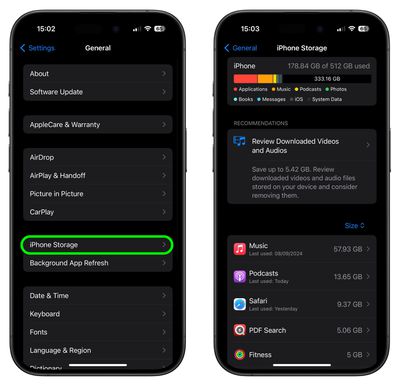
You can delete apps by holding a finger on them and tapping the X that appears at the corner of their icon. Alternatively, go to Settings ➝ General ➝ iPhone/iPad Storage, tap any apps you don't use, and select Delete App. Note that this action can't be undone, but be ruthless – you can always re-install removed apps at a later date if you change your mind.
Check on the size of any social media or messaging apps you have installed, such as Facebook and WhatsApp. These apps can often balloon in size after long periods of activity because of chat history, media caching and the like, so you might want to delete and reinstall them to start afresh.
Also, be sure to heed any personal recommendations on the iPhone Storage screen, like keeping high-resolution photos in iCloud and smaller-size versions on your device, or letting iOS automatically offload any apps you don't use often.
Make an Archived Backup of Your Device on Mac
It's best practice to have a local backup of your device stored on your computer in case something goes awry, or the worst happens and installation of iOS 26 fails. If you need to downgrade shortly after installing a new iOS/iPadOS update, making an archived local backup beforehand is necessary, otherwise you won't be able to revert back to iOS 18/iPadOS 18 if things go wrong.
- Plug your iPhone/iPad into your Mac using the supplied cable.
- Allow the accessory to connect by clicking Allow in the dialog prompt.
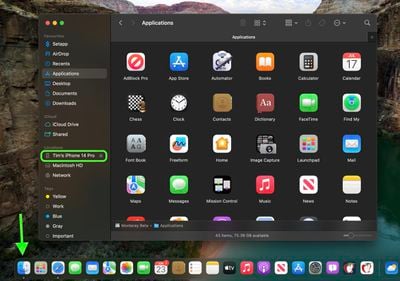
- Open a Finder window by clicking the Finder icon in the Dock.
- Click your iOS device's name in the sidebar.

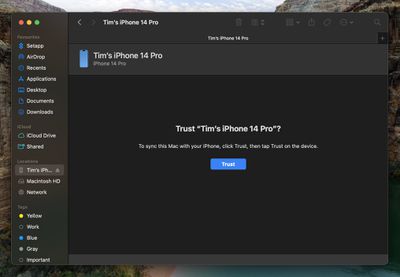
- If this is the first time connecting your device to your Mac, click Trust in the Finder window.
- Tap Trust on your device when prompted, then enter your passcode to confirm.
- In the General tab, click the circle next to where it says Back up all of the data on your iPhone/iPad to this Mac.
- If you want to encrypt the backup, check the box next to Encrypt local backup, then enter a password to protect your data.
- If you don't want to create an encrypted backup, or you've already set up encrypted backups, click Back Up Now. When the backup is finished, you can find the date and time of the last backup in the General tab, just above the Manage Backups button.
- Lastly, archive the backup: Select Manage Backups ➝ Select Backup, then right-click the backup and choose Archive. This protects it from being overwritten by the next local backup or automatically deleted if your Mac is low on storage space.
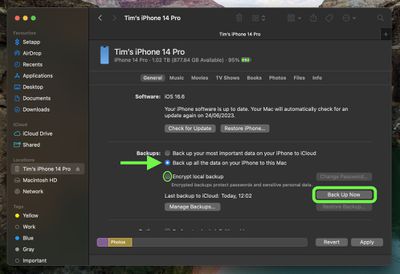
Remember that this backup will not be overwritten when you manually or automatically back up your iPhone in the future, so you can restore it at any time by using the Restore Backup... option in the same Finder screen.
Make an Archived Backup of Your Device on Windows
The Apple Devices app is now the main tool for managing a connected iPhone on a Windows PC.
- Plug the iPhone/iPad into your Windows PC. (You may also need to tap Trust on your Apple device.)
- Go to the Apple Devices app on your PC, then select your Apple device in the sidebar.
- Click General in the sidebar.
- Use the bullets to select where to back up your data. (If you want to encrypt the data, select the Encrypt local backup option and set a password.)
- Click Back Up Now.
- After the backup is complete, select Manage Backups to see the backup file.
- Right-click the backup you created and choose Archive. This extra step prevents the backup from being overwritten by the next local backup or automatically deleted if the computer runs low on storage space.
Installing iOS 26
When iOS 26 and iPadOS 26 become available on September 15 as an over-the-air update (likely around 10:00 a.m. Pacific Time/1:00 p.m. Eastern Time, based on past releases), make sure your device is fully charged before you start the process over Wi-Fi, as it may take some time to complete.
To check that the update is available, go to Settings ➝ General ➝ Software Update, and wait a moment for your device to contact Apple's servers. If you're in no rush, you can wait for iOS 26/iPadOS 26 to be delivered to your iPhone or iPad when you next plug it into your computer.














































Top Rated Comments
If you have an older iPhone that is supported, I suggest holding off on the update until you hear from others that it runs well on your model.