This article explains how to stop the Dynamic Island and red recording indicator from appearing in video captured on iPhone 14 Pro models using the screen recording feature. Keep reading to learn how it's done.
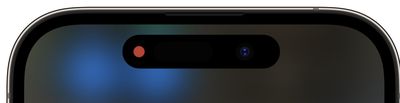
On iPhone, Apple's screen recording feature records a video of what you're doing on your screen, which is great if you want to capture gameplay, walk someone through a tutorial in an app, demonstrate a bug, or anything else.
On older iPhones with a notch at the top of the display, the notch isn't visible in screen recordings, which is as it should be. But on newer iPhones with a Dynamic Island cutout, such as the iPhone 14 Pro and iPhone 14 Pro Max, the Dynamic Island animates to show the red recording indicator, which causes the cutout to be visible in the captured video.
This can be distracting, especially if you want the viewer's attention to be focused on the main content of your screen recording. Fortunately, there is a way to remove Dynamic Island activity from screen recordings, and it's really rather simple. The following steps show you how.
- Bring up the Control Center by swiping down diagonally from the top-right corner of the screen.
- Tap the Screen Recording button in Control Center (if it isn't there, you can add the function via Settings -> Control Center).
- Before the three-second countdown ends, swipe horizontally across the Dynamic Island from either edge of the cutout towards the center.
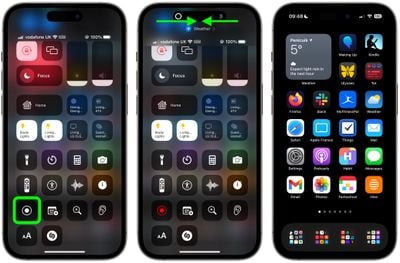
Performing the action described in the last step will make the countdown timer disappear and prevent the Dynamic Island and the red screen recording indicator from appearing in your captured screen recording. When you want to stop the recording, simply tap the Dynamic Island to reveal the Stop button.