macos system preferences iconIn macOS, the System Preferences app located in the Applications folder is where you can adjust various settings to customize your Mac. Most system preference panes are native to macOS and cannot be removed – although they can be hidden. In this article, we'll show you how it's done.

Occasionally, third-party apps installed on your Mac will insert their own preference panes in the bottom row of the System Preferences panel. Sometimes these panes will pointlessly stick around even after you've uninstalled the associated app. Thankfully though, they can be removed separately. To jump to our instructions on how to do that, click here.

How to Hide a Native System Preferences Pane

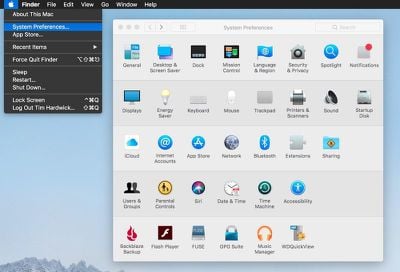
  1. Launch System Preferences from your Mac's Dock, from the Applications folder, or from the Apple menu bar ( -> System Preferences...).
    1 launch system preferences macos

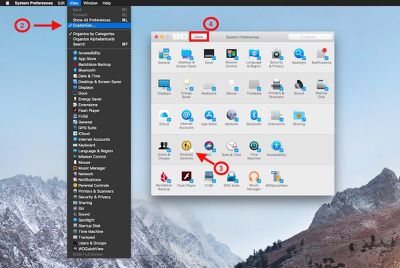
  2. From the System Preferences menu bar, select View -> Customize.... Alternatively, click and hold the Show All button located to the right of the forward and back arrow buttons at the top of the System Preferences window.
    2 customize system preference pances mac

  3. A blue checkbox will appear next to each pane in the System Preferences window. Uncheck the panes that you wish to hide.

  4. Press Done.

Tip: The View menu includes an option to change the preference pane arrangement from the default Organize by Categories to Organize Alphabetically, and vice versa.

How to Remove Third-Party Preference Panes

  1. Launch System Preferences from your Mac's Dock, from the Applications folder, or from the Apple menu bar ( -> System Preferences...).
    1 identify system preference pane to remove macos

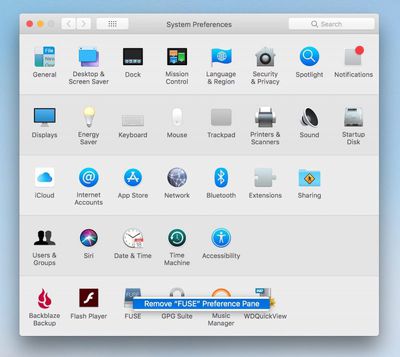
  2. Locate the third-party pane in the bottom row of System Preferences that you wish to remove.

  3. Right-click (or Ctrl-click) the third-party pane and select the pop-up option Remove "[name of pane]" Preference Pane.
    remove third party preference pane mac

  4. Enter your admin password if requested to do so.
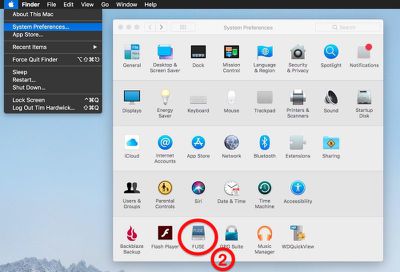
The above steps should work for most third-party preference panes, but if you want to manually delete a preference pane file from your Mac, here's how.

How to Remove Preference Pane Files Manually

  1. Open a Finder window.

  2. From the Finder menu bar, click the Go menu, hold down the Option (⌥) key, and then select Library in the dropdown menu.

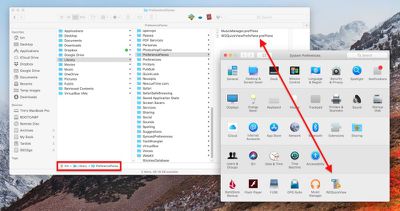
  3. In the Library folder, open the PreferencePanes subfolder.
    manually delete preference pane file

  4. Identify the .prefPane file for the specific preference pane that you want to remove. (If you can't see it, you may need to look in the global system library folder. To open the folder from the Finder menu bar, select Go -> Go to Folder..., type /Library/PreferencePanes and click the Go button.)

  5. Right-click (or Ctrl-click) the file and select Move to Trash.

  6. Restart your Mac.

Top Rated Comments

RedTomato Avatar
103 months ago
what would be one good reason to remove them?
Why not read the article and find out? Or just look at the pictures in the article.

EDIT: For the truly lazy, there's no need to go that far. It's covered in the second paragraph of the OP's summary above you.
Score: 6 Votes (Like | Disagree)
homonto Avatar
103 months ago
what would be one good reason to remove them?
Score: 3 Votes (Like | Disagree)
ike1707 Avatar
103 months ago
I just want to know how to remove the preinstalled social media integration for Facebook, Twitter and the like. Which should not come preinstalled on any OS in my opinion.
Score: 2 Votes (Like | Disagree)
elvisimprsntr Avatar
103 months ago
what would be one good reason to remove them?
Someone likely thumbed though a NIST or other macOS hardening guide and discovered you could remove the system preference GUI to make it more difficult for users to modify security related settings.
Score: 1 Votes (Like | Disagree)
Mr_Brightside_@ Avatar
103 months ago
Is it possible to move Panes? It really irks me how they've moved Startup Disk in 10.12/.13
Score: 1 Votes (Like | Disagree)

Popular Stories

Apple Logo Zoomed

Tim Cook Teases Plans for Apple's Upcoming 50th Anniversary

Thursday February 5, 2026 12:54 pm PST by
Apple turns 50 this year, and its CEO Tim Cook has promised to celebrate the milestone. The big day falls on April 1, 2026. "I've been unusually reflective lately about Apple because we have been working on what do we do to mark this moment," Cook told employees today, according to Bloomberg's Mark Gurman. "When you really stop and pause and think about the last 50 years, it makes your heart ...
iOS 26

iOS 26.3 and iOS 26.4 Will Add These New Features to Your iPhone

Tuesday February 3, 2026 7:47 am PST by
While the iOS 26.3 Release Candidate is now available ahead of a public release, the first iOS 26.4 beta is likely still at least a week away. Following beta testing, iOS 26.4 will likely be released to the general public in March or April. Below, we have recapped known or rumored iOS 26.3 and iOS 26.4 features so far. iOS 26.3 iPhone to Android Transfer Tool iOS 26.3 makes it easier...
imac video apple feature

Apple Makes Its Second-Biggest Acquisition Ever

Tuesday February 3, 2026 12:45 pm PST by
Apple recently acquired Israeli startup Q.ai for close to $2 billion, according to Financial Times sources. That would make this Apple's second-biggest acquisition ever, after it paid $3 billion for the popular headphone maker Beats in 2014. This is also the largest known Apple acquisition since the company purchased Intel's smartphone modem business and patents for $1 billion in 2019....
wwdc sans text feature

Apple Rumored to Announce New Product on February 19

Thursday February 5, 2026 12:22 pm PST by
Apple plans to announce the iPhone 17e on Thursday, February 19, according to Macwelt, the German equivalent of Macworld. The report, citing industry sources, is available in English on Macworld. Apple announced the iPhone 16e on Wednesday, February 19 last year, so the iPhone 17e would be unveiled exactly one year later if this rumor is accurate. It is quite uncommon for Apple to unveil...
Finder Siri Feature

Why Apple's iOS 26.4 Siri Upgrade Will Be Bigger Than Originally Promised

Friday February 6, 2026 3:06 pm PST by
In the iOS 26.4 update that's coming this spring, Apple will introduce a new version of Siri that's going to overhaul how we interact with the personal assistant and what it's able to do. The iOS 26.4 version of Siri won't work like ChatGPT or Claude, but it will rely on large language models (LLMs) and has been updated from the ground up. Upgraded Architecture The next-generation...