How to Use High Power Mode on MacBook Pro - MacRumors
Skip to Content

How to Use High Power Mode on MacBook Pro

by

Apple's 16-inch MacBook Pro with the M1 Max chip was the first Apple silicon laptop to feature a High Power Mode for intensive, sustained workloads, and now both the 14-inch and 16-inch models with M3 Max support the feature. This article explains what it does and how to enable it.
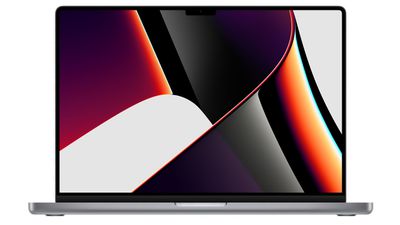
16 inch macbook pro
Both of Apple's latest 14-inch and 16-inch ‌MacBook Pro‌ models with M3 Max chip include a High Power Mode that is designed to optimize performance to better support resource-intensive tasks, such as color grading 8K ProRes video, according to Apple.

The mode is available in macOS Monterey and later, and is meant to be enabled when users are rendering larger files or doing graphically intensive tasks that require an added performance boost. In other words, it's not likely to be beneficial in typical work cases like web browsing or productivity. Whether it boosts performance in games remains an open question at this point.

When enabled, High Power Mode will de-prioritize resource-hungry system processes in order to leverage the full performance capability of the ‌M1 Max‌, M2 Max, or M3 Max processor. The setting is basically the opposite of "Low Power Mode," which aims to decrease system performance in favor of prolonging battery life.

The following steps show you how to enable High Power Mode. Bear in mind that High Power Mode is only available on both 14-inch and 16-inch ‌MacBook Pro‌ laptops with the M3 Max chip. ‌MacBook Pro‌ models with M1 Pro/‌M2‌ Pro/M3 Pro chips do not support the feature, while out of the earlier ‌M1 Max‌/‌M2‌ Max models, only the 16-inch ‌MacBook Pro‌ laptop supports High Power Mode.

High Power Mode in macOS Ventura and Later

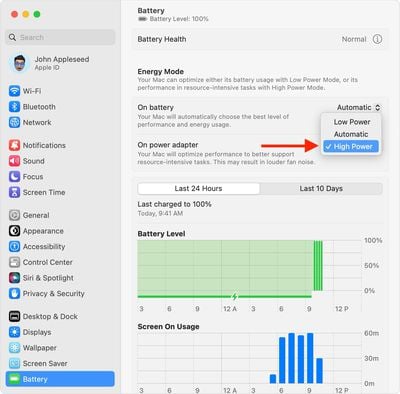
  1. In macOS, click the Apple () symbol in the menu bar and select System Settings....
  2. Click Battery.
  3. Choose High Power Mode from the "On battery" or the "On power adapter" pop-up menu under Energy Mode.
macos ventura system settings battery energy mode on battery high power

High Power Mode in macOS Monterey

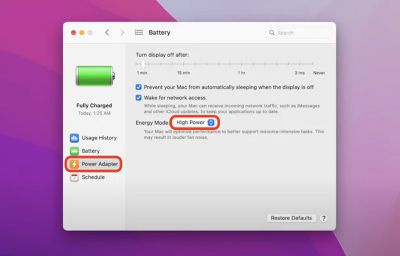
  1. In macOS Monterey and later, click the Apple () symbol in the menu bar and select System Preferences....
  2. Click the Battery icon in the preferences panel.
    system preferences

  3. Select Power Adapter from the sidebar.
  4. Where it says "Energy Mode" click the selection box and choose High Power.
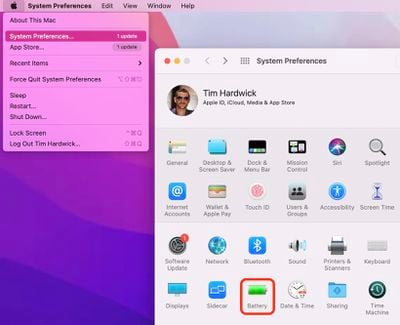
    battery

That's all there is to it. Note that High Power Mode may result in louder fan noise for as long as it's turned on. The bottom of the ‌MacBook Pro‌ may also become noticeably hotter to the touch, but rest assured that while the feature can cause the ‌M1 Max‌ chip to run hotter, the mode also ramps up fan speeds to accommodate this.

Related Roundup: MacBook Pro
Buyer's Guide: MacBook Pro (Buy Now)
Related Forums: MacBook Pro, macOS Monterey

Top Rated Comments

velocityg4 Avatar
58 months ago
Apple should've added a turbo button the the Macbook Pro. With a little LED to indicate the speed boost.


Attachment Image
Score: 31 Votes (Like | Disagree)
Realityck Avatar
58 months ago

"may also become noticeably hotter to the touch"

"may result in louder fan noise"

uh oh... where have I seen this before..
Maybe it's an Intel laptop simulator. Runs hotter, fans are louder. :D
Score: 9 Votes (Like | Disagree)
58 months ago
Hope the Dilithium crystals can hold out!
Score: 7 Votes (Like | Disagree)
58 months ago
Why isn't this an option in the menu bar under the battery icon?
Score: 7 Votes (Like | Disagree)
macfacts Avatar
58 months ago
Can't this be done automatically, then it could be said that it "just works" no need to micro manage settings
Score: 5 Votes (Like | Disagree)
58 months ago

Inside of the app called Apple TV there are Apple TV shows, so one could correctly say they are watching Apple TV in Apple TV on an Apple TV. 😁

Now just imagine when Apple gets around to doing a show about Apple TV- something like In the AppleTV writers room or behind the scenes at AppleTV.
That's like gettin' the boot for puttin' boots in the boot.
Score: 4 Votes (Like | Disagree)

Popular Stories

iOS 26

iOS 26.4 Adds Two New Features to CarPlay

Tuesday March 24, 2026 1:55 pm PDT by
iOS 26.4 was released today, and it includes a couple of new features for CarPlay: an Ambient Music widget and support for voice-based chatbot apps. To update your iPhone 11 or newer to iOS 26.4, open the Settings app and tap on General → Software Update. CarPlay will automatically offer the new features so long as the iPhone connected to your vehicle is running iOS 26.4 or later....
Apple Business hero

Apple Unveils 'Apple Business' All-in-One Platform

Tuesday March 24, 2026 8:53 am PDT by
Apple today announced Apple Business, a new all-in-one platform that unifies device management, productivity tools, and customer outreach features. The service is designed to be a consolidated replacement for several of Apple's existing business-focused offerings, including Apple Business Essentials, Apple Business Manager, and Apple Business Connect. It provides organizations with a single...
AirPods Pro Firmware Feature

Apple Releases New Firmware for AirPods Pro 3, AirPods Pro 2 and AirPods 4

Tuesday March 24, 2026 12:31 pm PDT by
Apple today released new firmware for the AirPods Pro 2, AirPods Pro 3, and the AirPods 4. The firmware has a version number of 8B39, up from 8B34 on the AirPods Pro 3, 8B28 on the AirPods Pro 2, and 8B21 on the AirPods 4. There is no word on what's included in the firmware, but Apple has a support document with limited notes. Most updates are limited to bug fixes and performance...