

Apple's HomePod speaker can recognize the voices of up to six people and tailor the music selection to an individual user's taste profile, respond to their own Personal Requests, and access their information to help them with everyday tasks.
Before you can make use of HomePod's multi-user voice support, you have to set up the feature, and there are a few steps involved. This article explains what they are and also offers a few troubleshooting tips if you're experiencing issues.
Check That Your Software is Up-to-Date
The first thing you need to do is ensure that the HomePod and the iPhones or iPads of the people who intend to use it are updated to iOS 16.3 or later or iPadOS 16.3 or later. You can check what software your iOS devices are running by opening the Settings app and selecting General -> Software Update.
To check the software version of your HomePod, launch the Home app on your iOS device, tap the home icon in the upper left corner of the display, then scroll down to Software Update. You can pull down from the top of the iPhone or iPad screen to check for an update if you need to.
Turn on Share My Location in Find My
Share My Location must be set to This Device on the iPhone or iPad of every user who wishes to be recognized by HomePod, including yours.
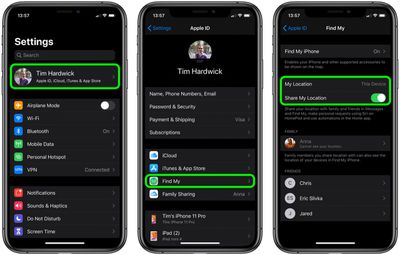
- Launch the Settings app on the iPhone or iPad.
- Tap your name in the banner at the top of the screen.
- Tap Find My.

- Tap the toggle next to Share My Location to turn it to the green ON position.
- Next, set My Location to This Device.
Add People to Your Home Network
Whoever wants to be recognized by your HomePod must be part of your Home network. Here's how to add them.
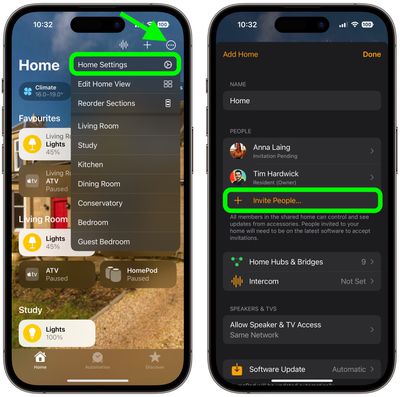
- Launch the Home app on your iPhone or iPad.
- Tap the ellipsis button (three encircled dots) in the top-right corner of the screen.
- Tap Home Settings in the dropdown menu.
- Under People, tap Invite....
- Enter the person's Apple ID that they use with iCloud.
- Tap Send Invite.
Additional Settings to Check/Enable
You'll also need to check the following settings on your HomePod and iOS device to ensure everything works.
- Make sure Listen for "Hey, Siri" and Personal Requests are enabled on your HomePod: In the Home app, long press on your HomePod, tap the cog in the bottom-right corner of the screen, then toggle the requisite switches. On the same screen, check also that the Language is set to English. (Siri on HomePod multi-user only supports English at this time.)
- Make sure Listen for "Hey, Siri" is enabled on the iOS device of every user who wishes to be recognized by HomePod, including your own device. The associated toggle can be found in Settings -> Siri & Search. On the same screen, check also that the device is set to the same Language as your HomePod.
- Likewise, location services must be enabled on the device of every user who wishes to be recognized by HomePod: Go to Settings -> Privacy -> Location Services, and make sure the Location Services toggle is green.
Testing HomePod Multi-user and Fixing Issues
When someone that you've set up to be recognized by your HomePod first asks it a personal request, Siri will ask who it is. If the user states their name, Siri should be able to recognize them after that.
Apple does say HomePod can have trouble distinguishing some voices, like those of young children, but rest assured whenever HomePod isn't sure, it will ask who's speaking.
If Siri doesn't recognize you after multi-user setup, try these steps. After each step, see if Siri recognizes you.
- In the Home app, tap the home icon, then tap Home Settings. Choose your home, then turn off Recognize My Voice, then turn it on again. Wait a few minutes before trying Siri again.
- Restart the iOS device that you use with "Hey Siri."
- Restart your HomePod: Open the Home app on your iOS device, tap and hold HomePod, then tap the cog wheel in the bottom-right corner of the screen. Scroll down and select Reset HomePod, then tap Restart HomePod to confirm.
- On your iOS device, go to Settings -> Siri & Search, then turn off Listen for "Hey Siri", then turn it on again, and follow the onscreen instructions to teach Siri your voice.
To test out out the voice recognition further, you can get users to try asking different questions that relate specifically to them, like what their upcoming calendar events are. If everything works, Siri will reply with their respective name and the answer to their query.
The neat thing about HomePod multi-user support is that it doesn't apply to queries and commands that aren't person-specific – so you can ask what time it is or what the weather is like, just as you would do so normally.
Similarly, anyone can ask HomePod to play music, and it will play from the primary user's account without affecting that person's taste profile.




















