

With the launch of OS X 10.10.3 Yosemite, Apple released its much-anticipated Photos app, which was first announced during its Worldwide Developers Conference in 2014. The Photos for OS X app took several months to complete because it was designed from the ground up to work with OS X Yosemite and integrate with both the Photos for iOS app and iCloud Photo Library.
Because Photos for OS X replaces both of Apple's existing photo apps, Aperture and iPhoto, you're going to need to migrate your Aperture and iPhoto libraries into the new Photos app if you want to be able to use Apple's latest and greatest photo editing tools with your images.
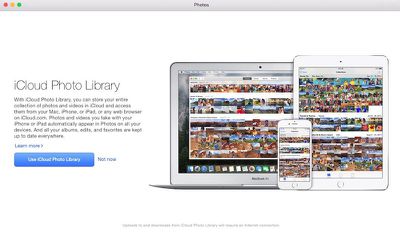
The migration from iPhoto or Aperture to Photos actually happens automatically if you only have one library in your Pictures folder. However, you may have more than one photo library on your Mac if you've split your iPhoto library up or if you use both iPhoto and Aperture, which makes things a little more difficult. You may need some help figuring out how to manually migrate additional libraries, so we've created a handy guide to explain how to get those other libraries into Photos quickly and easily.
One quick note: Before you migrate all of your existing photos into Photos for OS X, make sure you have enough iCloud storage space if you want to take advantage of iCloud Photo Library, which syncs your images across al of your devices. With iCloud Photo Library turned on in the Photos app, all of your images will be uploaded to the cloud, which does eat up your iCloud storage space. You can use Photos without iCloud Photo Library -- just make sure you turn it off in the Preferences menu.
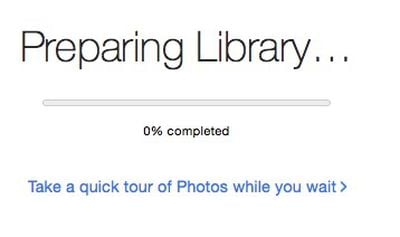
When you first open Photos, you will be asked to choose a library. First select the largest library and wait for it to completely migrate from iPhoto or Aperture (this could take a very long time, depending on how many pictures you have in your largest library). Then, you can begin the process of migrating other photo libraries.
Manually Migrate A Library into Photos
- Close the Photos app.
- Hold down the Option key and open the Photos app again.
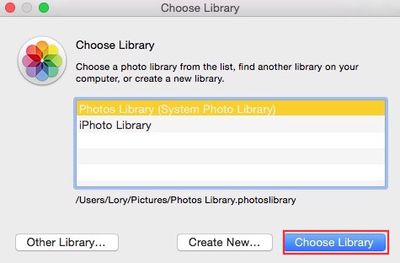
- When prompted, select the library you wish to open. If the library is not listed, you can navigate to it by clicking "Other Library."
- Select the library and click "Choose Library."
Alternatively:
Drag the library you wish to open into the Photos app icon in the dock.
You can also start a brand new, empty library by selecting "Create New" from the available options.
Switching Between Libraries
Once your multiple libraries are installed, you can quickly switch between them while in Photos
- Hold down the Option key.
- Double-click on Photos
- Select the name of the library you wish to open.
There is no tool within the Photos app to combine multiple libraries into one library, so if you have more than one, you're going to need to work with each library separately or use alternate means to combine them.
Using Aperture and iPhoto After Migrating to Photos
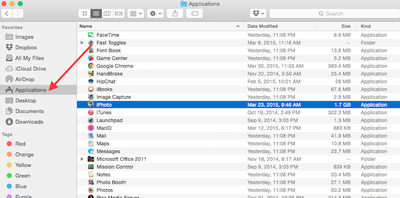
Development on iPhoto and Aperture is no longer progressing after the launch of the Photos for OS X app, but you can still use them for editing photos if you have them installed. Unfortunately, the apps can't be used interchangeably. If you make edits to a photo in iPhoto or Aperture, those changes will not sync to Photos. Similarly, edits made in Photos for OS X will not sync to iPhoto or Aperture.
You Can Unify Libraries ... Sort Of
If you want to unify multiple iPhoto and/or Aperture libraries into a single library before importing it into Photos, it will take some additional work. Photos for OS X Yosemite is not set up for unifying libraries.
If you happen to own Aperture and have multiple iPhoto and Aperture libraries, Aperture can combine them all into one, letting you consolidate libraries before ever importing your content into the Photos for OS X app. This only works with iPhoto 9.3 or later and Aperture 3.3 or later.
- Open Aperture.
- Select File from the menu bar and choose Switch to Library.
- Select Other/New and select the iPhoto library you would like to merge.
- Repeat this with each library you wish to unify.
Once merged, you can then open Photos and migrate the single, unified photo library. If you have already opened and migrated libraries into Photos, you can simply delete the old library once you've confirmed that the new, merged folder was properly uploaded.
If you don't own Aperture and want to combine multiple iPhoto libraries, it's a bit trickier. The quickest route to a unified iPhoto library is through the use of specialized software like the iPhoto Library Manager ($29.99) from Fat Cat Software. Alternatively, you can also export all of your photos from one iPhoto Library and add them to another, but this is a more time consuming process, especially if you have a lot of photos to transfer. To use the export method:
- Open up the first iPhoto library.
- Select the photos you want to move.
- Choose "Export" from the menu.
- Select either Current (exports with edits) or Original.
- Select a folder to export the images to.
- Import the photos to an existing Photos library.
- Repeat for each iPhoto Library.
It's a hassle having to transfer your photos from an existing photo editing app into Photos for OS X, especially if you've got photos scattered across multiple devices and in multiple libraries, but the good news is that it's a one time process.
The switch to Photos for OS X is the perfect excuse to spend a bit of time cleaning up your iPhoto and Aperture Libraries, merging them into one, deleting duplicate photos, and getting rid of poor quality photos. Putting in a bit of leg work will let you start fresh in Photos with a nice, organized library that'll be easier to navigate and work with.





















Top Rated Comments
I had launched Photos to see what it was like, vs Aperture - and the entire iPhoto/Aperture library was migrated automatically and renamed without even asking me. Not sure if that's a bug, or just plain rude. ;-)
Had to restore my Aperture library from a (Time Machine) backup to get back to 'normal'.
Too many missing features in Photos. Was happy with Aperture and prefer it to Adobe Lightroom, but guess I have no choice but to move to Lightroom when Aperture support ends with a future OS X release.
Now we're on the same page.
Any idea why the created Photos library on my computer is 174GB but the iPhoto library it was created from is 213GB?
So what if we upload the iPhoto library to Photos in iCloud and delete on the internal hard drive on the mac and simply keep an external hard drive for a local back up (not using Time Machine)? And as we add new photos to the computer, we can drag and drop into the external hard drive, then have them added to Photos in iCloud and then delete from the internal hard drive.
Would that work?
Is it possible to: turn on iCloud Photo Library, open one library, let that library upload entirely, quit, open your other library, let that upload.
At this point wouldn't all photos now be in iCloud, and you can delete/let stuff download however you want?
Or do I remember seeing something about how only 1 library can use iCloud at a time?
The Geotagging is something I miss when I import photos from a camera that does not geotag. Those are fewer and fewer every day, but still a bummer. Even on my iphone, sometimes it fails to tag the photo correctly and I like to fix those tags (well I use to).
The other issue I am finding is that there were a few pictures that were tagged with a year of 2099. I can change the date through Photo, but it seems to retain the original date and still sorts against that original date. A bit of a pain.
I recently migrated from iPhoto to Photos after installing OS X 10.10.3
I found several features lacking in Photos that exist within iPhoto.
Geotagging - in iPhoto one could add a location to a photo. I've done this with old scanned family photos, for which I know the location. Not possible with the Photos app.
Smart Albums, not very smart in the Photo App. I had an iPhoto smart album to locate unconfirmed faces. This feature doesn't exist in the Photo app. I found this handy to use on occasion to assign names to unconfirmed faces and chose those to ignore.
As others have mentioned, once the photo library is transitioned over from iPhoto to Photo, further edits made in iPhoto will not be available in the Photo App.