 In iOS 13, Apple has introduced a redesigned photo editing interface that improves upon earlier versions by making it easier to select tools and apply adjustments in the stock Photos app.
Previously, the photo editing tools in iOS where hidden away in expandable subsections of a vertical menu, which meant finding the one you wanted was sometimes a chore.
Apple has replaced this menu with a horizontal strip of icons that means you can simply swipe to the tool you want and quickly make the desired adjustment. Let's take a look at how it works.
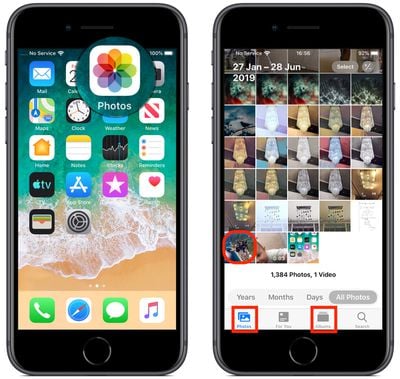
Launch the stock Photos app on your iPhone or iPad and select a picture from your Photo library using the Photos tab. If it isn't a recent photo that you want to edit, use the Days, Months, and Years views to whittle down your collection, or select a photo from one of your albums via the Albums tab.
Once you've selected a picture, tap Edit in the top-right corner of the screen to enter the black editing interface, and then tap the Adjust icon (it looks like a control knob) at the bottom of the screen.
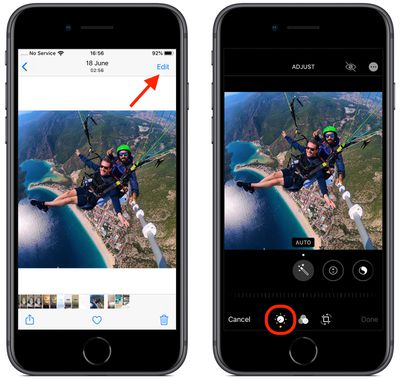
A horizontal strip of adjustment tools will appear below the photo. Tap Auto – the first tool in the strip – to select it, and you'll notice the horizontal dial light up below the toolset.
Auto uses intelligent algorithms to optimally tune the other tools and enhance your photo, but you can manually adjust its intensity level by moving the dial with a swipe of your finger. You can easily return to the auto-tuned level by returning the dial back to the white dot.
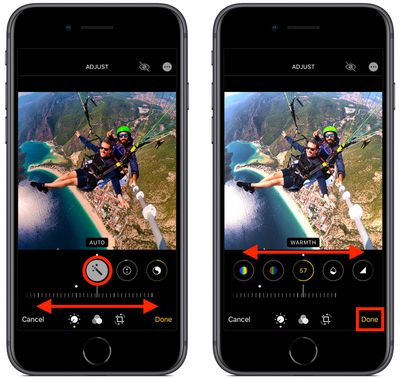
Swipe along the strip of other tools and you'll find that they all work similarly. The only difference is that when you swipe along the dial to change the adjustment level, the selected tool's icon will display a number that you can use as a reference to refine the effect you're previewing.
The other adjustment tools available in the horizontal strip include Exposure, Brilliance, Highlights, Shadows, Contrast, Brightness, Black Point, Saturation, Vibrance, Warmth, Tint, Sharpness, Definition, Noise Reduction, and Vignette. Simply tap Done when you're happy to apply and save your adjustments.
Remember, you can use these editing tools whenever you take a picture using the built-in Camera app – you don't even have to unlock your device to edit the photo you just shot.