

Apple has made available the first betas of iOS 17 and iPadOS 17 to public beta testers, opening up the new software to the general public for the first time since the Worldwide Developers Conference in June. Keep reading to learn how to prepare your device for the beta software and install it.
Signing up to get the iOS 17 or iPadOS 167 beta is simple, and can be done by enrolling an iPhone or iPad in Apple's free Apple Beta Software Program. The steps you need to complete to install the software on your device are provided towards the end of this article, but before you jump ahead, here are a few things worth considering.
Is My iPhone Compatible With iOS 17?
Note that iOS 17 is compatible with the iPhone XS and newer, meaning that support has been dropped for the iPhone 8, iPhone 8 Plus, and iPhone X. For a full list, iOS 17 supports the following iPhone models:
- iPhone 14
- iPhone 14 Plus
- iPhone 14 Pro
- iPhone 14 Pro Max
- iPhone 13
- iPhone 13 mini
- iPhone 13 Pro
- iPhone 13 Pro Max
- iPhone 12
- iPhone 12 mini
- iPhone 12 Pro
- iPhone 12 Pro Max
- iPhone 11
- iPhone 11 Pro
- iPhone 11 Pro Max
- iPhone XS
- iPhone XS Max
- iPhone XR
- iPhone SE (2nd generation or later)
Should I Install iOS 17 Public Beta?
Before downloading the update, it's worth noting that Apple does not recommend installing the iOS 17 Beta on your main iPhone, so if you have a secondary device, use that. This is beta software, which means there are often bugs and issues that pop up that can prevent software from working properly or cause other problems. If you're concerned about potential issues, hold off on installing and wait for Apple to launch its final stable release later this year.
Make an Archived Backup of Your Device First
Before installing the beta, make sure to back up your iOS device before installing the software using the following method, otherwise you won't be able to revert back to iOS 16 if things go wrong.
- Plug your iPhone into your Mac using the supplied cable.
- Allow the accessory to connect by clicking Allow in the dialog prompt.
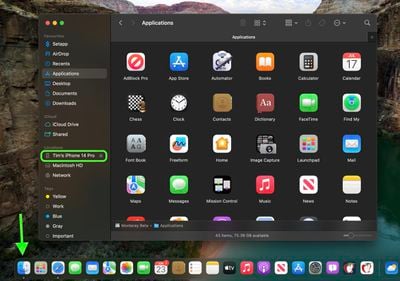
- Open a Finder window by clicking the Finder icon in the Dock.
- Click your iOS device's name in the sidebar.

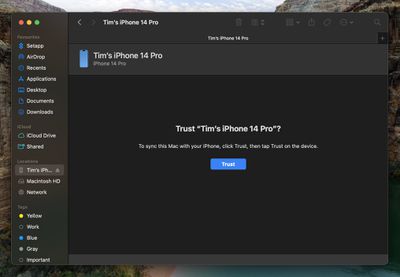
- If this is the first time connecting your device to your Mac, click Trust in the Finder window.
- Tap Trust on your device when prompted, then enter your passcode to confirm.
- In the General tab, click the circle next to where it says Back up all of the data on your iPad to this Mac.
- If you want to encrypt the backup, check the box next to Encrypt local backup, then enter a password to protect your data.
- If you don't want to create an encrypted backup, or you've already set up encrypted backups, click Back Up Now.
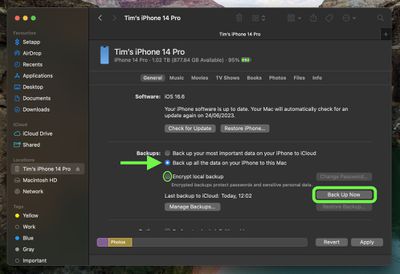
When the backup is finished, you can find the date and time of the last backup in the General tab, just above the Manage Backups button. Remember that this backup will not be overwritten when you manually or automatically back up your iPhone in the future, so you can restore it at any time by using the Restore Backup... option in the same Finder screen.
How to Download iOS 17 Public Beta
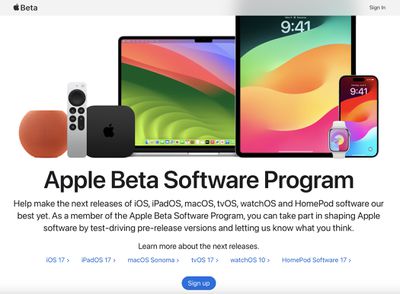
- On your iOS device, open up Safari and navigate to the Apple Beta Software Program website.
- Tap the Sign up button and enter your Apple ID credentials, or sign in with your Apple ID if you've signed up to beta test a previous update.
- Agree to the Apple Beta Software Program terms and conditions if required.
- After signing in, you'll see a main screen that's a Guide for Public Betas. Click on iOS (or iPadOS if you're installing on an iPad).
- Read through Apple's instructions carefully, and then using the link in the "Get Started" section, select enroll your iOS device.
- Make sure to make an archived backup of your current version of iOS using Finder by following Apple's instructions or using our tutorial above. This will allow you to downgrade back to iOS 16 if necessary and is crucial if you don't enjoy the iOS 17 testing experience.
- Now on your iOS or iPadOS device, go to Settings -> General -> Software Update -> Beta Update, then choose the iOS 17 public beta you'd like to install.
- Once the beta update has been downloaded you can tap Install Now to get it set up, and from there, the iPhone will install the software, restart, and you'll be up and running with the iOS 17 software.
Note that if your device is running iOS 16.3 or earlier, you'll need to download the iOS 17 configuration profile after enrolling. On your iPhone, go to beta.apple.com/profile to download the configuration profile. Your iPhone will notify you when the profile has been downloaded. Open Settings, tap the profile and follow the onscreen instructions to allow installation.
iOS 17 Features
iOS 17 is a major update that introduces a customized look for each person that calls, with the person who places the call able to customize their look. With StandBy, an iPhone placed horizontally turns into a little home hub that displays information like the calendar, time, home controls, and more, and Live Activities can be displayed in full screen too.
Widgets on the Home Screen are interactive, so you can do things like check off an item on a to-do list or turn off the lights without having to open an app. AirDrop has been improved and there's a NameDrop function for sharing contacts quickly, plus you can hold two iPhones together to start a SharePlay session. SharePlay also now works with CarPlay so passengers can play their music in the car too.
Other new features include a journaling app coming later this year, AirPlay in select hotel rooms, improvements to AirPods Pro 2 thanks to a new Adaptive Audio feature, offline Maps, Siri that does not require the "Hey" activation, and improvements to search and spotlight.
iOS 17 is expected to get its official public release in the fall.




















