Apple has made available the second betas of iOS 18.1 and iPadOS 18.1 to developers, bringing its new set of Apple Intelligence features to testers. Keep reading to learn how to prepare your device for the beta software and install it.
Signing up to get the iOS 18.1 or iPadOS 18.1 beta is simple, and can be done by enrolling an iPhone or iPad in Apple's free Apple Beta Software Program. The steps you need to complete to install the software on your device are provided towards the end of this article, but before you jump ahead, here are a few things worth considering.
Is My iPhone Compatible With iOS 18.1?
iOS 18 is compatible with the same iPhone models as iOS 17. However, Apple Intelligence features are only supported on iPhone 15 Pro models and later, and iPad models with an Apple silicon M1 processor or later. If you're unsure which iPhone or iPad model you have, go to Settings -> General -> About, and you'll find the Model Name listed there.
Should I Install iOS the 18.1 Developer Beta?
Before downloading the update, it's worth noting that Apple does not recommend installing the iOS 18.1 Beta on your main iPhone, so if you have a secondary device, use that. This is beta software, which means there are often bugs and issues that pop up that can prevent software from working properly or cause other problems. If you're concerned about potential issues, hold off on installing and wait for Apple to launch its final stable release later this year.
Make an Archived Backup of Your Device First
Before installing the beta, make sure to back up your iOS device before installing the software using the following method, otherwise you won't be able to revert back to iOS 17 if things go wrong.
- Plug your iPhone into your Mac using the supplied cable.
- Allow the accessory to connect by clicking Allow in the dialog prompt.
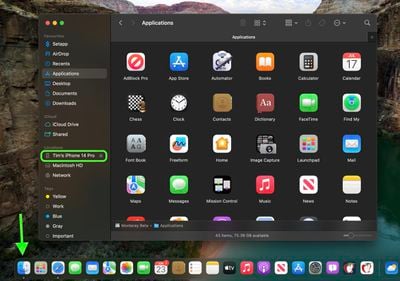
- Open a Finder window by clicking the Finder icon in the Dock.
- Click your iOS device's name in the sidebar.

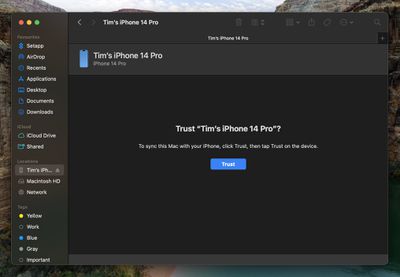
- If this is the first time connecting your device to your Mac, click Trust in the Finder window.
- Tap Trust on your device when prompted, then enter your passcode to confirm.
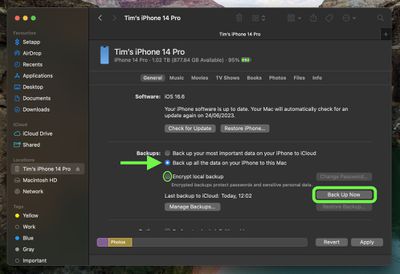
- In the General tab, click the circle next to where it says Back up all of the data on your iPad to this Mac.
- If you want to encrypt the backup, check the box next to Encrypt local backup, then enter a password to protect your data.
- If you don't want to create an encrypted backup, or you've already set up encrypted backups, click Back Up Now. When the backup is finished, you can find the date and time of the last backup in the General tab, just above the Manage Backups button.
- Lastly, archive the backup: Select Manage Backups ➝ Select Backup, then right-click the backup and choose Archive.
Remember that this backup will not be overwritten when you manually or automatically back up your iPhone in the future, so you can restore it at any time by using the Restore Backup... option in the same Finder screen.
How to Download iOS 18.1 Developer Beta
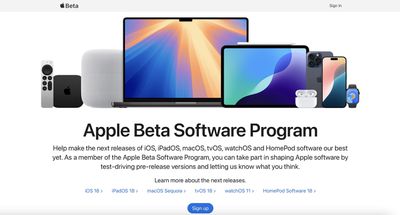
- On your iOS device, open up Safari and navigate to the Apple Beta Software Program website.
- Tap the Sign up button and enter your Apple ID credentials, or sign in with your Apple ID if you've signed up to beta test a previous update.
- Agree to the Apple Beta Software Program terms and conditions if required.
- After signing in, you'll see a main screen that's a Guide for Public Betas. Click on iOS (or iPadOS if you're installing on an iPad).
- Read through Apple's instructions carefully, and then using the link in the "Get Started" section, select enroll your iOS device.
- Make sure to make an archived backup of your current version of iOS using Finder by following Apple's instructions or using our tutorial above. This will allow you to downgrade back to iOS 17 if necessary and is crucial if you don't enjoy the iOS 18 testing experience.
- Now on your iOS or iPadOS device, go to Settings -> General -> Software Update -> Beta Update, then choose the iOS 18.1 developer beta you'd like to install. (The option may appear below the concurrent iOS 18 beta, under the title "Upgrade to iOS 18.")
- Once the beta update has been downloaded you can tap Install Now to get it set up, and from there, the iPhone will install the software, restart, and you'll be up and running with the iOS 18.1 software.
Note that if your device is running iOS 16.3 or earlier, you'll need to download the iOS 18 configuration profile after enrolling. On your iPhone, go to beta.apple.com/profile to download the configuration profile. Your iPhone will notify you when the profile has been downloaded. Open Settings, tap the profile and follow the onscreen instructions to allow installation.
iOS 18.1 Features
iOS 18.1 introduces Apple Intelligence, a suite of AI features deeply integrated into the operating system. While not all functionalities are available yet, it includes Writing Tools for rewriting, polishing, proofreading, and summarizing text across apps. You can also generate custom images with Image Playground and create custom emojis through the Genmoji feature. Additionally, Siri is undergoing a complete overhaul. However, note that Apple Intelligence is not yet active in the beta versions.
In addition to the AI features in iOS 18.1, iOS 18 more generally introduces a redesigned Home Screen that allows for rearranging app icons and widgets with open spaces. It also includes a tint option and new darker colors for Dark Mode.
Control Center has been revamped, allowing you to pick and choose what you want to feature from the new Controls Gallery. With multiple pages available, you can group related controls and customize their sizes. Additionally, the Flashlight and Camera icons on the Lock Screen can be swapped out, and you can select Control Center options for the iPhone 15 Pro Action Button.
Safari now features a summary view of webpages, allowing you to see key information at a glance. The Photos app has been revamped to highlight your best images more effectively. A new Passwords app streamlines access to your saved passwords and logins, and you can now secure any app using Face ID or Touch ID.
There are many more new features in iOS 18 and iPadOS 18 that aren't mentioned here, so for a more in-depth look make sure to check out our iOS 18 roundup and our iPadOS 18 roundup. iOS 18 is expected to get its official public release in the fall, around mid-September, followed by iOS 18.1 in October.