In a break from the past, Apple these days offers non-developers the opportunity to download beta software updates on their iPhones for free. Keep reading to learn how it's done.
Before iOS 17 was announced in June 2023, Apple made its first major beta software updates available only to paying subscribers of its Apple's Developer Program, which costs $99 a year. Public betas would then become available to users enrolled in Apple's Public Beta Software Program after a delay of a few days or weeks after the developer beta was released. That's all changed now, and regular iPhone users no longer have to wait for a publicly released beta to test what's new.
In an unexpected change introduced in 2023, anyone who signs in to Apple's developer account website with their Apple ID gets free access to developer beta releases as well, even if they are not a paying member of Apple's Developer Program. This means anyone with an Apple ID can download and install new software betas without waiting for the public betas to launch.
Should I Install Developer Betas on My Device?
Before downloading a beta update, it's worth noting that Apple does not recommend installing beta software on your main iPhone, so if you have a secondary device, use that. This is beta software we are talking about, which means there are often bugs and issues that can prevent it from working properly or lead to other problems.
Make an Archived Backup of Your Device First
Before installing any beta, make sure to back up your iOS device using the following method, otherwise you won't be able to revert back to your previous device state if things go wrong.
- Plug your iPhone into your Mac using the supplied cable.
- Allow the accessory to connect by clicking Allow in the dialog prompt.
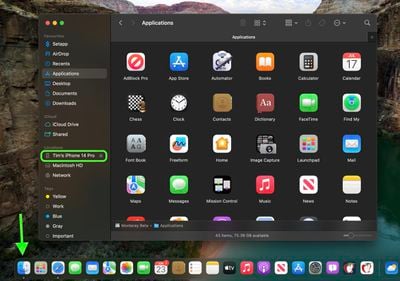
- Open a Finder window by clicking the Finder icon in the Dock.
- Click your iOS device's name in the sidebar.

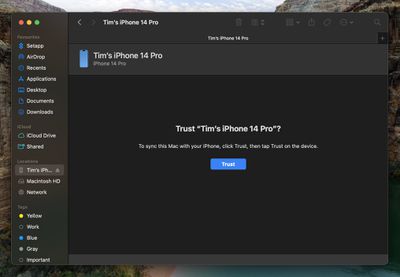
- If this is the first time connecting your device to your Mac, click Trust in the Finder window.
- Tap Trust on your device when prompted, then enter your passcode to confirm.
- In the General tab, click the circle next to where it says Back up all of the data on your iPad to this Mac.
- If you want to encrypt the backup, check the box next to Encrypt local backup, then enter a password to protect your data.
- If you don't want to create an encrypted backup, or you've already set up encrypted backups, click Back Up Now.
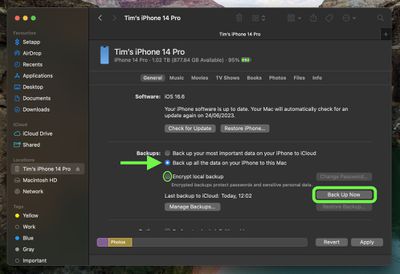
When the backup is finished, you can find the date and time of the last backup in the General tab, just above the Manage Backups button. Remember that this backup will not be overwritten when you manually or automatically back up your iPhone in the future, so you can restore it at any time by using the Restore Backup... option in the same Finder screen.
How to Download iOS Developer Betas
The option to download and install iOS developer betas is already available for users who have previously enrolled on Apple's Beta Software Program. If you're currently enrolled to receive Public Betas, you can skip to step 6. Otherwise, let's start at the top:
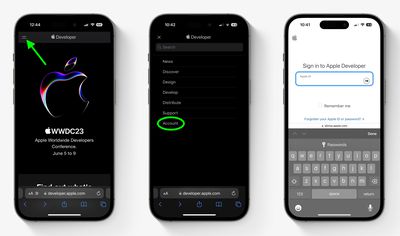
- Open Safari on your iPhone and visit developer.apple.com.
- Tap the menu icon in the top-left corner of the page, then tap Account.
- Under "Sign in to Apple Developer," enter and submit your Apple ID and password using the arrow buttons, then enter the two-factor authentication code sent to your devices.
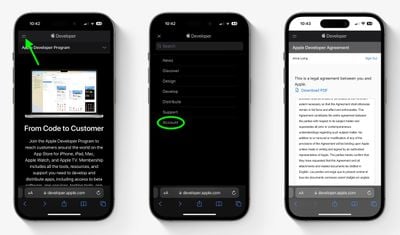
- Tap the top-left menu icon again, then tap Account.
- Accept the legal terms of the Apple Developer Agreement by scrolling down the page, checking the box, and tapping I Agree.
- Make sure your iPhone is running the latest official public software release by going to Settings -> General -> Software Update. If it is, and you have just completed steps 1-5 to register a developer account, restart your iPhone. If it isn't, download and install the latest update to your device, then wait for it to restart.
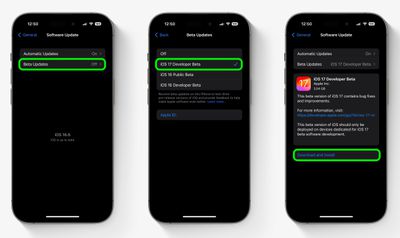
- Now go back to Settings -> General -> Software Update.
- Tap Beta Updates. If you don't see the option, try switching off Download iOS Updates (Automatic Updates -> Download iOS Updates), then tap Back and it should appear.
- Select the developer beta in the list, then tap Back.
- Wait for the Software Update screen to check Apple's servers. When the developer beta software appears, tap Download and Install, then follow the instructions and wait for installation to complete.
Future iOS Releases
As of writing (April 2024), Apple is currently developing iOS 17.5, which is limited on new outward-facing features, focusing primarily on changes in the European Union. For example, in the iOS 17.5 beta, app developers in the EU are able to add their iPhone apps to their website, so that users can download them directly without having to use the App Store.
The iOS 17.5 and iPadOS 17.5 betas also have updates to mobile device management and there are code changes suggesting Battery Health functionality could come to forthcoming iPads and that Apple will soon add alerts for third-party item trackers.
Looking further ahead, Apple is expected to release its first betas of iOS 18 and iPadOS 18 during its Worldwide Developers Conference in June 2024. For everything we expect to feature in Apple's next major software update, be sure to check out our dedicated iOS 18 roundup.