
Install Mac Apps on External Storage in macOS Sequoia - MacRumors
Skip to Content

Install Mac Apps on External Storage in macOS Sequoia

by

If you're running out of space on your Mac's internal drive, macOS Sequoia 15.1 includes a handy new feature that lets you install large apps directly to external storage. Here's how to use it to preserve space on your boot drive.
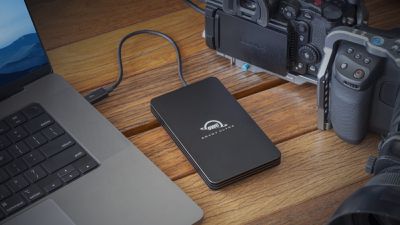
MacBook Pro OWC Envoy Ultra
Apple is known for charging customers a very high markup for additional storage when buying a new Mac. Given that internal storage usually can't be upgraded after purchase, it's no wonder that external drives are a popular solution for many Mac users who want the extra space but don't want to pay a premium for the privilege.

Until recently, macOS automatically installed new apps downloaded from the Mac App Store to a Mac's boot drive, which was not particularly helpful to users with dwindling internal storage. In macOS Sequoia 15.1, however, Apple has added a new option that lets you download and install apps that require more than 1GB of storage to an external drive. Anyone working with large apps like Final Cut Pro or Logic Pro, or gamers with space-consuming titles, will surely welcome this ability to download and install large apps to a separate disk.

Installing Mac Apps to External Storage

  1. Connect your external drive to your Mac.
  2. Open the App Store.
  3. Click App Store in the menu bar and select Settings....
  4. Check the box next to "Download and install large apps to a separate disk."
  5. Select your external drive from the dropdown menu.
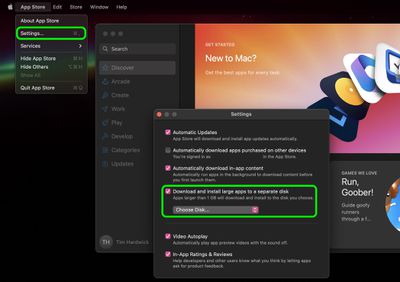
install apps external disk mac app store

Some considerations to keep in mind: The feature only works with apps larger than 1GB, and your external drive must be connected when enabling the setting. (Make sure the drive you connect is APFS formatted.) Additionally, while apps will install to your external drive, bear in mind that, depending on the app, some app data may still be stored on your main drive.

It's also worth noting that you can't choose installation locations using this method on a per-app basis – it's an all-or-nothing setting for qualifying apps. Lastly, for the best experience, use a fast external SSD (or an internal SSD in an external enclosure) to ensure optimal app performance.


Top Rated Comments

kirky29 Avatar
18 months ago
Once again, a very Apple way of doing this... :-/
Score: 12 Votes (Like | Disagree)
Slix Avatar
18 months ago
This is convenient! You could always move big apps after downloading them to the external disk, since day one essentially on the Mac. But having it automatically happen for big apps is a nice option.
Score: 12 Votes (Like | Disagree)
turbineseaplane Avatar
18 months ago
Anything other than "no longer charging extortion level SSD upgrade pricing", it would seem

:confused:
Score: 11 Votes (Like | Disagree)
18 months ago
Why would anyone need this? It's always been possible to have your apps on a separate drive. Just drag them over. LaunchServices will detect the apps in their new location and they'll just work. It's one of the best things about the Mac, and it's been that way basically since the beginning.
Score: 10 Votes (Like | Disagree)
18 months ago

A tiny step in the right direction. I don't know why it had to be this limited.

This is an absolute requirement to even begin to be taken seriously for games. Steam has had very flexible support for multiple libraries on multiple disks in whatever subfolder you choose, for like ten years.
Score: 9 Votes (Like | Disagree)
Darmok N Jalad Avatar
18 months ago

Or you can move your Home folder to an external SSD - IF AND ONLY IF you plan to use the drive always connected.
You will however, always need to download the app and manually move it to the external drive.

I am using my Base M4 Mac mini like this with an external 4TB SSD
How well does the drive stay connected when the Mac idles/sleeps? Sometimes the biggest challenge to this approach is that the drive occasionally gets unmounted by the OS for some unknown reason, and then you have trouble until a reboot.
Score: 7 Votes (Like | Disagree)

Popular Stories

iOS 26

iOS 26.4 Adds Two New Features to CarPlay

Tuesday March 24, 2026 1:55 pm PDT by
iOS 26.4 was released today, and it includes a couple of new features for CarPlay: an Ambient Music widget and support for voice-based chatbot apps. To update your iPhone 11 or newer to iOS 26.4, open the Settings app and tap on General → Software Update. CarPlay will automatically offer the new features so long as the iPhone connected to your vehicle is running iOS 26.4 or later....
Apple Business hero

Apple Unveils 'Apple Business' All-in-One Platform

Tuesday March 24, 2026 8:53 am PDT by
Apple today announced Apple Business, a new all-in-one platform that unifies device management, productivity tools, and customer outreach features. The service is designed to be a consolidated replacement for several of Apple's existing business-focused offerings, including Apple Business Essentials, Apple Business Manager, and Apple Business Connect. It provides organizations with a single...
AirPods Pro Firmware Feature

Apple Releases New Firmware for AirPods Pro 3, AirPods Pro 2 and AirPods 4

Tuesday March 24, 2026 12:31 pm PDT by
Apple today released new firmware for the AirPods Pro 2, AirPods Pro 3, and the AirPods 4. The firmware has a version number of 8B39, up from 8B34 on the AirPods Pro 3, 8B28 on the AirPods Pro 2, and 8B21 on the AirPods 4. There is no word on what's included in the firmware, but Apple has a support document with limited notes. Most updates are limited to bug fixes and performance...















