Apple has made the third macOS Tahoe public beta available for testing before the new Mac operating system's official release in the fall. Keep reading to learn whether you should install it on your Mac, and if so, how to go about it.
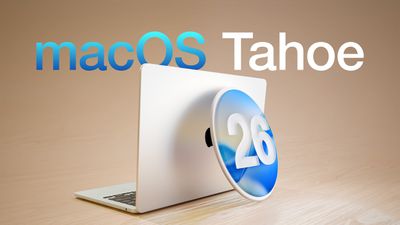
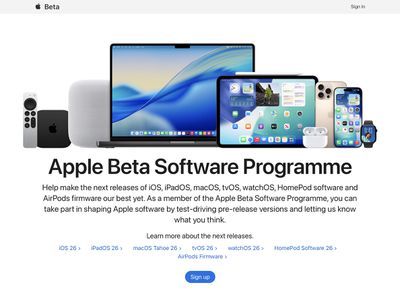
Getting access to the macOS Tahoe public beta is simple, and can be done by enrolling your Mac in Apple's free Apple Beta Software Program. The steps you need to complete to install the software on your Mac are provided towards the end of this article, but before you jump ahead, here are a few things worth considering.
Should I Install the macOS Tahoe Public Beta?
With macOS Tahoe, Apple introduces a major redesign for the platform with the all-new Liquid Glass interface, along with a host of new features. These include the Phone app on Mac, powerful new Spotlight actions, further Apple Intelligence integration, a dedicated Games app, and customizable backgrounds in Messages. Live Activities from iPhone also make their way to your Mac's menu bar, which now has a fully customizable Control Center. With so many additions and a striking visual update, it's no surprise that macOS Tahoe is generating a lot of interest among Mac users.
But before you commit, bear in mind that Apple does not recommend installing macOS beta updates on your main Mac. Remember, this is beta software, which means there are almost certainly bugs and issues that can prevent software from working properly or cause other problems with the system. Indeed, one of the reasons that Apple releases the beta to developers early is so that they can feed back problems and help Apple debug them. If you have a spare Mac hanging around, by all means use that, otherwise consider holding off until the general release in the fall.
Is My Mac Supported?
macOS Tahoe is compatible with the following Mac models, according to Apple:
- MacBook Air with Apple silicon (2020 and later)
- MacBook Pro with Apple silicon (2020 and later)
- MacBook Pro (16‑inch, 2019)
- MacBook Pro (13‑inch, 2020, Four Thunderbolt 3 ports)
- iMac (2020 and later)
- Mac mini (2020 and later)
- Mac Studio (2022 and later)
- Mac Pro (2019 and later)
macOS Tahoe officially drops support for the following Macs (earlier models than those shown are also not supported):
- MacBook Air (Retina, 13-inch, 2020)
- MacBook Pro (13-inch, 2018, Four Thunderbolt 3 ports)
- MacBook Pro (15-inch, 2018)
- MacBook Pro (13-inch, 2019, Four Thunderbolt 3 ports)
- MacBook Pro (15-inch, 2019)
- MacBook Pro (13-inch, 2019, Two Thunderbolt 3 ports)
- MacBook Pro (13-inch, 2020, Two Thunderbolt 3 ports)
- iMac (Retina 5K, 27-inch, 2019)
- iMac (Retina 4K, 21.5-inch, 2019)
- iMac Pro (2017)
- Mac mini (2018)
Don't Forget to Back Up Your Mac
Be sure to back up your Mac using Time Machine before installing the software using the method, otherwise you won't be able to revert back to the previous version of macOS if things go wrong.
How to Install macOS Tahoe Public Beta
- Head over to Apple's Beta Software Program website and sign up using your Apple Account credentials, then agree to the terms and conditions if required.

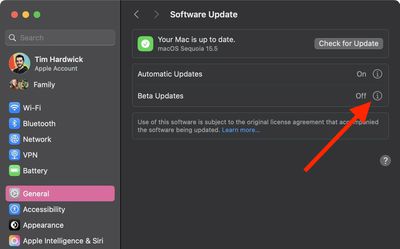
- Next, open System Settings on your Mac and select General ➝ Software Update.
- Look for "Beta Updates" and click the info (i) symbol next to it.
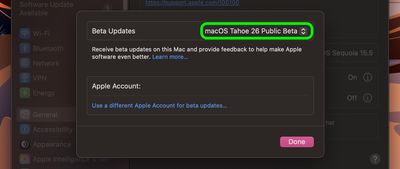
- Choose macOS Tahoe 26 Public Beta from the dropdown list.
- Click Upgrade Now to begin the update process to macOS 26.
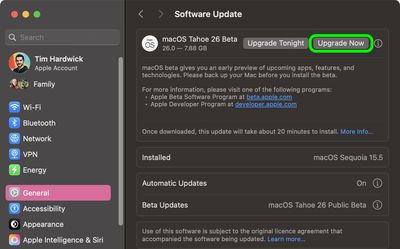
That's all you need to do. The installation process will complete just like a standard macOS update, so sit back and let the installation finish, after which your Mac will boot directly into the macOS Tahoe beta.