How to Use Instant Notes on iPad With Apple Pencil - MacRumors
Skip to Content

How to Use Instant Notes on iPad With Apple Pencil

by

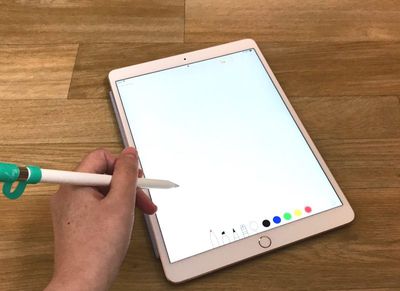
If you have an iPad Pro, there's a new feature in iOS 11 that's designed to let you open up a new document in Notes just by tapping the Apple Pencil on the iPad's display.

The feature, Instant Notes, works even when the iPad is locked, so you can pick up the iPad and get right to writing without having to go through the hassle of unlocking the device, opening the Notes app, and creating a document.

Using Instant Notes

  1. On a locked iPad, press the Home button or the sleep/wake button to activate the display.
  2. Tap the Apple Pencil anywhere on the iPad's screen. instantnotesios11
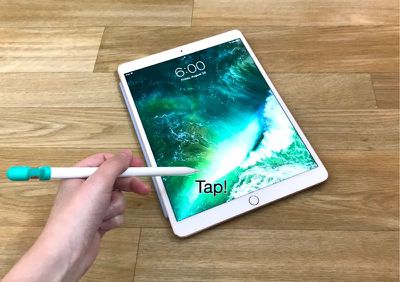
  3. Once you've tapped the Apple Pencil on the display of a locked iPad, it launches straight into the Notes app, creating a new note for you (or allowing you to edit an existing note, depending on your settings). instantnotesios11 1

Because the iPad is still locked when the Instant Notes Apple Pencil gesture is used, you can't access additional notes or any other apps until you unlock the device with Touch ID. In this locked mode, you can access all of the Notes features, including the pen tools, the document scanner, the camera, and the sketch tools.
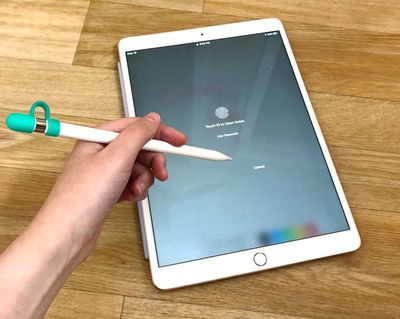
instantnotesios11locked
Instant Notes can only be activated from the Lock screen on the iPad. When the iPad is unlocked, you'll need to access your Notes through the app or through the new Notes option in the Control Center.

Turning Off Instant Notes

If you don't want to allow the Apple Pencil to open the Notes app, you can turn off Instant Notes in the Settings app.

  1. Open the Settings app.
  2. Scroll down to Notes and tap it.
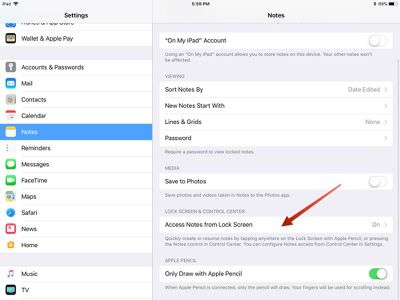
  3. Choose "Access Notes from Lock Screen." The feature is toggled on by default. instantnotes1
  4. Select "Off."

Adjusting Instant Notes Settings

You can also adjust your Instant Notes options in the Settings app. A tap with the Apple Pencil can be set to create a new note, resume the last note created on the Lock screen, or resume the last note viewed in the Notes app.

When using the two options to resume the last note created on the Lock screen or in the Notes app, you can also set time limits. For the "Resume Last Note Created on Lock Screen" option, you can choose to automatically create a new note instead of resuming after a set time period.
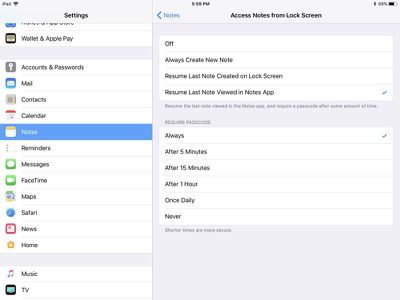
ios11instantnotes2
For the "Resume Last Note Viewed in Notes App" option, you can set a time limit after which a passcode will be required to view the note. This makes sure someone who gets a hold of your iPad can't access sensitive data.

An Apple Pencil is required to activate Instant Notes, so it only works with iPad Pro models including the 9.7-inch iPad Pro, the 10.5-inch iPad Pro, and the 12.9-inch iPad Pro.


Related Forums: iOS 11, iPad Accessories

Top Rated Comments

Billberryjuice Avatar
112 months ago
Sure it's faster, but police can use the junk shot to identify you. Junk shots are also tricky to do in a crowded cafe without attracting attention.
high risk, high reward
Score: 2 Votes (Like | Disagree)
nvbrit Avatar
113 months ago
This does NOT require an Apple Pencil and is NOT iPad only. The same feature is available from the lock screen in control center on any device running iOS 11 and works the same way

Attachment Image
Score: 1 Votes (Like | Disagree)
0098386 Avatar
113 months ago
I bloody love this new feature! It’s come in handy so many times due to its crazy fast speed loading up. Unlocking my iPad, closing whatever’s open, loading up Notes, press create new note... it’s time consuming when you need to write lots of notes.
Score: 1 Votes (Like | Disagree)
jclo Avatar
113 months ago
Great feature. Not sure the 2 steps needed that long guide lol.
Some of these how tos are more of a reminder that a feature exists. That's sort of the case with this one :)
[doublepost=1506122624][/doublepost]
Game-changing feature here! But it doesn't work well for me. As a workaround, I quickly tap 2-3 times and then I'm sure it works one of these times.
Does this happen to anyone else?
Seems to work reliably for me, but I always tap near the bottom edges. Not sure if where you tap is any kind of factor.
Score: 1 Votes (Like | Disagree)
applesith Avatar
113 months ago
Great feature. Not sure the 2 steps needed that long guide lol.
Score: 1 Votes (Like | Disagree)
tmanto02 Avatar
113 months ago
Much needed feature and something that would make using iPads in the corporate world much easier
Score: 1 Votes (Like | Disagree)

Popular Stories

Apple Event Logo

Apple's Next Era Begins September 1

Thursday May 7, 2026 10:36 am PDT by
Apple recently announced that Tim Cook will be stepping down as CEO later this year, after 15 years of leading the company. Effective September 1, Apple's hardware engineering chief John Ternus will become the company's next CEO, while Cook will become executive chairman of Apple's board of directors. In his new role, Apple said Cook will assist with "certain aspects" of the company,...
Instagram Feature 2

PSA: Instagram Encrypted Messaging Ends on Friday, May 8

Tuesday May 5, 2026 8:24 am PDT by
Instagram will remove end-to-end encryption for direct messages between users from May 8, 2026. When the date comes around, Meta will potentially be able to see the contents of all messages between users on the social media platform. Encrypting messages has been an optional feature in Instagram since 2023, but in March of this year the social media platform quietly updated a help page to say ...
macbook neo launch day

Apple May Drop Base $599 MacBook Neo as Chip, DRAM Costs Climb

Thursday May 7, 2026 4:55 am PDT by
Apple is considering dropping the cheapest MacBook Neo configuration as one possible response to the rising cost of building the popular laptop, according to Taiwan-based tech columnist and former Bloomberg reporter Tim Culpan. The Neo currently starts at $599 for a 256GB model, with a 512GB version at $699. Writing in his latest Culpium newsletter, Culpan says cutting the entry-level...