How to Scan Documents in the Notes App on iPhone - MacRumors
Skip to Content

How to Scan Documents in the Notes App on iPhone

by

In iOS and iPadOS, Apple includes a feature in Notes that allows you to quickly scan all kinds of documents so you can keep track of everything from receipts to recipes and photos.
iOS 17 General Notes Feature
The Document Scanner detects the edges of a document, aligns things properly, and removes all glare and tilt so you get a clean scan every time. Apple's document scanning tools are well engineered and impressive, with excellent performance on everything from photos to documents.

The feature is available on both iPhone and iPad. Here's how to use it:

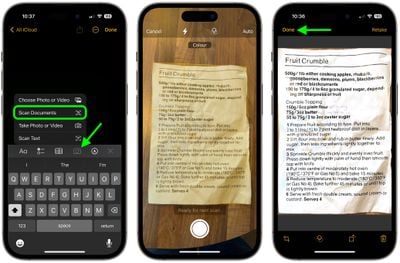
  1. Open the Notes app and create a new note.
  2. Tap the Camera icon, then choose Scan Documents.
  3. Once the document scanning interface is open, you can optionally tap the three circles at the top to choose color, grayscale, black and white, or photo for your scan. The default option is color.
  4. Tap on the flash icon if you need to adjust the flash options. The default is auto, which will cause the flash to go off if you're in a room with low light.
  5. Focus the camera on your document, making sure the yellow box is lined up with the edges of your document.
  6. When it's aligned, press on the camera button to snap a photo. The Notes app will automatically correct for any tilting. If you don't press the camera button and the Auto shutter option is on, after a few moments the document will be automatically scanned.
  7. If the scan is to your liking, tap Done. If you want to try again, choose Retake.
notes

The Document Scanner is set up to take multiple scans in a row, so once you tap "Keep Scan," it returns to the scanning interface. To get back to Notes after you've scanned all of your documents, you'll need to tap on "Save."

Your scanned document is inserted into the current note, where it can be edited. To edit, simply tap on the scan. Editing tools include adding an additional scan, cropping, changing the color, changing the orientation, and opening up the Share sheet to send it to Messages, Mail, social networks, and other apps.
Tag: Notes

Top Rated Comments

hank moody Avatar
113 months ago
I love it but it LACKS “save as pdf”.
I am still using Scanbot because i need this.
Score: 10 Votes (Like | Disagree)
AstroRob Avatar
113 months ago
I love it but it LACKS “save as pdf”.
I am still using Scanbot because i need this.
Actually if you hit the share option when you click on the scanned doc, one of the option is to make PDF, which I assume also lets you combine multiple pages from a single scan session.
Score: 5 Votes (Like | Disagree)
gwhizkids Avatar
113 months ago
It does a great job, especially at an angle. I wish, though, that this were a standalone capability. Don't want to create (and then delete) a note, just to get a scanned document. Relatively minor nit, but a nit, nonetheless.
Score: 4 Votes (Like | Disagree)
Weaselboy Avatar
113 months ago
Really? Scanner Pro is still way better. the scan itself is darker and easier to read, it scans text (OCR) automatically so it is easily searchable and it saves as .pdf in any location you want.
I agree. I just used Notes to do a couple tests and Scanner Pro gets a PDF scanned and in my ~/Documents folder with fewer steps.

I think using Notes for this will be okay for the occasional user who does not have something like Scanner Pro, but Scanner Pro seems more streamlined for this purpose.
Score: 3 Votes (Like | Disagree)
iapplelove Avatar
113 months ago
Forgive me cause I’m slow lol but what’s the difference between this and taking a photo?
Score: 3 Votes (Like | Disagree)
113 months ago
I thought this was only on iPads for some reason. Great news.

Goodbye, Scanner Pro!
Really? Scanner Pro is still way better. the scan itself is darker and easier to read, it scans text (OCR) automatically so it is easily searchable and it saves as .pdf in any location you want.

This Notes version is ok if you don't have a better alternative but if you already have Scanner Pro, I wouldn't give it up. It's not even close to being half as good.
Score: 2 Votes (Like | Disagree)

Popular Stories

Apple Event Logo

Apple's Next Era Begins September 1

Thursday May 7, 2026 10:36 am PDT by
Apple recently announced that Tim Cook will be stepping down as CEO later this year, after 15 years of leading the company. Effective September 1, Apple's hardware engineering chief John Ternus will become the company's next CEO, while Cook will become executive chairman of Apple's board of directors. In his new role, Apple said Cook will assist with "certain aspects" of the company,...
Instagram Feature 2

PSA: Instagram Encrypted Messaging Ends on Friday, May 8

Tuesday May 5, 2026 8:24 am PDT by
Instagram will remove end-to-end encryption for direct messages between users from May 8, 2026. When the date comes around, Meta will potentially be able to see the contents of all messages between users on the social media platform. Encrypting messages has been an optional feature in Instagram since 2023, but in March of this year the social media platform quietly updated a help page to say ...
Apple Event Logo

Apple Just Released a New Accessory

Monday May 4, 2026 8:13 am PDT by
Apple today released a new Pride Edition Sport Loop for the Apple Watch. The band features a rainbow design with 11 colors of woven nylon yarns. The new Pride Edition Sport Loop is available to order now on Apple.com and in the Apple Store app in 40mm, 42mm, and 46mm sizes, and it will be available at Apple Store locations starting later this week. In the U.S., the band costs $49. There...