

Thanks to improved machine learning technology, Apple in iOS 17 has made autocorrect a lot more helpful when you're typing text into your iPhone.
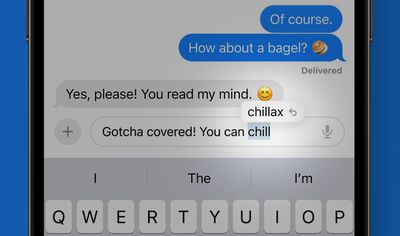
Apple says it has adopted a "transformer language model," that can better personalize autocorrect for individual users, learning your personal preferences and word choices to be more useful when typing.
After using iOS 17 for a few weeks, you should notice that the autocorrect suggestions are much better at predicting what you want to say and presenting words for you to tap to autofill.
When you use acronyms, shortened words, slang words, and colloquialisms, autocorrect is not as aggressive with the automatic correcting, but it is still able to correct accidental typos.
Correcting Autocorrect
When autocorrect changes a word, a blue line will appear underneath the corrected word.
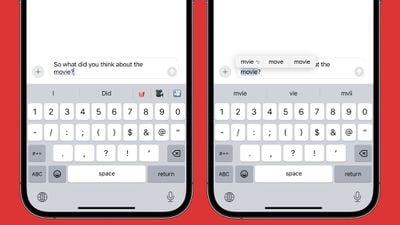
You can tap the blue line to see the original word that you typed (indicated by an arrow), and tap to reinstate that word instead. If there are other possible autocorrect options for what you typed, those will also be displayed for you to select.
Disabling Autocorrect
The new autocorrect has a handy function when it corrects something that you didn't want fixed, since all it takes is a tap to revert rather than having to retype the word.
Of course, if you find the new predictive autocorrect annoying, you can manually disable it. Simply follow the steps below to do so.
- Open Settings on your iPhone.
- Tap General.
- Tap Keyboards.
- Under the "All Keyboards" section, toggle off the switch next to Auto-correction.
That's all you need to do. Now iOS will simply underline in red any word it thinks you mispelled, but it won't try to autocorrect it.




















