

In iOS 17, there's a new AirDrop feature that lets you exchange contact information with someone by touching two iPhones together. It's called NameDrop, and here's how it actually works.
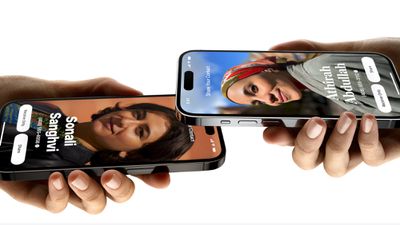
Rather than type in the number of someone new to call or text them so that they have your number, NameDrop allows you to simply hold your iPhone near their iPhone to swap contact details.
Bringing two devices together will automatically pop up a contact sharing interface. Tapping on the popup shows a person's contact information and their Contact Poster (a picture of yourself that you can customize and edit, also new to iOS 17). The screen also includes options to "Receive Only" or share your own contact information in response.
Don't Believe the Scare Stories
Contrary to some misinformed reports being shared on social media and even in the news, NameDrop does not present a security/privacy issue for iPhone users. The sharing of contact information cannot be performed without explicit user permission.
Contact information is not shared automatically, and it is a user-initiated process that requires both people exchanging information to accept the transfer. While an accidental exchange is theoretically possible, it would require a user to unlock their device and then accept the sharing prompt to personally confirm the transfer.
You can choose the phone number and email address that you want to share with someone on the other end, and if someone is already in your Contacts app, it updates contact information. In addition, NameDrop works between two iPhones running iOS 17, and between an iOS 17 iPhone and an Apple Watch running watchOS 10.
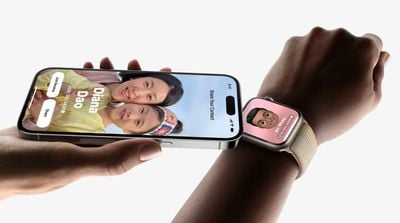
Enable or Disable NameDrop
We're used to sharing contacts with the Share Sheet, but NameDrop makes giving someone your contact details virtually effortless. Of course, if you don't like the idea of NameDrop, you can turn it off. Here's how it's done in iOS 17.
- Open the Settings app.
- Tap through to General -> AirDrop.
- Toggle the switch next to Bringing Devices Together on or off.
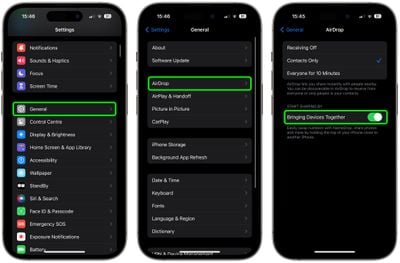
That's all there is to it. Note that disabling this setting will also prevent the new AirDrop proximity sharing feature. To learn about how that works, check out our dedicated AirDrop Proximity Sharing how-to.




















