How to Look Up a Word Definition on Your iPhone or iPad - MacRumors
Skip to Content

How to Look Up a Word Definition on Your iPhone or iPad

by

iOS 11 and later include a neat built-in dictionary feature that lets you quickly look up the definition of words on your iPhone or iPad, even if an internet connection is unavailable.

It's a handy recourse if someone breaks out a "big word" during a conversation, or you come across an expression in a book or on the web that you don't quite understand.
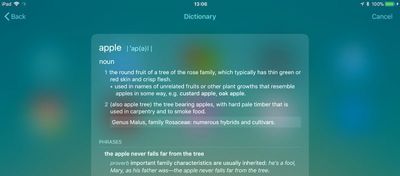
dictionary in ios11
There are a couple of ways to access the dictionary which we've outlined below. Keep them in mind, and with a little luck, you won't have to consult a physical dictionary, a third-party dictionary app, or an online definition service the next time you want to know the meaning of a word.

How to Get a Word Definition

  1. On your iOS device, swipe right on the Lock screen or Home screen to display the Today view. Alternatively, swipe down on the Home screen to invoke the Search screen.

  2. Tap the search field if it isn't already active, and begin typing the word that you want to define. (You can also tap the microphone icon and say the word – if you know how to pronounce it.)

  3. Read the dictionary definition preview that appears in the search results, or tap it to see the extended definition.
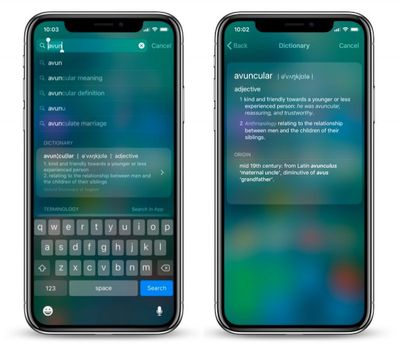
ios 11 dictionary 1
In our experience, these definitions can occasionally get mixed up with Wikipedia suggestions from Siri. If you want to increase the chances that you get a dictionary definition first, go to Settings -> Siri & Search and toggle off Suggestions in Search.

How to Look Up a Word Within an App

If you come across a word you don't know in a document or email, or even when browsing the web, use the following method to look up its definition.

  1. Tap and hold your finger on the word to highlight it.

  2. Tap Look Up in the pop-up menu.

  3. Read the dictionary definition preview that appears in the Look Up results, or tap it to see the extended definition.
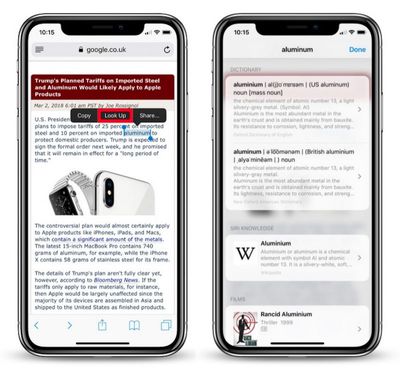
ios 11 dictionary look up 1
If you don't see any word definitions in the search results, it's likely you haven't got any dictionaries installed on your iOS device.

To remedy this, scroll down to the bottom of the results screen and tap Manage Dictionaries. You'll be presented with a list of dictionaries available to you. Simply tap the ones you want to download and they'll be automatically installed on your device.
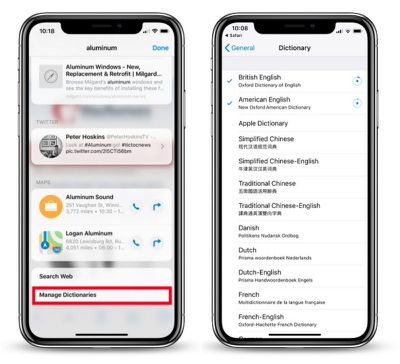
ios 11 dictionary lookup 2
The next time you look up a word, you'll get individual definitions from every dictionary that's installed. Note that you can add and remove dictionaries at any time by ticking/unticking them in Settings -> General -> Dictionary.

Finally, if you're seeking a more feature-rich lexical resource to explore words and phrases, check out the Terminology app for iPhone and iPad. [Direct Link]


Top Rated Comments

103 months ago
These how to guides are becoming spam when you have nothing else to report. Keep all this in one section so it doesn’t mix with actual rumors and news
More interesting and useful than a story about Carpool frickin’ Karaoke, thanks.
Score: 8 Votes (Like | Disagree)
unsharptooth Avatar
103 months ago
More interesting and useful than a story about Carpool frickin’ Karaoke, thanks.
Seriously, I want this kind of post. I moved to macOS like 6 months ago and iOS not even 2 years ago.
Score: 7 Votes (Like | Disagree)
IJ Reilly Avatar
103 months ago

[LIST=1]
* Tap the search field if it isn't already active, and begin typing the word that you want to define.

You aren't defining the word, the dictionary is defining the word. You are looking up the definition.

And that's the definition of define. You could look it up.
Score: 5 Votes (Like | Disagree)
AMTYVLE Avatar
103 months ago
Didn't know this. I hardly use the Search function on iOS. Thanks for this handy information!

....I also just found out the other day the Notes app can act as a document scanner. I told a bunch of people this when I found out, and they also didn't know. Apple should promote these functions more than they do.
Score: 5 Votes (Like | Disagree)
Aluminum213 Avatar
103 months ago
These how to guides are becoming spam when you have nothing else to report. Keep all this in one section so it doesn’t mix with actual rumors and news
Score: 5 Votes (Like | Disagree)
sully54 Avatar
103 months ago
I wish Apple would expand the dictionary on iOS to include a thesaurus like it does in macOS.
Score: 4 Votes (Like | Disagree)

Popular Stories

iOS 26

iOS 26.4 Adds Two New Features to CarPlay

Tuesday March 24, 2026 1:55 pm PDT by
iOS 26.4 was released today, and it includes a couple of new features for CarPlay: an Ambient Music widget and support for voice-based chatbot apps. To update your iPhone 11 or newer to iOS 26.4, open the Settings app and tap on General → Software Update. CarPlay will automatically offer the new features so long as the iPhone connected to your vehicle is running iOS 26.4 or later....
Apple Business hero

Apple Unveils 'Apple Business' All-in-One Platform

Tuesday March 24, 2026 8:53 am PDT by
Apple today announced Apple Business, a new all-in-one platform that unifies device management, productivity tools, and customer outreach features. The service is designed to be a consolidated replacement for several of Apple's existing business-focused offerings, including Apple Business Essentials, Apple Business Manager, and Apple Business Connect. It provides organizations with a single...
AirPods Pro Firmware Feature

Apple Releases New Firmware for AirPods Pro 3, AirPods Pro 2 and AirPods 4

Tuesday March 24, 2026 12:31 pm PDT by
Apple today released new firmware for the AirPods Pro 2, AirPods Pro 3, and the AirPods 4. The firmware has a version number of 8B39, up from 8B34 on the AirPods Pro 3, 8B28 on the AirPods Pro 2, and 8B21 on the AirPods 4. There is no word on what's included in the firmware, but Apple has a support document with limited notes. Most updates are limited to bug fixes and performance...