

Since macOS Sierra, Apple has included its well-known personal assistant, Siri, for the Mac. Siri for Mac differs from iOS' version of Siri in several ways, taking advantage of the larger real estate of a Mac's display and the Finder file system. Users can also easily transfer or pin Siri's search results to the Notification Center or documents they're working on. To help you get started with Siri for Mac, we've put together a guide outlining what it's capable of.
Activating Siri

There are four ways to activate Siri in macOS. Two of the methods are visually obvious while the third is not. The availability of the fourth handsfree method depends on the model of Mac.
- The Dock icon sitting in between the Finder and Launchpad logos.
- The Menu Bar toggle in between the Spotlight search and Notification Center icons.
- The keyboard command. Hold the Command and Space buttons for approximately two seconds.
- Saying simply "Hey Siri" handsfree to invoke the assistant.
Siri can be enabled two ways. While you're installing macOS, there'll be a prompt asking you whether you'd like to enable Siri. Additionally, Siri can be enabled and disabled in the Siri section of System Preferences. There are several other options for Siri in System Preferences, including language, voice, voice feedback, mic input and customized keyboard shortcuts.
What Siri for Mac Can Do
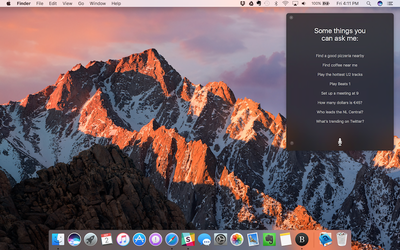
Siri for Mac can do most of the same things Siri for iOS can do. It can give you sports scores or tell you about the weather. Schedule an event on your calendar, remind you what you need to get done today or find movie times. Here's a full list of the things that carry over to the Mac.
- Launching and searching for apps.
- FaceTime and Messages
- Sports scores, team schedules, league standings, and player and team information.
- Photo search.
- Maps and navigation.
- Twitter and Facebook posting, plus Twitter search.
- Movie information, showtimes, movie theater locations, movie reviews and award trivia.
- Apple Music, radio and music identification.
- iTunes, iBooks and Podcasts.
- Reminders, calendar stocks, weather, contacts, clock, Find My Friends, email and notes.
- Web search and Q&A, like unit measurements, facts and figures, and simple math.
- Settings / System Preferences
Siri has two new abilities that are built specifically to take advantage of the Mac:
- Finder
- About this Mac
Siri's Mac-Specific Abilities
Unlike Siri for iOS, Siri for Mac's dialogue box only takes up a portion of the screen. This allowed Apple to build Siri to be better utilized for multitasking. For example, Siri can be used to send a message to a friend while you're writing an email or working on a document. It can also find restaurant reservations for you while you're in the middle of a conversation with a friend.
Because Siri is built for multitasking on a Mac, some of its results are more interactive, allowing you to combine them with other apps. These are some of the things you can do with Siri's results in macOS Sierra.
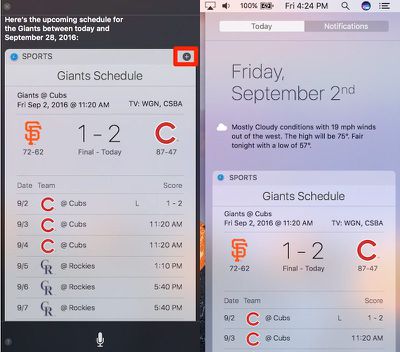
- Pin photo results or sports team schedules to the Notification Center by clicking the + icon.
- Drag files from Siri's Finder search to the desktop.
- Drag and drop search results from photo searches into emails, messages, documents and the desktop.
- Drag and drop map locations into emails, messages and documents.
Siri's Settings category is referred to as System Preferences to better match macOS' verbiage, but Siri can also do some things on a Mac that it can't do on an iPhone. These are new settings abilities Siri has gained:
- Putting your computer to sleep.
- Changing your desktop wallpaper.
- Changing your display settings.
Finally, there are some specific hardware requests that Siri can fulfill. In addition to asking Siri to turn up your volume or turn off your Bluetooth, Siri can tell you about your Mac.
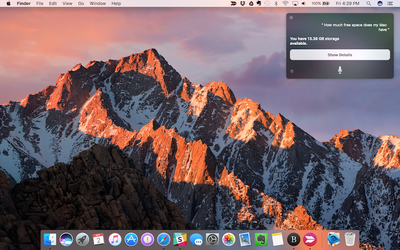
- How fast your Mac is.
- How much memory your Mac has.
- What your Mac's serial number is.
- How much free space your Mac's hard drive has.
- How much iCloud storage you have.
- What version of macOS you're running.
All of Siri's Mac abilities can be used at any time. Siri will pause any audio or video you might have been playing when you activated it. This includes audio and video in your web browser, like SoundCloud tracks or YouTube videos.
Siri's dialogue box will also stay on your screen no matter where you are, whether on the desktop or in a full-screen app. It'll also stay in place as you navigate to different spaces. Siri can be deactivated by clicking the small "x" in the top right corner of its dialogue box.



















Top Rated Comments
I posted instructions a long time ago: https://forums.macrumors.com/threads/how-to-enable-hey-siri-activation-on-a-mac-with-sierra.1983003/
I've got a Moto G Android phone as well and comparing Siri to OK Google, which gets almost everything right first time and actually provides the desired results as well, is just a night and day difference.
It's shocking how far behind Apple are in this respect. Must try harder.
BTW what's the emoji for sarcasm?