

Most of us stare at our iPhones for far too long, and this constant exposure to a bright screen can strain our eyes, especially in low-light conditions or during the twilight hours. That's where the ability to dim your iPhone screen beyond the standard brightness settings becomes a game-changer.

If the screen of your iPhone or iPad is too bright for comfort, the usual solution is to go to Settings ➝ Display & Brightness and drag the Brightness slider to the left, or open Control Center and adjust the corresponding setting from there. However, if the lowest setting offered by the Brightness level just isn't dim enough for you, there's another way to make your screen even darker.
This feature is particularly useful if you find yourself needing to use your device in dark environments, such as in a bedroom where a partner is sleeping, or in a dimly lit theater. It's also a boon for anyone with light sensitivity, providing a more comfortable viewing experience that minimizes eye strain and fatigue. Let's look at how to set it up below.
Reduce White Point
- Open Settings on your iPhone.
- Select Accessibility from the list of options.
- Scroll down and select Accessibility Shortcut.
- Tap Reduce White Point, then drag it up near the top of the list using the three lines icon.
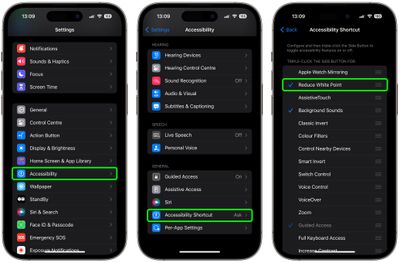
Now that's set up, simply triple-click your iPhone's Side button to display the Accessibility Shortcut menu, then tap Reduce White Point.
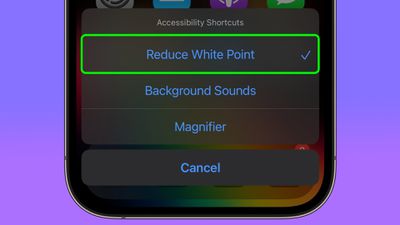
Your iPhone display will now be dimmer than the dimmest setting offered by the standard Brightness level.
Reset White Point
To return the white point to its normal level, simply triple-click the Side button again and tap Reduce White Point to uncheck it.
Adjust White Point
If the White Point is still too bright (or too dim), you can adjust it manually: In Settings, go to Accessibility ➝ Display & Text Size, then scroll down and turn on the switch next to Reduce White Point.
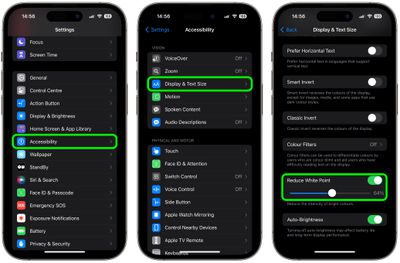
This will reveal a slider that you can move left or right to change the brightness level.
Trigger Reduced White Point at Bedtime
It's possible to make the Reduced White Point setting come on when Bedtime starts, or when your Sleep focus is enabled. This offers an automated approach to minimizing screen brightness, which is particularly beneficial for winding down before bedtime.
Blue light is known for its potential to disrupt natural sleep patterns by inhibiting the production of melatonin, a hormone crucial for sleep regulation. That makes an automation especially useful if you have a habit of reading or browsing on your iPhone as part of your nighttime routine, allowing you to do so without significantly impacting your sleep quality. Here's how it's done.
- Open the Shortcuts app, then tap the + icon in the top-right corner of the screen.
- Tap Add Action.

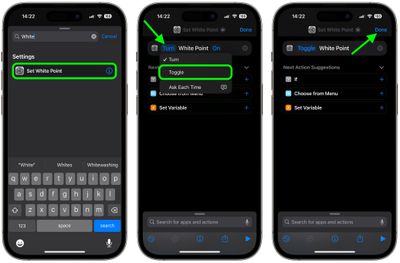
- Type "White Point" in the search field, then choose Set White Point when it appears below.
- Tap the blue "Turn" text, then choose Toggle from the dropdown menu.
- Tap Done in the top-right corner of the screen.
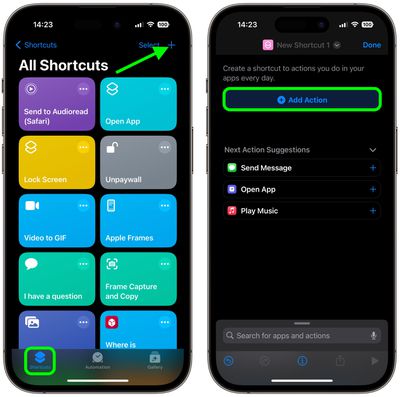
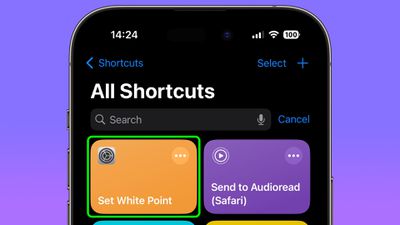
After following the above steps, you should see your new "Set White Point" shortcut in the Shortcuts menu.
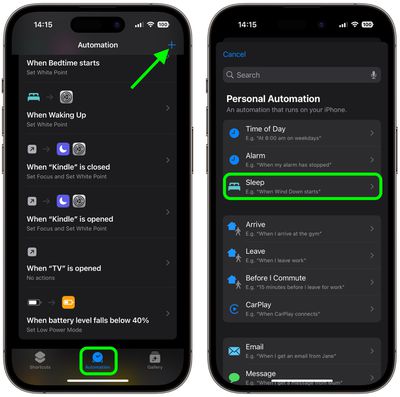
The Shortcut is now ready to use in a new custom automation. It's easy to make, just follow these steps.
- In the Shortcuts app, select the Automation tab, then tap the + icon in the top-right corner of the screen.
- Under "Personal Automation," choose Sleep.
- On the "When" screen, choose Bedtime Begins and Run Immediately, then tap Next.
- On the "When Bedtime Starts" screen, choose your custom Set White Point shortcut.
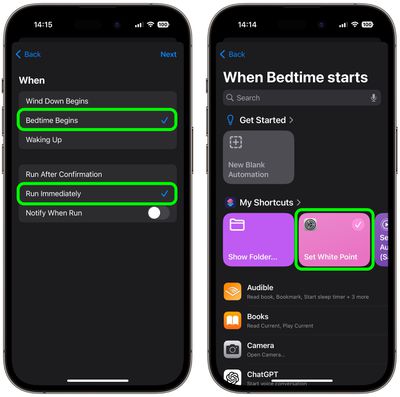
You're all done. In the future, when Bedtime starts or when you enable the Sleep focus, your screen's white point will be automatically reduced.
Trigger White Point When Bedtime Ends
To make sure the white point on your iPhone's display is reset when bedtime ends in the morning, you just have to create an additional automation. This basically involves the same steps you just used to create the first custom automation, except instead of choosing Bedtime Begins in step 3, select Waking Up. Here are those steps again for your convenience, but with a modified step 3.
- In the Shortcuts app, select the Automation tab, then tap the + icon in the top-right corner of the screen.
- Under "Personal Automation," choose Sleep.
- On the "When" screen, choose Waking Up and Run Immediately, then tap Next.
- On the "When Bedtime Starts" screen, choose your custom Set White Point shortcut.
That's it! The white point on your iPhone display will now return to normal when your bedtime ends.

















Top Rated Comments
Don’t use your phone in bed. It screws up your sleep. 🤷♂️
Accessibility > Zoom > Zoom Filter > Low Light
Accessibility → Accessibility Shortcut → Reduce White Point