If you want to give your children or other people access to your Mac, then it's worth familiarizing yourself with the user account restrictions available to you as administrator when you enable parental controls.
In macOS, Apple includes the ability to manage various levels of restrictions for individual user accounts. So if for example your children use your Mac, it's easy to control individual access based on their age.

But while many of these settings are aimed at restricting what children can do, there are several options that may come in handy for limiting users of any age.
For example, you can create a whitelist of allowed apps and websites, set time limits based on a schedule, and even prevent users from changing the settings of peripherals like printers and scanners.
Follow the links to learn how to set up a guest account or set up a user account with parental controls enabled, and then meet us back here to learn how to manage the restrictions available to you.
How to Manage Restrictions in Parental Controls
- Click the Apple () symbol in the top left corner of your Mac's screen and select System Preferences....

- Select the Parental Controls preferences pane.
- Click the lock in the lower left corner of the window.
- Enter your admin password if prompted and click Unlock.
- Select the user account that you want to set restrictions for from the column on the left.
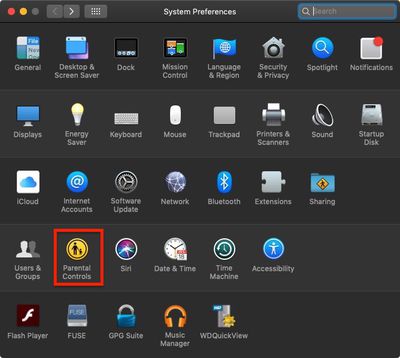
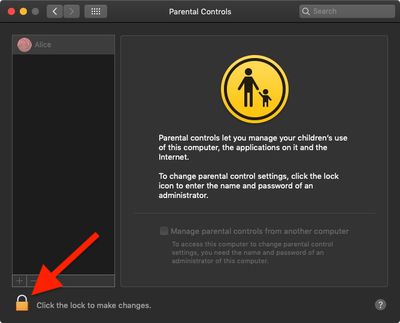
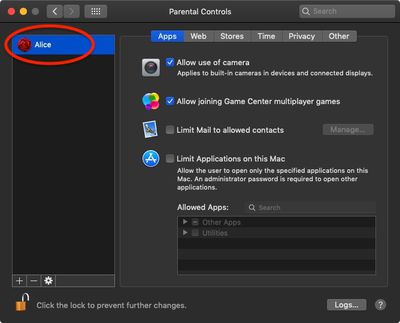
Following the above steps brings you to a number of restriction options that you can manage by clicking the associated tab. A summary of the various options follows.
- Apps: This menu lets you control access to your Mac's built-in camera, restrict the ability to join multiplayer games in Game Center, restrict use of Mail to known contacts, and limit access to installed apps.
- Web: This tab lets you limit access to websites via any browser.
- Stores: Here you can manage use of the iTunes Store, and limit access to music, movies, TV shows, apps, and books.
- Time: Schedule time limits so the account can only be used on weekdays, weekends, and bedtime, for example.
- Privacy: This menu lets you control which apps and services can access user data.
- Other: Options in this menu include disabling use of Siri and Dictation, preventing access to printer and scanner settings, burning discs, hiding profanity in dictionaries and wikis, and preventing the Dock from being modified. You can also opt from here to present a simplified view of the Mac desktop.
To learn how to turn off parental controls for a specific user account, click here.