One of the Apple Watch's most greatest features is the ability to keep you connected to your notifications without needing to have your iPhone in your hand or even in your pocket all of the time.
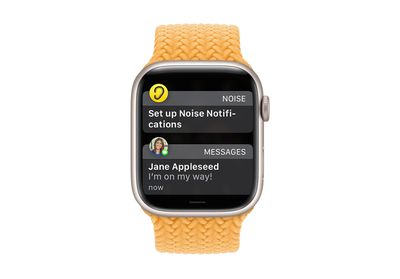
If your iPhone is unlocked, you'll get notifications on your iPhone instead of your Apple Watch. But if your iPhone is locked or asleep, you'll get notifications on your Apple Watch, unless your Apple Watch is locked with your passcode.
With Apple Watch, all of your notifications are at your fingertips, but what if you don’t want notifications from certain apps pinging your wrist all the time? Fortunately, it’s easy to change how you get notifications right on your Apple Watch.
You can choose to add notifications to the Notification Summary on your iPhone, you can opt to mute them for an hour or the rest of the day, or you can turn them off for a particular app completely. Here’s how.
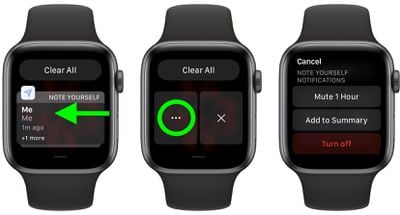
- Raise your wrist to wake your Apple Watch and swipe down from the top of the screen to reveal the Notification Center.
- Swipe left on a notification, then tap the More (three dots) button.
- Depending on the app, you will see some or all of the following options: Mute for 1 Hour, Mute for Today, Add to Summary, Turn off Time Sensitive, and Turn off.
Note that time-sensitive notifications are always delivered immediately, even if you’re using a Focus mode that delays most notifications. However, if you want to prevent this app from delivering even time-sensitive notifications immediately, tap this option.
To revert or change the Apple Watch notification settings for particular apps, open the Watch app on your iPhone, then tap the My Watch tab. Tap Notifications, and you’ll see a list of apps where you can adjust their individual notification settings.