
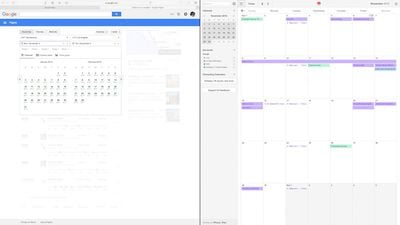
With the recent release of OS X El Capitan, Mac users can now take advantage of full-screen apps in a split screen view. That is, a compatible app will zoom to take up an entire half of the screen and you can do the same with a second one, giving you two apps side-by-side in full-screen mode.

While the basics of Split View are simple, there are a few aspects you might want to get familiar with to make the most productive use of the feature.
How to Split Screen Main
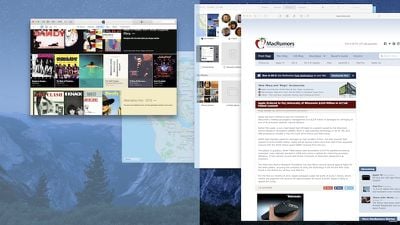
To activate Split View, click and hold on the green expand button in the upper left corner of a compatible app's window.
How to Split Screen 001
While you are holding down the button, one side of the screen will be shaded in blue. Release the button and the app will automatically format to fit half of the screen.

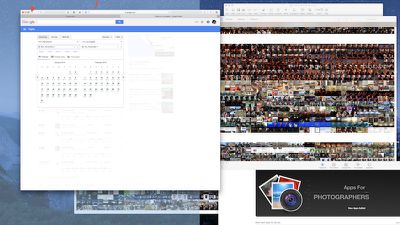
At the same time, any compatible apps that are open will automatically shift to the opposite side of the screen. Any apps that are not compatible will shrink down into the lower right corner of the screen. If you try to access them, you will receive a notification that the app isn't available in Split View mode.

How can you tell which apps are compatible with Split Screen and which aren't?
How to Split Screen Green Button
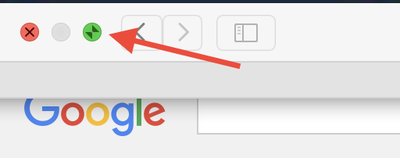
That green button in the upper left corner of every app window is the indicator. If the app is compatible, you'll see two opposing arrows when you hover over the button. If not, you'll see the familiar plus (+) symbol instead.

If Split View doesn't work for you, you may need to enable it in System Preferences. Click on the Apple icon in the upper left corner of the screen and select System Preferences. Click on Mission Control and then select "Displays have separate Spaces." You may have to restart your computer to update the changes.
How to Split Screen Mission Control 1
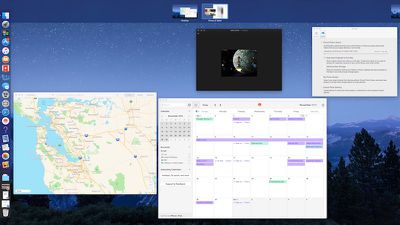
You can also enable Split View using Mission Control. When one app is in Full Screen, activate Mission Control by pressing F3 on a MacBook or Apple keyboard or swiping up with four fingers on a trackpad that has gestures enabled. When all open apps appear on the screen, select the one you wish to add to Split View and drag it to the multitasking tray at the top of the screen next to app that was previously full screen. Mission Control also works for replacing one app with another in the same way.

You can switch focus from one app to the other without using a mouse by pressing command + tab on your keyboard.

Split View doesn't mean that you have to have both apps taking up 50% of the screen. You can adjust the width by dragging the vertical line between the windows to the left or right. You can also swap apps. If you prefer working in Pages on the left side of the screen with Safari open on the right, simply drag one app to the other side and the two will switch automatically.

To find the menu bar for each app while in Split View mode, select a side and then hover the pointer over the top of the screen. The menu bar will drop down.
How to Split Screen 1
When you are ready to leave Split Screen mode, click on the green button again and the app you closed will reduce to its previous size and the remaining app will increase to full screen. You can also press the ESC key.

With Split View mode in El Capitan, you may discover your productivity will increase while you make better use of the screen space on your Mac.


Related Forum: OS X El Capitan

Top Rated Comments

captain cadet Avatar
134 months ago
As much as I hate saying this, its so much easier in Windows where you drag the window to the side of the screen and it snaps into place or you press windows and the arrow key where you want to go.
Its so much easier and I don't actually use this features as its a little longer to do
Score: 12 Votes (Like | Disagree)
btrach144 Avatar
134 months ago
Microsoft did a better job of implementing this. Still a neat feature to have/use though.
Score: 5 Votes (Like | Disagree)
Spink10 Avatar
134 months ago
Better Snap Tool - completely destroys this lame El Capitan feature.
Score: 5 Votes (Like | Disagree)
nezr Avatar
134 months ago
I'd rather slide through multiple desktop screens than to do split screen.
Score: 4 Votes (Like | Disagree)
4ndrw Avatar
134 months ago
BetterSnapTool. Have been using that for years (well before El Capitan was released). Way better then split view as I have the benefit of expanding any app to half the screen and still having multiple apps in the other half. I can also expand windows to just a quarter of the screen and it can all be done by dragging to the edge.
Yup. I've been using BetterSnapTool for years also.

It's fantastic.
Score: 2 Votes (Like | Disagree)
ignatius345 Avatar
134 months ago
As much as I hate saying this, its so much easier in Windows where you drag the window to the side of the screen and it snaps into place or you press windows and the arrow key where you want to go.
Its so much easier and I don't actually use this features as its a little longer to do
You can also drag your window up to the top thumbnail of the full-screen app where you want it to end up. This is much easier to do than to describe :)
Score: 2 Votes (Like | Disagree)

Popular Stories

Apple Logo Zoomed

Tim Cook Teases Plans for Apple's Upcoming 50th Anniversary

Thursday February 5, 2026 12:54 pm PST by
Apple turns 50 this year, and its CEO Tim Cook has promised to celebrate the milestone. The big day falls on April 1, 2026. "I've been unusually reflective lately about Apple because we have been working on what do we do to mark this moment," Cook told employees today, according to Bloomberg's Mark Gurman. "When you really stop and pause and think about the last 50 years, it makes your heart ...
wwdc sans text feature

Apple Rumored to Announce New Product on February 19

Thursday February 5, 2026 12:22 pm PST by
Apple plans to announce the iPhone 17e on Thursday, February 19, according to Macwelt, the German equivalent of Macworld. The report, citing industry sources, is available in English on Macworld. Apple announced the iPhone 16e on Wednesday, February 19 last year, so the iPhone 17e would be unveiled exactly one year later if this rumor is accurate. It is quite uncommon for Apple to unveil...
Finder Siri Feature

Why Apple's iOS 26.4 Siri Upgrade Will Be Bigger Than Originally Promised

Friday February 6, 2026 3:06 pm PST by
In the iOS 26.4 update that's coming this spring, Apple will introduce a new version of Siri that's going to overhaul how we interact with the personal assistant and what it's able to do. The iOS 26.4 version of Siri won't work like ChatGPT or Claude, but it will rely on large language models (LLMs) and has been updated from the ground up. Upgraded Architecture The next-generation...
iOS 26

iOS 26.3 and iOS 26.4 Will Add These New Features to Your iPhone

Tuesday February 3, 2026 7:47 am PST by
While the iOS 26.3 Release Candidate is now available ahead of a public release, the first iOS 26.4 beta is likely still at least a week away. Following beta testing, iOS 26.4 will likely be released to the general public in March or April. Below, we have recapped known or rumored iOS 26.3 and iOS 26.4 features so far. iOS 26.3 iPhone to Android Transfer Tool iOS 26.3 makes it easier...
iphone 17 pro dark blue 1

iPhone 18 Pro Max Rumored to Deliver Next-Level Battery Life

Friday February 6, 2026 5:14 am PST by
The iPhone 18 Pro Max will feature a bigger battery for continued best-in-class battery life, according to a known Weibo leaker. Citing supply chain information, the Weibo user known as "Digital Chat Station" said that the iPhone 18 Pro Max will have a battery capacity of 5,100 to 5,200 mAh. Combined with the efficiency improvements of the A20 Pro chip, made with TSMC's 2nm process, the...














