

Google's Chrome browser has long been criticized for being a system resource hog, which is why Chromium developers have been busy working on ways to free up memory and keep things running smoothly when users have multiple windows and tabs open.
The latest effort in that regard comes in the form of Memory Saver, a new feature that deactivates open tabs you haven't used in a while so that the tabs you are using offer the smoothest possible experience. With Memory Saver enabled, your inactive tabs remain open, and when you access an inactive tab, it reloads automatically.
Google claims the new Memory Saver feature means Chrome uses up to 40% and 10GB less memory. The company says the new performance setting is particularly good at keeping active video and gaming tabs running smoothly.
Google is rolling out Memory Saver mode over the next several weeks globally for Windows, macOS, and ChromeOS, but not everyone will see it yet. Fortunately, if the new Settings -> Performance menu is not visible for you, you can activate it manually by using the experimental features in Chrome Flags. The steps below show you how.
How to Enable Memory Saver Mode in Chrome
Before you proceed, be sure to bookmark any important tabs and save anything important that you're working on in Chrome, then update the browser to the latest version available (109.0.5414.119 as of writing).
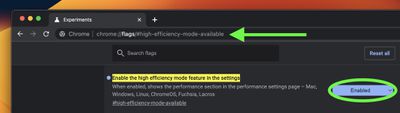
- Launch Chrome and paste the following into the address bar: chrome://flags/#high-efficiency-mode-available
- Next to "Enable the high efficiency mode feature in the settings", change the Default setting to Enabled, then restart Chrome.

- Now paste the following into the address bar: chrome://settings/performance
- In the new "Performance" menu, toggle the switch next to Memory Saver to enable it.
- Restart Chrome for the changes to take effect.
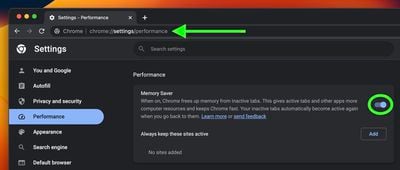
After you've done that, Memory Saver will be working in the background to free up memory for other tasks. You can can control the mode at any time by clicking Settings in the three-dot menu and selecting the "Performance" sub-menu. It's also here that you can stop Chrome from deactivating specific sites, using the Add button next to "Always keep these sites active."
Google cautions that there are a few settings and activities that may prevent tab deactivation. They include active audio calls or video playback, screen shares, page notifications, active downloads, partially filled forms, and connected devices via USB or Bluetooth.
How to Enable Energy Saver Mode in Chrome
Apart from Memory Saver, Google is also rolling out an Energy Saver mode that makes Chrome automatically limit battery draining tasks when the battery hits 20 percent. It does this by reducing its image capture rate and other background tasks, so you may notice changes in gaming and video performance. Google advises turning it on to extend your device's battery for a long road trip or plane ride.
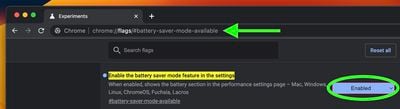
The mode can be toggled on or off in the same "Performance" page in Settings. If you don't see it and don't want to wait for it to roll out to you, simply follow the same steps as above, but replace the address in Step 1 with chrome://flags/#battery-saver-mode-available and select Enabled next to "Enable the battery saver mode feature in the settings," then restart the browser.
Have you had success with the new Memory Saver or Energy Saver modes in Chrome? Let us know in the comments.




















Top Rated Comments
A few tabs, OK, but a dozen or more?
“Google claims the new Memory Saver feature means Chrome uses up to 40% and 10GB less memory.”
My brother in Christ how do you consume up to 10GB of memory in the first place
Step 1: Don't use Chrome
Done