

If you experience issues running macOS Big Sur on your M1 MacBook Air, M1 MacBook Pro, or M1 Mac mini, or you want to start afresh with a new installation of the operating system, you'll need to boot into macOS Recovery, which is done slightly differently on Apple Silicon Macs compared to Intel machines.
Keep reading to learn how to start up in macOS Recovery and reinstall macOS 11 Big Sur on your M1-powered machine.
How to Start Up in macOS Recovery and Reinstall macOS
- Turn on your Mac and continue to press and hold the power button until you see the startup options window.
- Select the gear icon labeled Options, then click Continue.
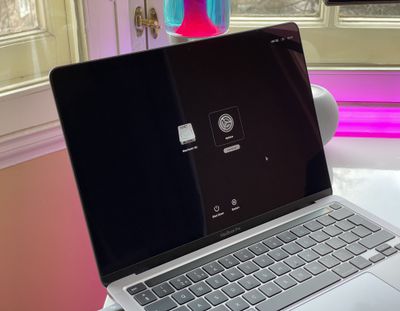
- If you're asked to select a user that you know the password for, select the one you want, click Next, then enter their admin password.
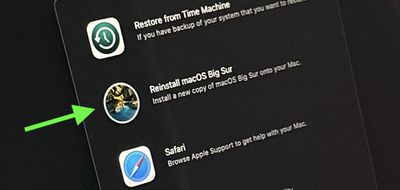
- When macOS Recovery has loaded, select Reinstall macOS from the utilities window.

- Click Continue and follow the installer's instructions.
If the installer offers you a choice between installing on Macintosh HD or Macintosh HD Data, choose Macintosh HD.
Once the macOS installation process is underway, your Mac may restart a show a progress bar several times, and the screen might be empty for minutes at a time. These restart events can be expected and aren't anything to worry about. If the installer doesn't see your disk, or says it can't install on your Mac or volume, you may need to erase the disk first using Disk Utility.
Note that if you erased your M1 Mac before updating to macOS Big Sur 11.0.1, you might be unable to reinstall macOS from macOS Recovery. A message might say "An error occurred while preparing the update. Failed to personalize the software update. Please try again." If this happens, Apple suggests creating a bootable installer using another Mac, otherwise you'll have to follow a more technical process involving Terminal to restore your Mac.




















