How to Reset Your Mac's Bluetooth Module to Fix Connection Issues - MacRumors
Skip to Content

How to Reset Your Mac's Bluetooth Module to Fix Connection Issues

by

BluetoothIconXBluetooth is what your Mac uses to connect to wireless devices like keyboards, mice, trackpads, speakers, and other peripherals. Generally, it's a reliable technology. At some point however, the chances are you'll run into difficulty establishing a Bluetooth connection with one or more of your devices.

Most problems can be fixed by unpairing and repairing the Bluetooth device, changing its batteries, rebooting your Mac, or performing an SMC reset. But if none of these methods work, you can always try resetting your Mac's Bluetooth module. Here's how to do it in macOS using the hidden Bluetooth Debug menu.

How to Reset Your Mac's Bluetooth Module

Before proceeding, bear in mind that if your setup relies exclusively on Bluetooth for communicating with your keyboard and mouse, then you're going to temporarily lose connection to them using the following methods, so you might want to have a backup wired input device option just in case.

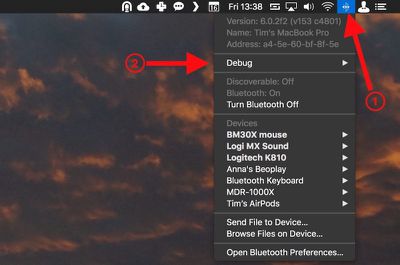
  1. Holding the Shift + Option (Alt) keys on your Mac's keyboard, click the Bluetooth symbol in the top-right corner of the macOS menu bar. (If you don't see it there, you need to check Show Bluetooth in menu bar in System Preferences -> Bluetooth.)
    macos bluetooth debug menu bar

  2. Locate the revealed Debug submenu and hover your mouse cursor over it.

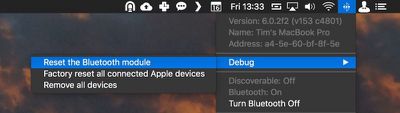
  3. Click Reset the Bluetooth module.
    macos reset Bluetooth module

  4. Now, restart your Mac.

You'll notice a couple of other potentially useful options in the Debug submenu. Factory reset all connected Apple devices does exactly what it says – forces any Apple-branded Bluetooth accessories back to the default settings they came with out of the box. It's a reliable fallback option if you've tried everything else to fix a connection issue, including resetting the Bluetooth module.

Lastly, the Remove all devices option might prove useful if you're moving your Bluetooth mouse and keyboard to another Mac, for example. However, you can also remove devices on an individual basis from the macOS menu bar, as long as you hold down Shift + Option (Alt) before you click the Bluetooth symbol.
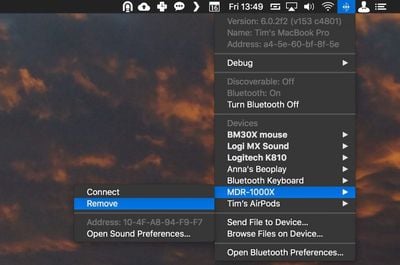
remove Bluetooth device macOS
Removing devices in this manner means you're not also banishing a whole bunch of other established Bluetooth connections like speakers and so on that you might want to keep.


Top Rated Comments

105 months ago
Enjoying all these hints lately a lot more than "news" about iOS games or rumored emoji changes.

Kind of reminds me of that great OS X Hints site (now defunct), if anybody remembers that. http://hints.macworld.com
Score: 7 Votes (Like | Disagree)
105 months ago
get some AirPods. They work great
Not sure how that’d help with my car system, Bluetooth speaker from Bose, etc.
Score: 3 Votes (Like | Disagree)
Rychiar Avatar
105 months ago
I find Bluetooth frustrating with my iPhone. My headset never auto-connects and I have to manually do it in settings. We should've come further than this.
get some AirPods. They work great
Score: 2 Votes (Like | Disagree)
Traverse Avatar
105 months ago
This is actually very useful. I’ve had problems with BT every so often
Score: 2 Votes (Like | Disagree)
Benz63amg Avatar
73 months ago

Thanks for this article; resetting the bluetooth module solved my year-old problem!
What problem was it?
Score: 1 Votes (Like | Disagree)
105 months ago
I find Bluetooth frustrating with my iPhone. My headset never auto-connects and I have to manually do it in settings. We should've come further than this.
No kidding. I was going to ask how to do this in iOS. Ever since iOS 11 (or maybe my iPhone X) Bluetooth has been amazingly buggy. I’ve had conversations with Apple which usually end in reloading the iPhone or the need for a new iPhone, but the problems persist.
Score: 1 Votes (Like | Disagree)

Popular Stories

iOS 26

iOS 26.4 Adds Two New Features to CarPlay

Tuesday March 24, 2026 1:55 pm PDT by
iOS 26.4 was released today, and it includes a couple of new features for CarPlay: an Ambient Music widget and support for voice-based chatbot apps. To update your iPhone 11 or newer to iOS 26.4, open the Settings app and tap on General → Software Update. CarPlay will automatically offer the new features so long as the iPhone connected to your vehicle is running iOS 26.4 or later....
Apple Business hero

Apple Unveils 'Apple Business' All-in-One Platform

Tuesday March 24, 2026 8:53 am PDT by
Apple today announced Apple Business, a new all-in-one platform that unifies device management, productivity tools, and customer outreach features. The service is designed to be a consolidated replacement for several of Apple's existing business-focused offerings, including Apple Business Essentials, Apple Business Manager, and Apple Business Connect. It provides organizations with a single...
AirPods Pro Firmware Feature

Apple Releases New Firmware for AirPods Pro 3, AirPods Pro 2 and AirPods 4

Tuesday March 24, 2026 12:31 pm PDT by
Apple today released new firmware for the AirPods Pro 2, AirPods Pro 3, and the AirPods 4. The firmware has a version number of 8B39, up from 8B34 on the AirPods Pro 3, 8B28 on the AirPods Pro 2, and 8B21 on the AirPods 4. There is no word on what's included in the firmware, but Apple has a support document with limited notes. Most updates are limited to bug fixes and performance...