

This article explains how to use Safari's Private Browsing mode, which prevents your browsing history from being logged on your Apple devices. It's a useful feature if you're buying gifts online for friends or family, for instance, and you don't want anyone with access to your devices to find out what you're up to.

Of course, if you've already been browsing where you shouldn't have and didn't use Safari's dedicated privacy mode, don't worry – we'll also show you two different ways of deleting your existing browsing history. Keep reading to find out how.
Using Safari's Private Browsing Mode
Enabling Private Browsing limits Safari in three important ways: It prevents the browser from creating a history of the pages you visit, it stops AutoFill information like website usernames and passwords from being remembered, and any tabs you open won't be stored in iCloud.
Also, for added peace of mind when you browse privately, Safari automatically prevents cross-site tracking, and requests that sites and third-party content providers don't track you as a rule. Additionally, the privacy mode stops sites from modifying any information stored on your iOS device, and deletes cookies when you close the associated tab.
To enable Private Browsing in Safari, follow these steps.
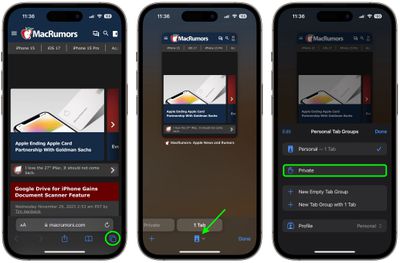
- Open Safari on your iPhone or iPad, tap the Pages icon (consisting of two squares) to bring up the open tabs view, and then tap the profile icon, centered at the bottom of the screen.
- Tap Private in the pop-up menu card to open a private tab. (You may have to authenticate with Face ID or your passcode.)

- When you're done browsing, return to the open tabs view, individually swipe any open tabs to close them if you wish.
- Tap the profile icon again, then choose your regular profile at the top. Your private browsing session is now cleared from memory.
Clearing Existing Browsing History
When you clear your browsing history on a device running iOS 11 or higher, the same logs are cleared on any other devices signed into your iCloud account. The following methods also clear all cookies and web data on the device you're currently using, although AutoFill information remains unchanged.
Method 1
The first method outlined below allows you to either limit the clearing of history, cookies and website data to a specific timeframe, or to delete your existing web history altogether.
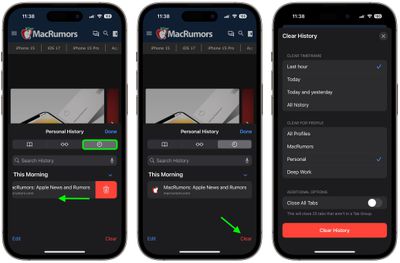
- Open Safari and with a tab open, tap the Bookmarks icon (the open book) located at the bottom of the screen.
- Tap the tab at the top of the screen with a clock symbol, and you'll see a history of your browsing activity.
- To remove instances of recorded visits to specific web pages, swipe leftwards across individual logs in the list and tap the red delete button that appears.
- To delete the entire browsing history list, tap Clear.
- Choose the timeframe to clear (Last hour, Today, Today and yesterday, or All history), choose the profile or select All Profiles, then tap Clear History.
Method 2
The second method of wiping your browsing history might be considered the 'nuke' option, since it clears all history, cookies and website data on that device, regardless of when the sites were accessed.
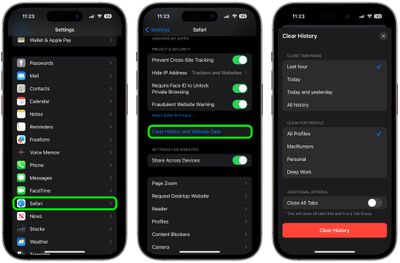
- Open the Settings app and scroll down to Safari in the list.
- Tap the "Clear History and Website Data" option near the bottom of the menu. (Note that this setting might be grayed out if there's already no history to clear or if parental controls are set for websites.)
- Choose the timeframe to clear (Last hour, Today, Today and yesterday, or All history), choose the profile or select All Profiles, then tap Clear History.
- Tap Clear History and Data in the pop-up menu to confirm.
And that's it. Note that these built-in Safari features only make you safer from discovery by other people in the same household.
If your privacy concerns extend to a desire for enhanced security and anonymity online, consider subscribing to a Virtual Private Network (VPN) service that offers an iOS client or supports OpenVPN (Private Internet Access and ProtonVPN are two popular options), and using a Tor-powered browser for iOS.

















Top Rated Comments
In all seriousness, great article.
That’s one euphemism I need to work into more conversations.
[doublepost=1517460866][/doublepost]Just saying...