

After several years of iterations and improvements, Apple Maps has become a solid app and a viable Google Maps alternative for getting GPS-based directions to navigate journeys by car, public transport, bicycle, and on foot.
Depending on the journey though, you may want to print off a list of turn-by-turn directions to refer to instead of relying on your iPhone and draining the battery. Or you might just want to see the list of directions onscreen to familiarize yourself with them ahead of time. This article shows you how it's done.
Directions Between Your Current Location and a Destination
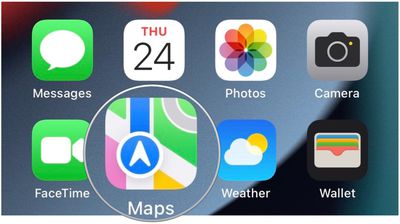
- Launch the Maps app on your iPhone and enter the destination you want turn-based guidance for.
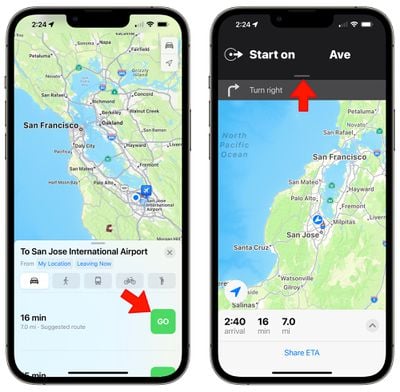
- Select a method of transport using the icons at the top of the route card, then tap Go on one of the routes that interests you.

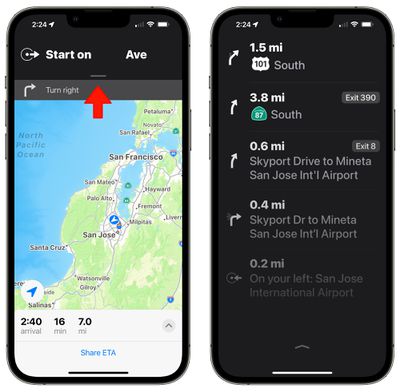
- On the next screen, tap on the black bar at the top of the display.
- You'll see the full list of turn-based directions. Tap again to clear it and go back to the turn-by-turn directions view.
Directions Between a Separate Location and a Destination
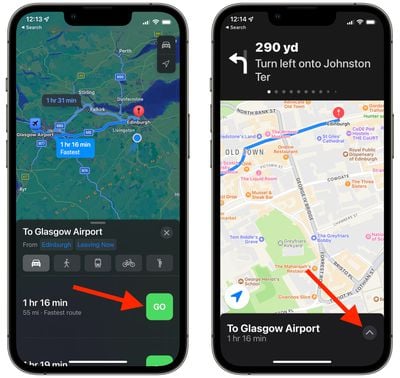
If you're routing between two locations and one of those locations is not your current location, the interface looks a little bit different. Rather than pulling down to get to the directions, you can tap up on the arrow to see full details and get an option to print the directions.
- Launch the Maps app on your iPhone and enter the destination you want turn-based guidance for.
- Select a method of transport using the icons at the top of the route card, then tap Go on one of the routes that interests you.
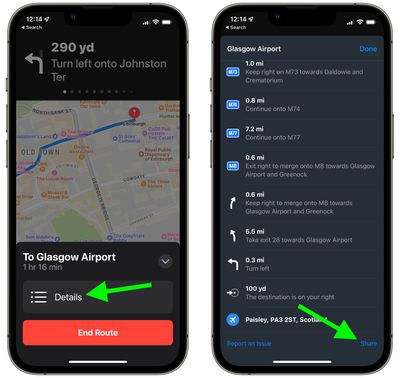
- On the next screen, tap the upward-facing chevron at the bottom-right corner of the screen.
- Tap the Details button that appears in the card.
- You'll see the full list of turn-based directions. To print the list, scroll to the bottom and then select Share.
- Select Print in the actions menu, or alternately, AirDrop it to a nearby device that's connected to a printer.
In iOS 15, has brought several major improvements to the Maps app, with better driving directions, improved transit directions, and more immersive AR-based walking directions. For more information on what's new, be sure to check out our dedicated Maps guide.
















