In macOS Sonoma and Safari 17, Apple has added a new web browsing feature for Safari called Profiles that's designed to help separate your browsing sessions into things like Work, School, or Personal. Keep reading to learn how it works.
In macOS Sonoma, Apple has expanded on Tab Groups with a Profile feature that is designed to let you separate your browsing for different use cases. You can create a "Work" profile and a "Personal" profile, for example, so all of your work-related browsing is kept separate from your personal browsing.
Each profile gets its own icon and silos your history, Tab Groups, Favorites, Private Browsing tabs, and cookies. You can even assign specific extensions to different profiles to optimize your browsing experience based on the task at hand.
How to Create a Safari Profile on Mac
To set up profiles in Safari, simply follow these steps:
- In Safari, select Safari ➝ Settings... from the menu bar.

- Click the Profiles section.
- Click the + button to add a new profile.
- Give your new profile a name, symbol, and tab color.
- Choose your settings for Favorites, New Windows, and New Tabs.
- Click the Extensions tab, then check the box next to any installed extensions you want to enable for the profile.
- Click the red button to close the settings window and save your changes.
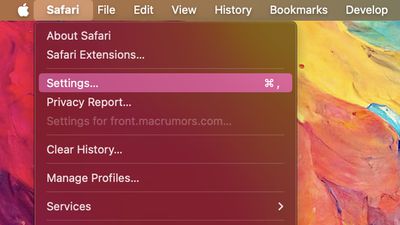
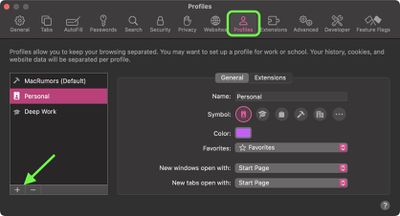
Note that when you create a new profile, your device will automatically generate a "Personal" profile to differentiate other browsing sessions conducted outside of the profile you created. Both profiles and additional ones you create can be edited in the same section of Safari's Settings. You can also delete existing profiles if desired.
How to Switch Between Profiles in Safari
In Safari, simply click the colored profile button and select New [Profile name] Window to start a new windowed session in the chosen profile.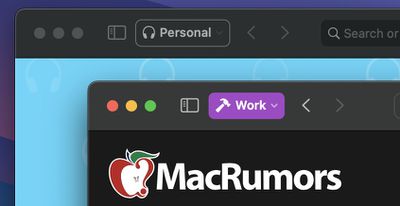
The Safari Profiles feature is available in iOS 17, iPadOS 17 and macOS Sonoma, as well as being part of Safari 17 for macOS Monterey and macOS Ventura. Any profiles you create will be synced across devices logged into the same Apple ID.